


WordPress 7.0 “Armstrong” shipped on 20 May 2026, six weeks after its original 9 April date, with more than 420 enhancements and fixes.
It brings an AI Client and a Connectors screen into core, a redesigned admin, visual revisions, new blocks and a higher PHP floor of 7.4. Real-time collaboration, the headline feature, was cut twelve days before launch.
Here is what actually shipped, what didn’t, and how to update safely now that 7.1 is out.
⚡ Quick answer
- Released: 20 May 2026. The 7.0 branch reached 7.0.8 on 28 October 2026, and WordPress 7.1 (19 August 2026) has since replaced it as the maintained version.
- Best for: anyone on 6.9 or older. The admin, editor and security changes are worth having.
- Skip it if: your host still runs PHP 7.2 or 7.3. Fix PHP first, or the update won’t install.
- Time needed: 30 minutes with a staging copy, plus a day of watching the error log.
- Our call: don’t aim for 7.0 today. Update straight to the latest 7.1.x, after a backup and a staging test.
Contents
- When was WordPress 7.0 released?
- What is new for AI in WordPress 7.0?
- What changed in the WordPress admin?
- What is new in the editor and blocks?
- What changed for developers?
- What did not ship in WordPress 7.0?
- WordPress 7.0 requirements: PHP and MySQL
- Is WordPress 7.0 safe to update?
- How to update to WordPress 7 safely
- What breaks and how to undo it
- Frequently Asked Questions
When was WordPress 7.0 released?
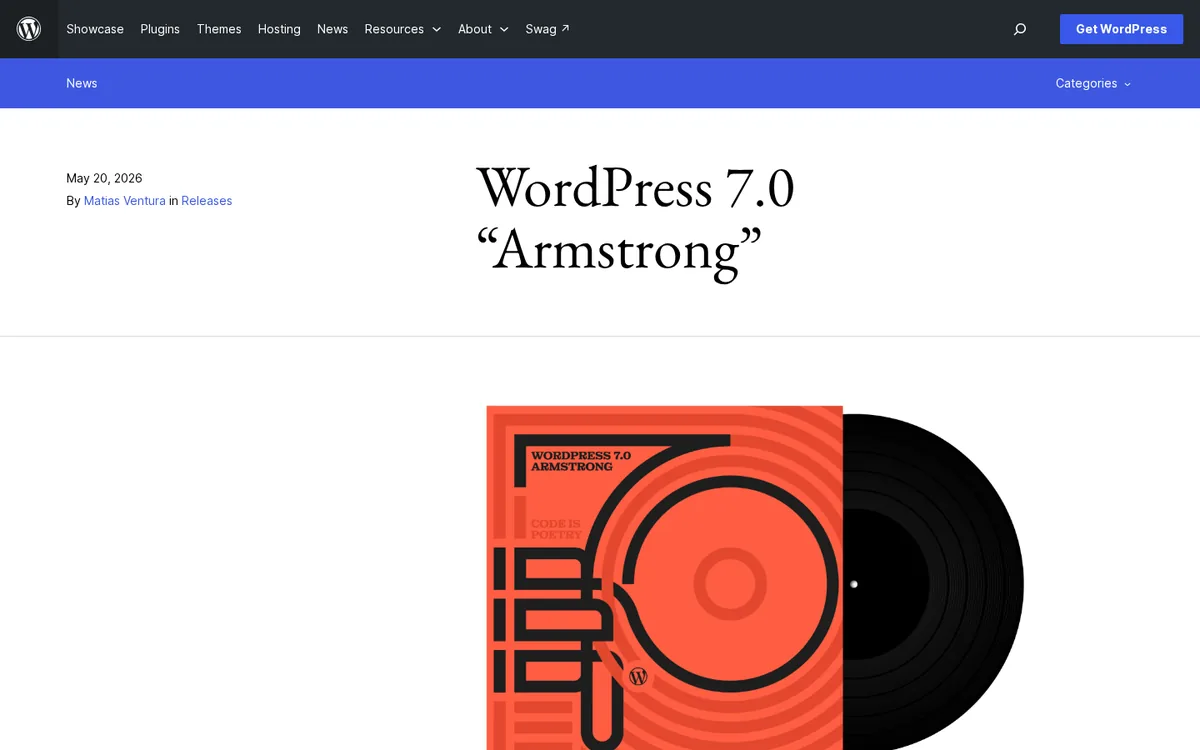
WordPress 7.0 was released on 20 May 2026, announced in the official “Armstrong” release post and named after jazz trumpeter Louis Armstrong. It was the first major release of 2026.
It was meant to land sooner. The core team’s schedule had 7.0 shipping on 9 April 2026.
At the end of March the cycle was extended to rethink how real-time collaboration should store its data, then the release candidates were restarted in May: RC3 on 8 May, RC4 on 14 May and RC5 on 19 May.
Since launch, the 7.0 branch has had eight maintenance releases, from 7.0.1 on 9 July to 7.0.8 on 28 October 2026. Some of them, like 7.0.4, were security releases.
| Version | Released | What it means for you |
|---|---|---|
| 7.0 “Armstrong” | 20 May 2026 | AI Client, Connectors, Modern admin, new blocks, PHP 7.4 minimum |
| 7.0.1 to 7.0.8 | 9 July to 28 October 2026 | Bug and security fixes on the 7.0 branch |
| 7.1 “Mary Lou” | 19 August 2026 | Responsive styling, new media editor, Playlist and Tabs blocks |
| 7.1.4 | 28 October 2026 | Latest release at the time of writing |
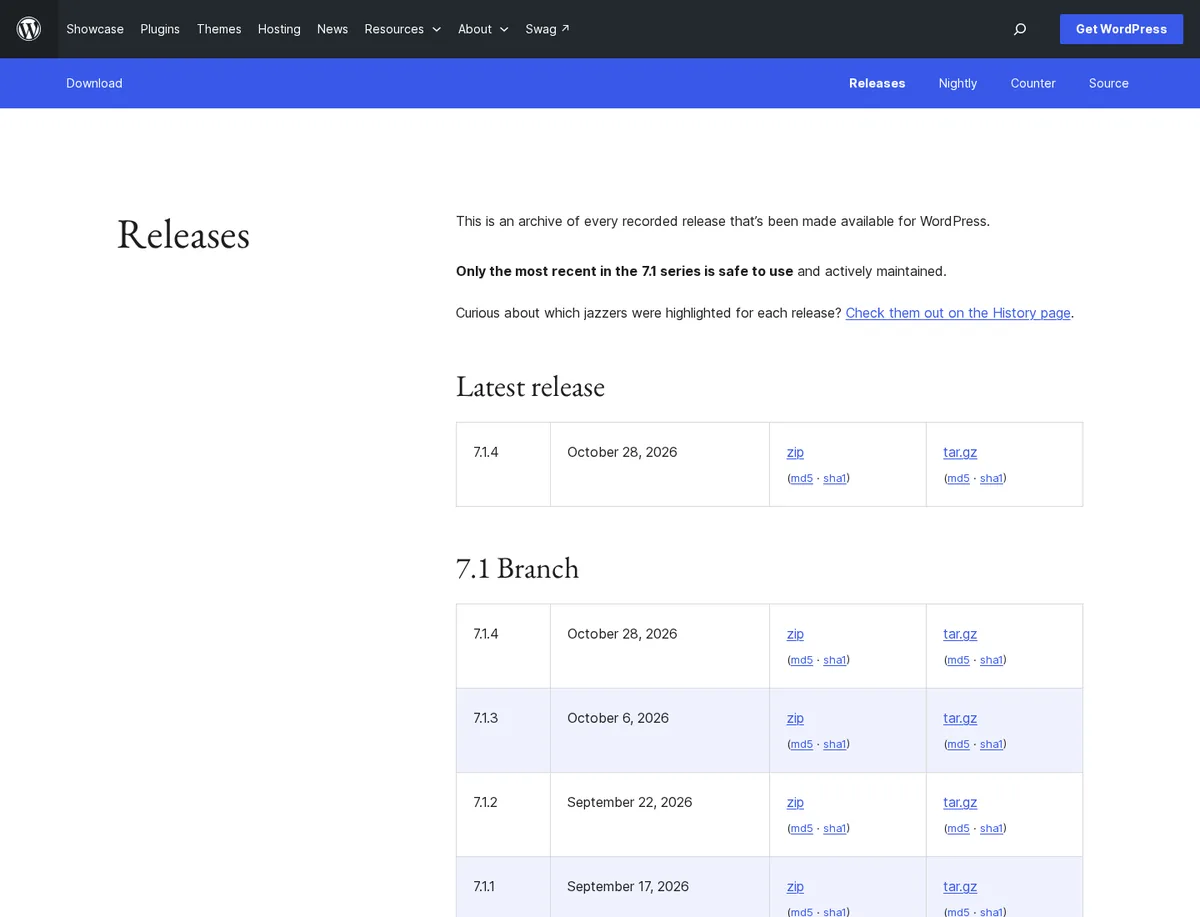
Here is the part most “what’s new” posts miss. The WordPress release archive now says that only the most recent release in the 7.1 series is safe to use and actively maintained.
So 7.0 is the release that introduced these features, but 7.1.x is the version you should actually be running.
What is new for AI in WordPress 7.0?
AI is the theme of the release, but read the fine print: 7.0 ships the plumbing, not a chatbot. Nothing generates text on your site until you connect a provider and install something that uses it.
The WP AI Client
The new AI Client gives plugins one standard way to talk to generative AI models.
Per the WordPress 7.0 Field Guide, it is provider-agnostic: core handles the request routing, and plugins state which models they prefer instead of each shipping its own integration.
In plain English, a plugin that writes alt text no longer needs its own API key box. It asks WordPress, and WordPress uses whichever provider you connected.
Settings → Connectors
API keys live on a new screen at Settings → Connectors. In 7.0 it comes with three default providers, Anthropic, Google and OpenAI, and plugins can register more.
You paste a key once and every plugin built on the AI Client can use it.
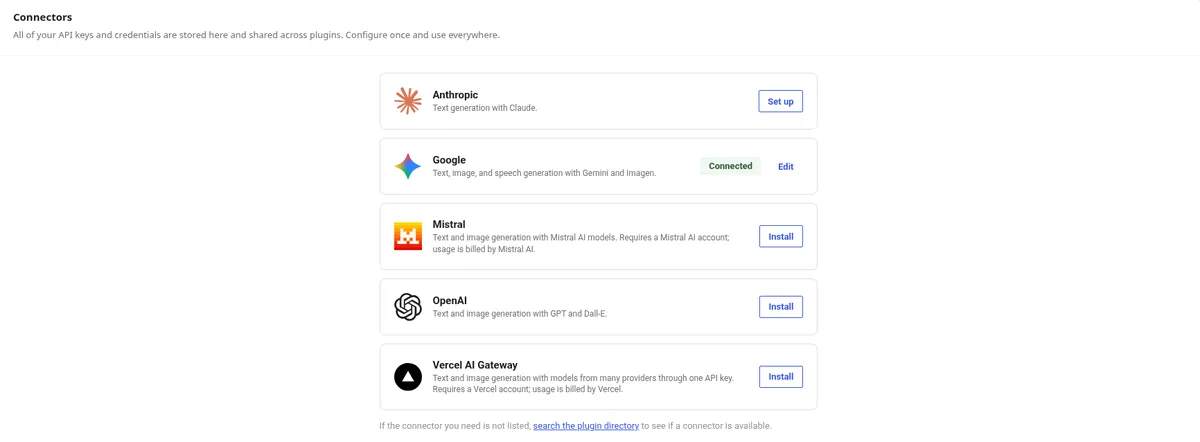
⚠️ The catch: usage is billed by the provider, not by WordPress. A plugin that calls a model on every save can run up a bill quietly, so check what a plugin does with your key before you connect one.
The Abilities API, now in JavaScript too
The Abilities API lets plugins describe what they can do in a way that software, including AI agents, can discover and run. WordPress 7.0 adds a client-side Abilities package with a built-in UI and command palette.
This is the same groundwork the MCP plugins in our list of WordPress MCP server plugins build on to let AI tools manage a site.
The optional AI plugin
The ready-made AI features sit in a separate, optional AI plugin: generating and editing images, writing titles and excerpts, and suggesting alt text.
Treat it like any other plugin from our free WordPress plugins roundup: install it if you will use it, skip it if you won’t.
Skip it if you don’t want AI anywhere near your content. Core does nothing with AI until you add a connector.
What changed in the WordPress admin?
The dashboard got its first proper refresh in years. The changes you will notice on day one:
- A new “Modern” colour scheme with higher contrast and updated typography across the admin.
- View transitions that slide between admin screens. They switch off if your operating system asks for reduced motion.
- A Command Palette shortcut (
⌘K/Ctrl+K) in the admin bar, so you can jump to tools from anywhere. - A dedicated Font Library page to install, upload and manage fonts. It works with block, hybrid and classic themes.
- Visual revisions: a slider that scrubs through a post’s history with markers showing what changed, block by block.
The Font Library is the quiet win for classic-theme sites. If you run one of the themes in our free WordPress blog themes list, you now get the same font management block themes had, without a fonts plugin.
There is also a security change worth knowing. Administrator and Editor were removed from the default role dropdown for new users under Settings → General, and Site Health warns you if one of those roles was set before the update.
What is new in the editor and blocks?
Most of the visible change happens in the block editor and Site Editor:
- New blocks: a Heading block with all levels as variations, a Breadcrumbs block, and an Icons block.
- Gallery lightbox slideshow: turn on “enlarge on click” and visitors can page through images.
- Video backgrounds in the Cover block through embedded videos.
- Hide blocks by device from the toolbar, sidebar or command palette, without touching other screen sizes.
- Custom navigation overlays: design the mobile menu with blocks and patterns, including a close button you place yourself.
- Patterns that act as one block, with “edit pattern” for full access when you need it.
- Custom CSS on a single block, right in the post or page.
The new blocks cover ground plugins used to own. Breadcrumbs and icons were two of the most common reasons to install a block library, so re-check what you still need from our Gutenberg blocks plugins roundup after updating.
Navigation overlays and per-device visibility matter most on block themes. If you are choosing one, our list of block themes for full site editing is a good starting point.
Building with a page builder instead? None of this changes how Elementor, Bricks or Divi render your pages. Elementor’s own editor overhaul is a separate story, covered in Elementor V4 explained.
On performance, WordPress.org lists more accurate image loading priority (hidden overlay images no longer compete with your main image), more reliable on-demand block CSS in classic themes, and scripts that can depend on script modules.
Useful, but not a speed fix on their own; our WordPress speed optimization guide covers what actually moves the needle.
What changed for developers?
If you build themes or plugins, these are the changes that need a look before you ship an update:
- The editor is iframed when every block on the page uses Block API version 3 or higher. Older blocks keep the non-iframed editor for backwards compatibility.
- contentOnly is now the default for patterns. Custom blocks inside a pattern need
"role": "content"on their content attributes to stay editable. - PHP-only block registration: declare
autoRegisterwith a render callback and the block registers without any JavaScript build. - Pattern Overrides for custom blocks through block bindings, plus a new
watch()function in the Interactivity API. - Library updates: PHPMailer 7.0.2, CodeMirror 5 with Espree for ES6 linting, and OPcache details in Site Health → Info.
PHP-only blocks are the change with the biggest reach. A dynamic block now needs only a PHP file, which suits the same server-side crowd that builds with custom fields.
register_block_type( 'my/offer', [
  'render_callback' => 'my_render_offer',
  'supports' => [ 'autoRegister' => true ],
] );
No JavaScript build step is needed for it to show up in the editor.
Block bindings and Pattern Overrides also make field data easier to show in blocks. If your content model already lives in fields, our roundup of custom field plugins for WordPress compares the tools that pair best with them.
What did not ship in WordPress 7.0?
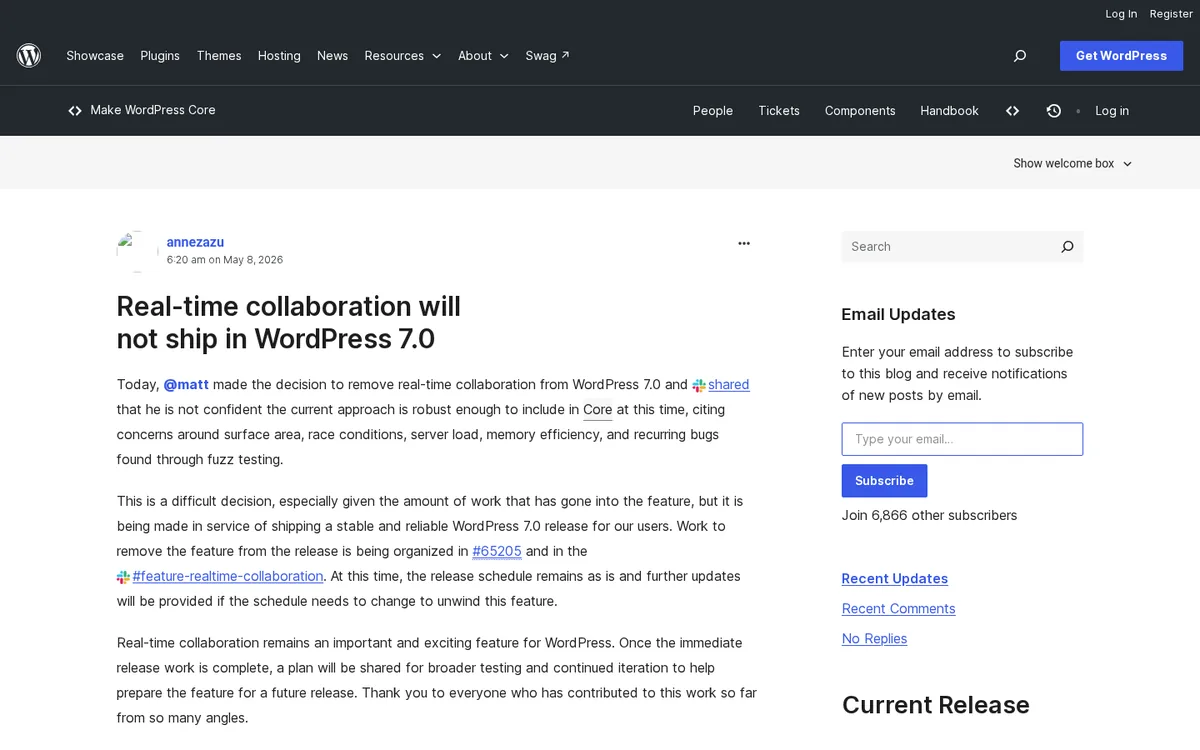
Real-time collaboration did not ship. Google Docs-style co-editing was the feature that delayed the release, and on 8 May 2026 it was removed from WordPress 7.0.
The stated reasons were surface area, race conditions, server load, memory efficiency and recurring bugs found through fuzz testing.
It isn’t in 7.1 either. A September 2026 post from the core team describes the current version as an experiment in the Gutenberg plugin and proposes a new, server-aware design where WordPress records and checks every change.
No target release has been named.
💡 Common mistake: trusting a feature list written before May 2026. Many early previews still list real-time collaboration as a 7.0 feature. If a post promises co-editing in core, it was written from the beta.
WordPress 7.0 requirements: PHP and MySQL
WordPress 7.0 raised the minimum PHP version to 7.4, dropping PHP 7.2 and 7.3. It is the first minimum-PHP increase since 6.6. Per the Hosting Team’s WordPress 7.0 server compatibility notes, the absolute minimums are:
| Software | Minimum for 7.0 | Recommended |
|---|---|---|
| PHP | 7.4 | 8.3 or newer (7.0 and 7.1 are tested up to PHP 8.5) |
| MySQL | 5.5.5 | 8.0 or newer |
| MariaDB | 5.5.5 | 10.11 or newer |
| HTTPS | Not required | Recommended |
The minimums are not a target. PHP 7.4 and MySQL 5.5.5 are past their end of life, and WordPress.org warns they may expose a site to security problems.
Moving up a PHP version can surface memory errors that were hidden before, especially with page builders. If you hit one, our guide to increasing the WordPress memory limit walks through the fix.
Do this if your hosting panel shows PHP 7.x: switch to PHP 8.3 on a staging copy first, test, then update WordPress.
Is WordPress 7.0 safe to update?
Yes, the core update is safe for most sites, but the version to update to today is the latest 7.1.x, not 7.0. WordPress core is heavily tested before release.
The risk lives in your plugins and theme, and in how old your PHP version is.
Major releases tend to break three kinds of site:
- Sites on PHP 7.2 or 7.3. The update needs PHP 7.4 at minimum.
- Sites with old custom blocks. The iframed editor and contentOnly patterns change how blocks are edited, not how they display.
- Plugins nobody maintains. A plugin marked as tested only up to 6.x is the usual cause of a white screen after a major update.
Brochure sites on a maintained theme can update after a backup. Shops, membership sites and anything with custom code should go through a staging copy first.
How to update to WordPress 7 safely
This order keeps a bad update easy to trace and easy to undo.
Step 1: Take a full backup
Back up files and the database, and make sure you know how to restore it. A backup you’ve never restored is a guess. Our roundup of WordPress backup plugins covers tools that also make staging copies.
Step 2: Check PHP and your plugins
Confirm PHP 7.4 or newer (8.3 or newer is better) under Tools → Site Health → Info → Server.
Then update every plugin and your theme to their latest versions before touching core, so fixes for 7.x are already in place.
Step 3: Update on staging
Run the core update on a staging copy and click through what matters: the editor, forms, checkout, login and your page builder’s editor. Watch the PHP error log for warnings.
Step 4: Update the live site
Go to Dashboard → Updates and click the update button. WordPress offers the newest release, which today is 7.1.4. Clear every cache layer afterwards.

Keep the security side in view too: several 7.x maintenance releases were security fixes. A security plugin from our WordPress security plugins list can alert you when core falls behind.
Step 5: Check the update worked
- Dashboard → Updates says “You have the latest version of WordPress” and shows the version number.
- Tools → Site Health shows no new critical issues, including the default-role warning.
- Settings → Connectors exists. If it is there, you are on 7.0 or newer.
- Open a post in the editor, edit a pattern, and save. Then load the front end in a private window.
- Test your money pages: a form submission, a checkout, a login.
What breaks and how to undo it
- White screen or “critical error”: usually a plugin. Rename its folder in
wp-content/pluginsover SFTP to deactivate it, then look for an update. - A custom block won’t edit inside a pattern: contentOnly mode. The block needs
"role": "content"on its content attributes, or the opt-out filter. - Layout looks wrong in the editor only: iframe styling. The front end is unaffected; update the theme or block plugin.
- Update refused: your PHP is below 7.4. Change PHP in your hosting panel first.
To undo it, restore the backup from Step 1. Restoring files and database together is cleaner than downgrading core alone, because a major update can change the database version.
Frequently Asked Questions
When was WordPress 7.0 released?
WordPress 7.0 “Armstrong” was released on 20 May 2026. It was originally scheduled for 9 April 2026, but the cycle was extended to rework real-time collaboration, which was then removed. The 7.0 branch continued with maintenance releases up to 7.0.8 on 28 October 2026.
Is WordPress 7.0 safe to update to?
Yes for most sites, but update to the latest 7.1.x instead. WordPress.org says only the newest 7.1 release is safe to use and actively maintained. Back up first, update plugins and your theme, test on staging if you run a shop or custom code, then update.
Does WordPress 7.0 have real-time collaboration?
No. Real-time collaboration was removed from WordPress 7.0 on 8 May 2026 over concerns about race conditions, server load, memory use and bugs. It did not ship in 7.1 either. The core team is now working on a server-aware design, with no target release announced.
What PHP version does WordPress 7.0 need?
WordPress 7.0 needs PHP 7.4 or newer, after dropping PHP 7.2 and 7.3. WordPress.org recommends PHP 8.3 or newer, plus MySQL 8.0+ or MariaDB 10.11+. Versions 7.0 and 7.1 are tested with PHP up to 8.5, so modern hosting is fully covered.
Does WordPress 7.0 add AI to my site automatically?
No. WordPress 7.0 adds an AI Client, a Connectors screen and the Abilities API, but nothing calls an AI model until you add a provider key under Settings, Connectors and install a plugin that uses it. Provider usage is billed by the provider, not WordPress.
What is the Connectors screen in WordPress 7.0?
Connectors is a new screen under Settings where you store API keys for external services, starting with AI providers. WordPress 7.0 includes Anthropic, Google and OpenAI by default, and plugins can add more. Any plugin built on the AI Client can then reuse the connection.
Will WordPress 7.0 break Elementor or my page builder?
Not by itself. Page builders render pages through their own editor, so the block editor changes do not touch existing layouts. Update the builder and its add-ons to their latest versions first, then test the builder editor on a staging copy before updating the live site.
Should I update to WordPress 7.0 or 7.1?
Update to 7.1. It was released on 19 August 2026, includes everything in 7.0, and adds responsive styling, a new media editor and Playlist and Tabs blocks. The latest release at the time of writing is 7.1.4, from 28 October 2026.
Should you update to WordPress 7?
- Update now if: you are on 6.9 or 7.0.x with maintained plugins and PHP 8.x. Go straight to the latest 7.1.x.
- Fix PHP first if: your host still runs PHP 7.2 or 7.3. The update will not install until you do.
- Test on staging first if: you run WooCommerce, memberships, custom blocks or an older page builder add-on.
- Our pick for most StyleMyWP readers: back up, update plugins, update core to 7.1.x, and leave the AI features off until a plugin gives you a reason to connect a provider.
Last updated November 2026.

[…] do, and a fresh 7.1.3 install has a Settings → Connectors screen for AI providers, part of what WordPress 7.0 added for AI. None of that speaks MCP. You still need a plugin to serve those abilities to Claude or ChatGPT, […]