


Elementor V4 is the Atomic Editor that became stable in Elementor 4.0 on 30 March 2026.
It changes how you style a site: instead of setting colours and fonts widget by widget, you build with lean Atomic Elements and reusable Classes and Variables.
New installs get it by default; existing sites stay exactly as they were until you switch it on. Here are the three building blocks, what is free versus Pro, and how to decide whether your site should switch.
⚡ Quick answer
- Best for: new sites, and new pages on existing sites where you want one place to change a brand colour or button style.
- Skip it if: your site is finished, stable and built on v3 widgets. Updating to 4.x changes nothing on it, and Classes don’t apply to old widgets.
- Time needed: 5 minutes to switch on, an afternoon to set up a first set of Variables and Classes.
- Our call: turn it on for new builds, test it on a staging copy first for live sites, and don’t rebuild working pages just to say you did.
Contents
- What is Elementor V4?
- What changed between 4.0 and 4.3?
- What are Elementor atomic elements?
- How do Elementor V4 classes and variables work?
- What is free and what needs Elementor Pro?
- How to turn on the Atomic Editor on an existing site
- Build your first class and variable, step by step
- How to check it worked
- What breaks and how to undo it
- Frequently Asked Questions
What is Elementor V4?
Elementor V4 is the fourth generation of the Elementor editor, which Elementor now calls the Atomic Editor. It sits inside the same free Elementor plugin you already have. There is no separate download and no new subscription.
The idea behind it is simple. In v3, every widget carried its own styling panel and its own stack of wrapper divs. Change your brand blue and you hunted through every heading and button that used it.
In V4, small Atomic Elements output clean HTML, and their look comes from a shared design system: Variables hold values (a colour, a font, a size) and Classes bundle styles you reuse across elements.
Elementor’s own 4.0 release announcement lists the headline changes: reusable Classes, Variables and Components, a unified Style tab, a single div wrapper per element, and every style property editable per device.
If you know CSS, V4 will feel familiar, because it is modelled on it.
If you don’t, the payoff is the same one you get from the global widgets we covered in an earlier tutorial: change it once, and it updates everywhere.
The difference is that a Class only carries styling, so the content of each element stays independent.
💡 In plain English: v3 styles things. V4 styles systems. That is the whole shift, and everything else below follows from it.
What changed between 4.0 and 4.3?
V4 did not land in one go. Parts of it were previewed through 2025 as “Editor V4” experiments, then 4.0 made it stable. Since then each minor release has filled a gap.
Here is the timeline from the official WordPress.org changelog:
| Version | Released | What it added to V4 |
|---|---|---|
| 4.0.0 | 30 March 2026 | Atomic Editor marked Stable and switched on by default for new sites; syncing Variables and Classes with v3 Global Colors and Fonts; import/export of Classes and Variables; self-hosted Video element |
| 4.1.0 | 26 May 2026 | Design System panel for managing Variables and Classes in one place; Angie AI inside the editor |
| 4.2.0 | 20 July 2026 | Atomic Grid for row and column layouts |
| 4.3.0 | 22 September 2026 | Elementor MCP for connecting AI tools; Accordion; Background Video; Default Styles for HTML tags; nav and main tags on Flexbox and Div Block |
| 4.3.6 | 2 November 2026 | Latest at the time of writing: security hardening and fixes, including atomic style performance fixes |
The current Elementor listing on WordPress.org says 4.3.6 needs WordPress 6.8+ and PHP 7.4+, so check both before you update.
One thing to watch: the 4.3.0 MCP feature means AI tools can now build Atomic layouts for you. If that interests you, our list of WordPress MCP server plugins explains how the wider MCP setup works.
⚠️ The catch: Elementor’s V4 FAQ (last updated August 2026) still says Grid and Loop are “in development”. Grid has since shipped in 4.2.0.
A fully atomic Loop has not been announced as stable in the changelog, so keep using the v3 Loop Grid for dynamic listings for now.
What are Elementor atomic elements?
Atomic Elements are the new building blocks in the Elements panel. Each one does one job and renders as a plain HTML tag without the extra wrapper layers v3 widgets add. Elementor’s Help Center currently documents these:
| Group | Atomic Elements | What it replaces in v3 |
|---|---|---|
| Layout | Div Block, Flexbox, Grid | Containers and inner sections |
| Text | Heading, Paragraph | Heading and Text Editor widgets |
| Media | Image, SVG, YouTube, Video | Image, Icon and Video widgets |
| Interface | Button, Divider, Tabs, Accordion | Button, Divider, nested Tabs/Accordion |
| Pro | Atomic Form and its field elements | The v3 Form widget |
Two details matter more than the list itself.
First, every Atomic Element shares the same Style tab. Learn spacing, typography and borders once and you know them for every element. In v3, the Button widget and the Icon Box widget hide the same setting in different places.
Second, cleaner markup is the performance argument. Elementor says Atomic Elements contribute to “improved Core Web Vitals”, and also that gains “may vary” when you mix them with v3 widgets. That is the honest version.
A page with one atomic heading and forty old widgets won’t get faster. For the full picture on what actually moves page speed, see our WordPress speed optimization guide.
Under the hood, each element is stored as JSON with its own elType. The developer docs show what an atomic Div Block looks like in the page data:
{
  "id": "6edaa5b1",
  "elType": "e-div-block",
  "settings": [],
  "styles": [],
  "interactions": [],
  "elements": []
}
That e- prefix (e-div-block, e-flexbox, e-grid) is a handy way to check whether a site uses V4 at all: if no saved Elementor data contains it, no page has been built with Atomic Elements yet.
How do Elementor V4 classes and variables work?
Variables: one value, used everywhere
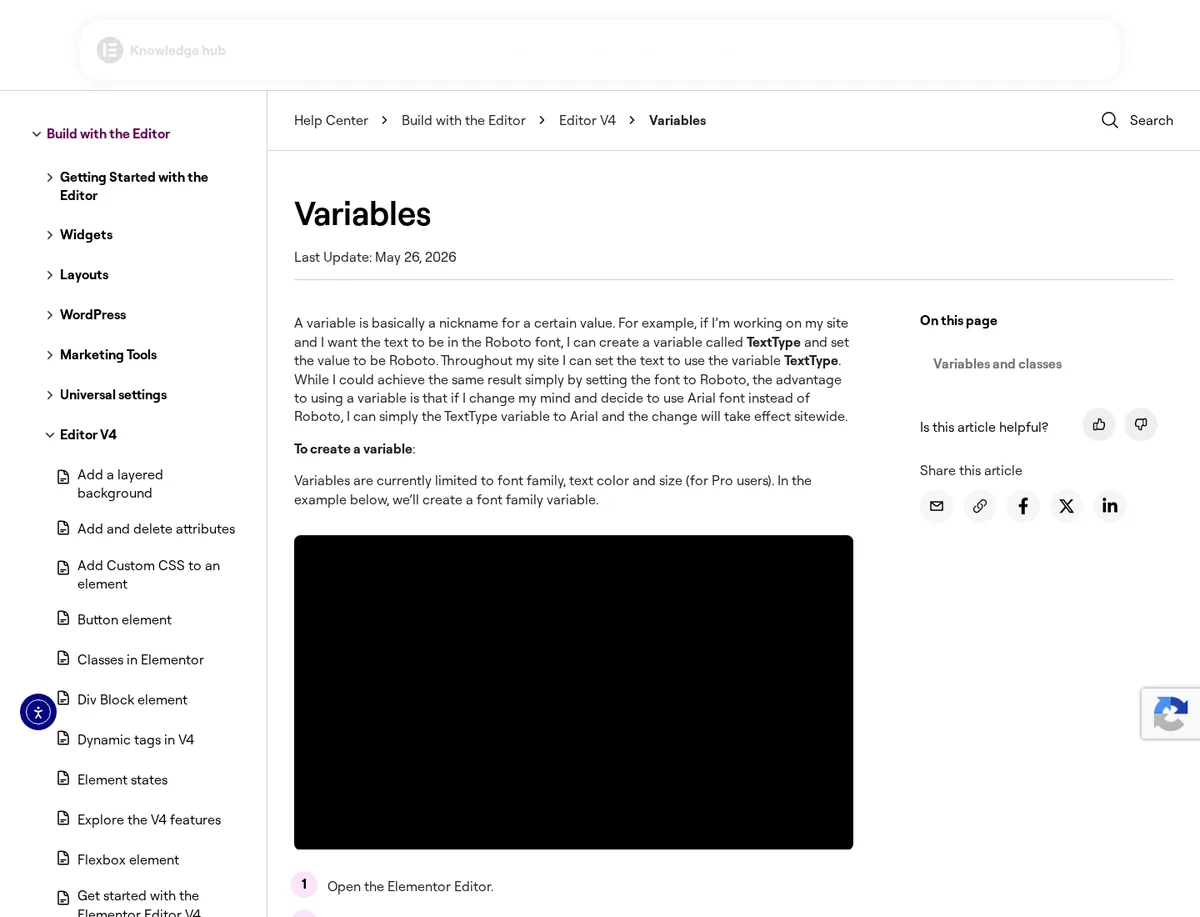
A Variable is a named value. Create brand-blue once, point every heading, button and background at it, and changing the hex code updates all of them.
Per Elementor’s Variables help page (updated May 2026), Variables currently cover font family, colour and size, and size variables need Pro.
Variables are where a design system starts. If you are still picking a type pairing, our guide to font combinations for web design is a good place to choose the two font variables you will reuse.
Classes: one style, many elements
A Class bundles a set of styles, like a primary-button class with padding, radius, colour and font. Apply it to ten buttons and editing the class restyles all ten.
Classes can use Variables inside them, so the class says “use brand-blue” rather than a hard-coded hex value.
Classes also carry States: hover, focus and active styles, set without writing CSS. The Class Manager lets you rename, delete and reorder classes. The order matters, because when two classes set the same property, priority decides which one wins.
This is the bit that changes day-to-day work. If you have ever restyled every CTA by hand after a client changed their mind, our roundup of button widgets for Elementor shows how many add-ons existed just to patch that problem.
Classes solve it in core.
⚠️ Common mistake: expecting Classes and Variables to restyle your old v3 widgets. They don’t. The only bridge is the 4.0 sync, which links colour Variables to v3 Global Colors and typography Classes to v3 Global Fonts.
Everything else applies to Atomic Elements only.
What is free and what needs Elementor Pro?
Elementor’s V4 FAQ is clear that V4 is “not a new subscription”. The core editor stays free, and Pro adds extras at the same price as before. Here is how the features split:
| V4 feature | Free Elementor | Elementor Pro |
|---|---|---|
| Atomic Elements (layout, text, media, interface) | Yes | Yes |
| Classes, States and Class Manager | Yes | Yes |
| Colour and font Variables | Yes | Yes |
| Size Variables | No | Yes |
| Components (synced reusable sections) | No | Yes |
| Atomic Forms | No | Yes |
| Interactions with triggers and Custom effect | No | Yes |
Components are the Pro feature to care about. A Component is a container you turn into a synced, reusable section, and you can choose which parts each instance may edit.
That is the grown-up version of global widgets, and it will get its own guide. If you are weighing Pro at all, our Elementor review covers what the paid plan adds beyond V4.
Do this if you only build one or two simple sites: free covers Classes and Variables, which is most of the value.
The catch for agencies is that size Variables and Components are exactly the features that make a design system portable, and both are Pro.
How to turn on the Atomic Editor on an existing site
Here is what really happens when you update an existing site to 4.x: nothing. Your pages, templates and v3 widgets render exactly as before, and Atomic features stay off until you activate them.
Before you switch it on:
- Back up the site, or better, make a staging copy. Our roundup of WordPress backup plugins covers tools that do both.
- Update Elementor and Pro together to matching 4.3.x versions. Recent changelogs include fixes for Core/Pro update stability.
- Check your add-ons. Third-party widget packs keep working as v3 widgets, but they can’t use Classes or Variables.
Then switch it on. There are two ways in:
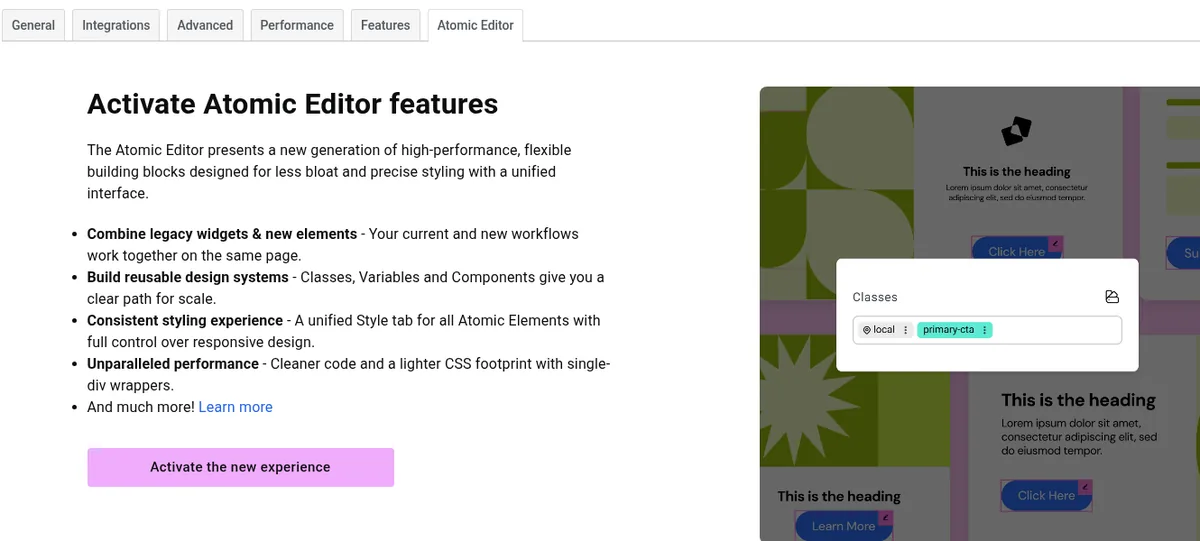
- From the dashboard: go to Elementor → Settings and open the Atomic Editor tab. On a site where it is off, you see an “Activate Atomic Editor features” panel with an Activate the new experience button.
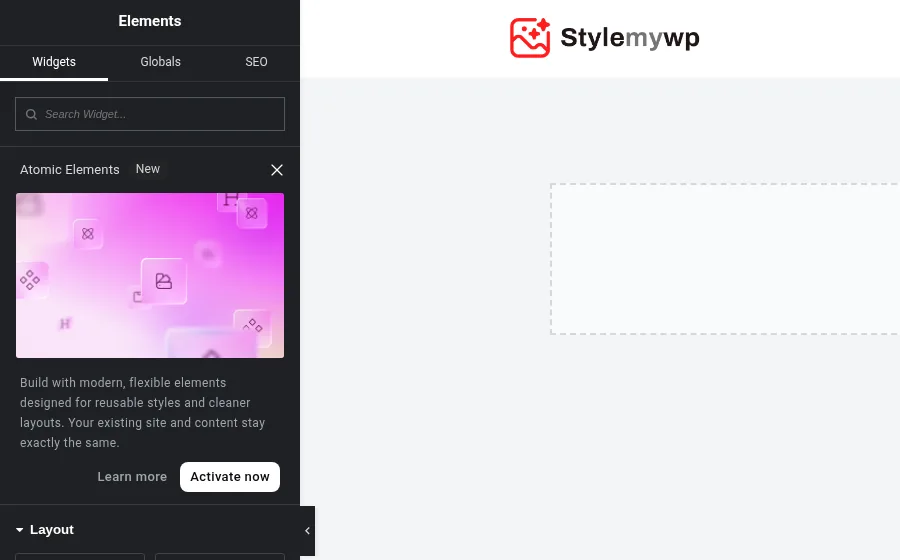
- From the editor: open any page with Elementor. The Elements panel shows an Atomic Elements (New) card with Learn more and Activate now buttons, above your usual Layout and Basic widgets.
- After activating, reload the editor. Per Elementor’s docs, a new Atomic Elements section then sits at the top of the Elements panel, above your v3 widgets.
Do your first activation on a staging copy, not the live site. Nothing on an existing site uses V4 until you build with it, so there is no rush.
Old and new can live on the same page. You can drop an atomic Heading into a section built with v3 widgets, and nothing breaks.
Build your first class and variable, step by step
The quickest way to understand V4 is to build one reusable button style. Do this on a draft page.
Step 1: Create two Variables
Drag an atomic Button onto the canvas and open the Style tab. In the background colour field, click the variable icon, choose Create a variable, name it brand-primary and set your hex value.
Do the same in Typography → Font family for a body-font variable. Variables save the moment you click Save, before you publish the page.
Step 2: Turn the styling into a Class
With the button selected, create a class in the Style tab and call it btn-primary. Make sure the class is the active selector (not the local element style) before you set padding, border radius and font size.
Anything you set while the class is selected belongs to the class.
Step 3: Add a hover State
Switch the class state to hover and change the background, for example to a darker shade. Visitors now get a hover effect on every element with btn-primary, with no custom CSS.
Step 4: Reuse it and change it once
Add two more buttons and give them the btn-primary class. Now open the Design System icon in the top bar, change brand-primary and watch all three update.
💡 Tip: name classes by role, not by look. btn-primary survives a rebrand; blue-button becomes a lie the day the brand turns green.
Want the same Variables and Classes on your next site? Go to Elementor → Editor → Tools → Website Templates and export a template with only Classes and Variables switched on, as described in Elementor’s 4.0 developer update.
The import has conflict handling, so it won’t silently overwrite an existing system.
How to check it worked
- Change one Variable in the Design System panel. Every element using it should update on the canvas without touching them one by one.
- Open the Class Manager and confirm your class shows up with the expected name.
- Preview the page and view the source. An atomic Heading should render as a single tag with a class, not a stack of nested divs.
- Switch to mobile in the top bar and change one value. Desktop should stay as it was, because every V4 style property is per device.
If layout shifts appear after you mix fonts or images into the new elements, our guide to avoiding layout shift in WordPress covers the usual causes.
What breaks and how to undo it
Most V4 problems come from mismatched expectations, not bugs. The ones worth knowing:
- Old widgets ignore your Classes. Expected behaviour, covered above. Rebuild a section in Atomic Elements if you want it in the system.
- Styles look wrong with the Internal Embedding CSS print method. Elementor fixed an editing failure (4.3.5) and front-end style problems (4.3.6) tied to this setting, so update before you debug anything.
- Class priority surprises. If a style won’t apply, another class higher in the Class Manager order is winning. Drag to reorder.
- Add-on gaps. Third-party widget packs have no atomic versions yet unless their developer says so.
To undo it, disable Atomic features from the same Atomic Editor tab in Elementor Settings.
What happens to atomic elements you already placed is not spelled out in Elementor’s docs, so test the switch-off on a staging copy before you rely on it. That is also why the backup step is not optional.
Weighing V4 against a builder that has been class-first for years? Our Bricks Builder review is a useful comparison, and the wider field is in our list of the best visual page builders for WordPress.
Frequently Asked Questions
Is Elementor V4 free?
Yes. V4 is a new version of the free Elementor editor, not a new product. Atomic Elements, Classes, States and colour and font Variables work in the free plugin. Elementor Pro adds size Variables, Components, Atomic Forms and advanced Interactions, included in an existing Pro subscription at no extra cost.
Will updating to Elementor 4.0 break my existing site?
No. Updating an existing site to 4.x leaves your pages and v3 widgets unchanged, and Atomic features stay off until you activate them. Existing layouts keep rendering exactly as before, so nothing needs rebuilding. Back up before any major update anyway.
Do I need to rebuild my v3 pages in V4?
No. Elementor says existing layouts stay as they are, and v3 widgets and Atomic Elements can sit on the same page. Rebuild a page only when you are redesigning it anyway, or when you want it to use your new Classes and Variables, which never apply to old widgets.
Can I use Classes and Variables on old Elementor widgets?
Not directly. Classes and Variables only style Atomic Elements. Since 4.0 you can sync colour Variables to v3 Global Colors and typography Classes to v3 Global Fonts, so brand colours and fonts stay consistent across old and new elements while you migrate.
Is Elementor V4 faster than v3?
It can be. Atomic Elements render with a single wrapper instead of nested divs, which means lighter HTML. Elementor itself says the gain varies when you mix old and new elements, so a mostly v3 page will not get noticeably faster from one or two atomic elements.
How do I turn off the Atomic Editor?
Open Elementor, then Settings, and use the Atomic Editor tab to disable Atomic features again. The docs do not fully describe what happens to atomic elements already on pages, so test switching it off on a staging copy before you do it on a live site.
What is the difference between Elementor Classes and Components?
A Class shares styling only, such as colour, spacing and typography, across many elements. A Component, which needs Pro, shares a whole section, structure and content included, and lets you expose chosen fields for editing per instance. Use Classes for consistent styling and Components for repeated sections.
Can I export my Elementor V4 design system to another site?
Yes. Since 4.0, Classes and Variables can be exported through Elementor, Editor, Tools, Website Templates. Turn off everything except Classes and Variables, then export a zip or save it to your library. The import includes conflict handling, so existing styles are not overwritten silently.
Should you switch to Elementor V4?
- Switch on now if: you are starting a new site or a big redesign. Set up Variables and Classes first and the rest of the build gets faster.
- Leave it off if: your site is finished, stable and built on v3 widgets. Updating is safe; activating gives you nothing until you build new pages with it.
- Wait a release or two if: your pages lean on Loop Grid listings or a third-party widget pack. Those still live in v3.
- Our pick for most StyleMyWP readers: update to 4.3.x, try V4 on one new landing page, and keep your v3 tools from our best Elementor addons roundup for everything else.
Next in this series: migrating a v3 site to V4 safely, building a full design system with Global Classes and Variables, and Components for reusable sections.
Last updated November 2026.

[…] own Atomic Elements trim wrapper markup in core, but addon widgets remain v3 widgets, and our guide to Elementor V4 and its atomic elements explains what that means for an addon-heavy […]