


To add custom CSS in WordPress, you have four real options: the Customizer, the Site Editor, Elementor, or a child theme. Each stores your code somewhere different, which decides whether it survives an update or theme switch.
Core has shipped a CSS box since WordPress 4.7; block themes got their own in 6.2. Below: the one-minute pick, exact steps for all four, how to confirm the rule loaded, and how to roll it back.
⚡ Quick answer
- Classic theme: Appearance → Customize → Additional CSS. Live preview, no files touched.
- Block theme: Appearance → Editor → Styles → ⋮ → Additional CSS, or per-block CSS under Styles → Blocks.
- Elementor: Advanced → Custom CSS on an element, Page Settings, or Site Settings. Paid plans only, not Essential.
- Time needed: 5 minutes for a Customizer tweak; 20-30 minutes for a first child theme.
- Our call: small tweaks go in the theme’s built-in CSS box. Move to a child theme once the CSS grows past a screen or you also need template changes.
Contents
- Which custom CSS method should you use?
- What you need before you start
- How to add CSS in the WordPress Customizer
- How to add custom CSS in the Site Editor
- How to add custom CSS in Elementor
- How to add CSS with a child theme
- How do you check your custom CSS worked?
- What breaks and how to undo it
- Frequently Asked Questions
- Which method should you pick?
Which custom CSS method should you use?
The right box depends on two things: what kind of theme you run, and how long the CSS needs to live. Here is how the four options compare on the questions that actually bite later.
| Method | Where it lives | Scope | Survives theme update? | Survives theme switch? | Best for |
|---|---|---|---|---|---|
| Customizer Additional CSS | Database, tied to the active theme | Whole site | Yes | No (returns if you switch back) | Classic themes, quick fixes |
| Site Editor Additional CSS | Database (Global Styles), tied to the theme | Whole site or one block type | Yes | No, cleared on switch | Block themes |
| Elementor Custom CSS | Elementor data for the element, page or kit | Element, page or site | Yes | Yes, it stays with the Elementor content | Styling one widget or landing page |
| Child theme style.css | A file in wp-content/themes | Whole site | Yes, parent updates leave it alone | Only while the child theme is active | Larger CSS, version control, template changes |
The catch with both core boxes is the same: the CSS belongs to the theme that was active when you saved it. Planning a redesign from our list of free WordPress blog themes? Copy your CSS out first.
What you need before you start
- An Administrator account. Core gates the CSS editors behind the
edit_csscapability, so lower roles will not see them. - A copy of any CSS you already have, pasted into a text file. It doubles as your undo button.
- The selector you want to change. Right-click the element, choose Inspect, and note its class. Our roundup of Chrome extensions for WordPress covers tools that make this faster.
- For Elementor: a paid plan that includes Custom CSS. For a child theme: SFTP or file-manager access and a recent backup.
Common mistake: writing CSS to fix something the theme already exposes. Fonts are the classic case: loading a web font is a separate job (see how to enable Adobe Fonts in GeneratePress), and CSS only applies it.
How to add CSS in the WordPress Customizer
This is the default home for small tweaks on any classic theme.
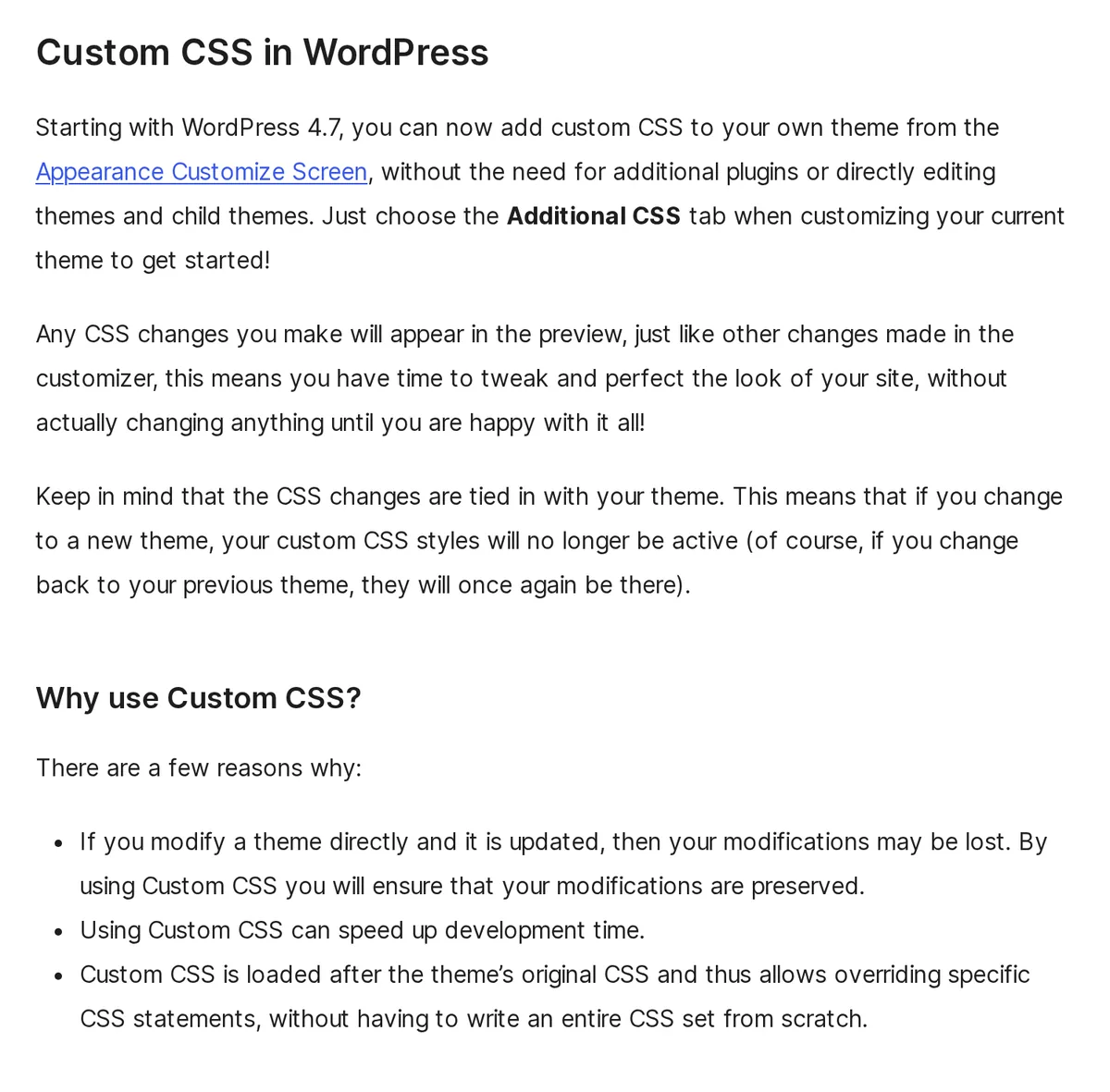
The WordPress developer documentation on CSS notes it has existed since 4.7, previews live before you publish, and loads after the theme’s own stylesheet so your rules can override it.
- Go to Appearance → Customize.
- Click Additional CSS in the Customizer menu.
- Type or paste your CSS into the code box. The preview on the right updates as you type.
- Click Publish. Nothing reaches visitors until you do.
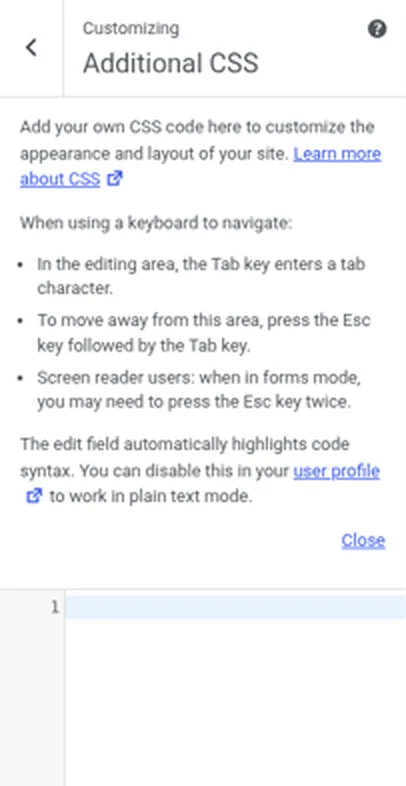
The panel itself carries two useful hints: the Tab key inserts a tab inside the editor, and syntax highlighting can be turned off in your user profile if you prefer plain text. Start with something you can see instantly:
.wp-block-button__link,
button {
  border-radius: 8px;
}
Publish, then reload the front end.
Do this if you run a classic theme and the change fits on one screen. Skip it if you are on a block theme. Those hide easy Customizer access, and the Site Editor box below is the supported route.
How to add custom CSS in the Site Editor
Block themes keep CSS inside Global Styles. The WordPress.org Styles documentation recommends using the built-in Styles controls first and adding CSS only for gaps they cannot cover yet.
Site-wide CSS
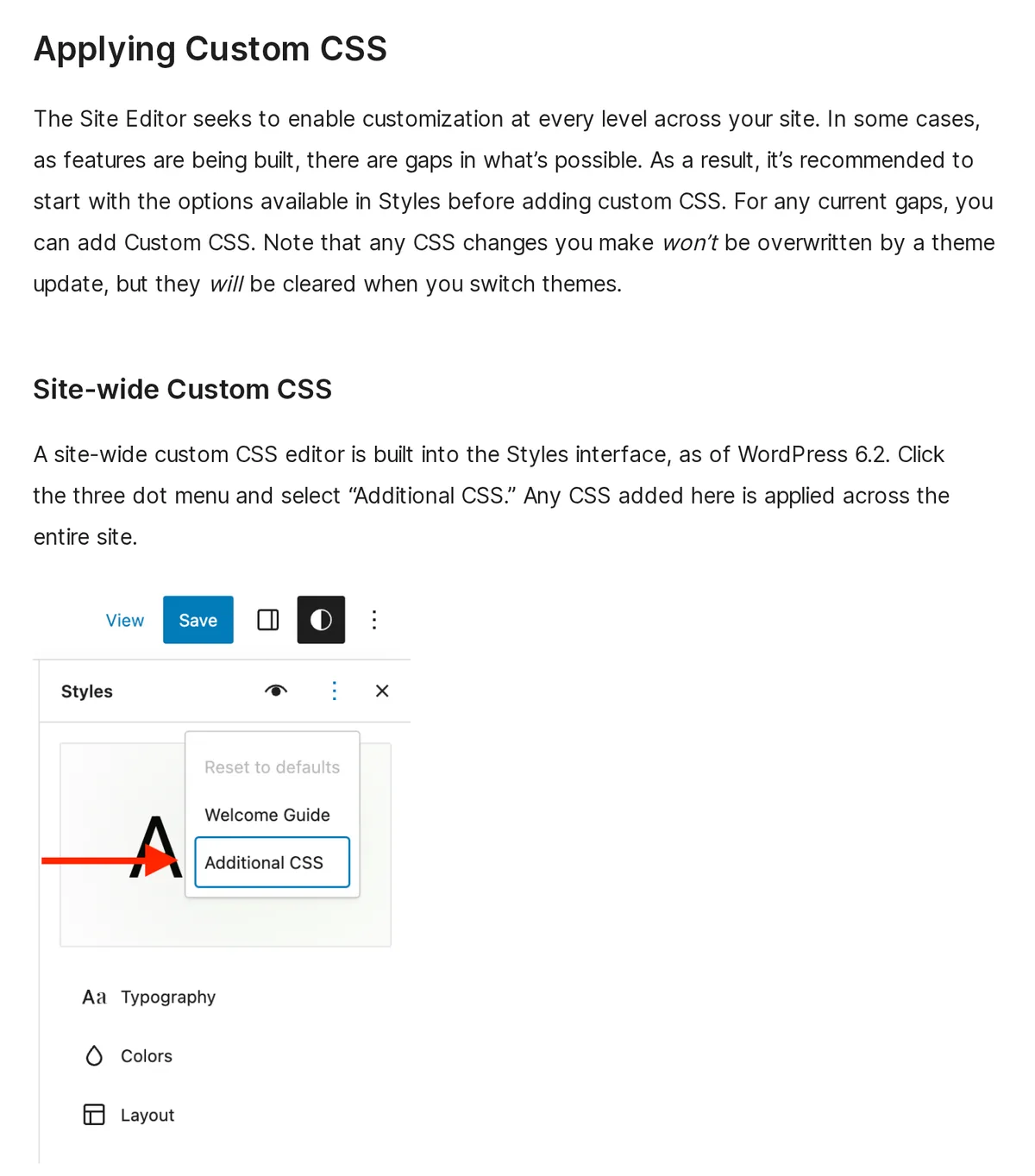
- Go to Appearance → Editor and open Styles (the half-filled circle icon).
- Open the ⋮ menu in the Styles header and choose Additional CSS. Since WordPress 6.9 the option lives in that header ellipsis menu.
- Add your CSS and click Save.
Per-block CSS
Under Styles → Blocks, pick a block (Quote, Button, Image) and open Additional block CSS. Here you write only property: value pairs, with no selector and no braces. WordPress wraps them in the block’s class for you.
/* Quote block: Additional block CSS */
font-style: italic;
/* Button block: hover needs braces */
&:hover {
opacity: 0.9;
}Use the ampersand for nested elements and states such as hover, as shown in the docs. If you are on a recent core release, our guide to what’s new in WordPress 7.0 covers how the Site Editor has moved on since 6.2.
The catch: on a block theme, Customizer CSS saved earlier still loads, but core places the Site Editor CSS after it. When both target the same selector with equal weight, the Site Editor rule wins.
How to add custom CSS in Elementor
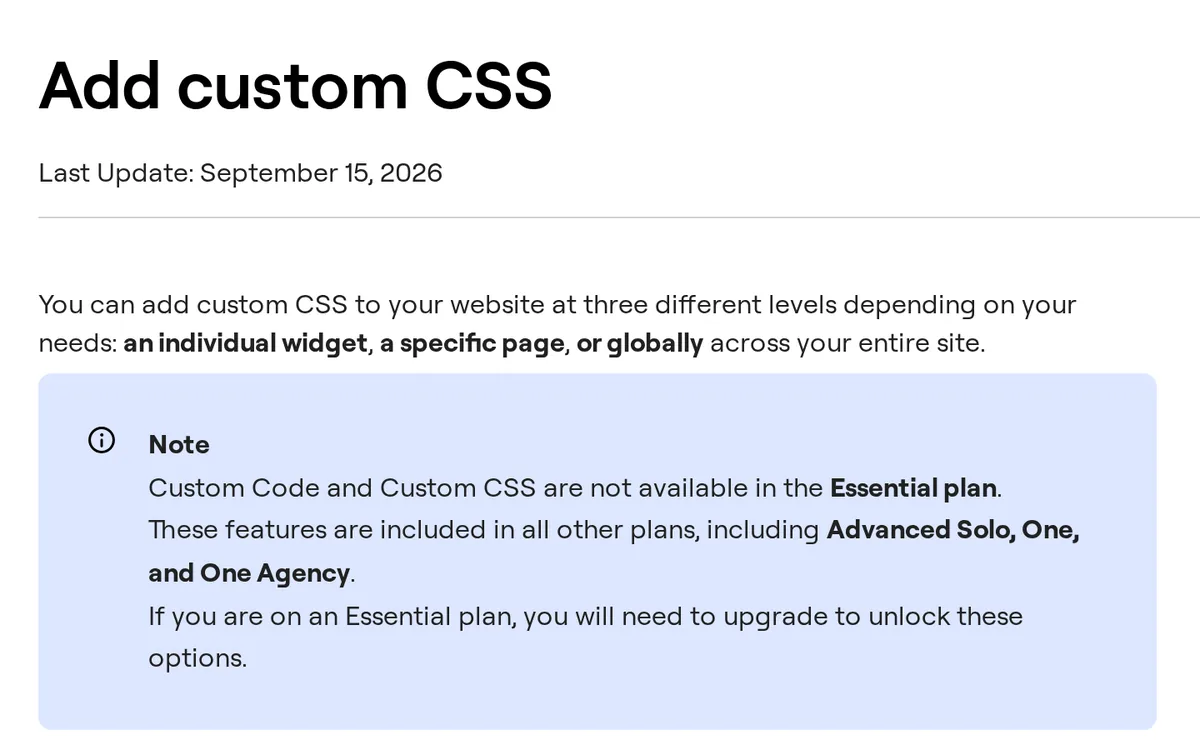
Elementor gives you three levels of CSS. Per the Elementor Help Center article on adding custom CSS, you can attach it to one element, one page, or the whole site.
It is a paid feature, and the Essential plan does not include it (checked November 2026).
- One element: select the widget or container, open the Advanced tab, expand Custom CSS, and add your code.
- One page: open Page Settings, then the Advanced tab, and use the Custom CSS box.
- Whole site: open the editor menu, choose Site Settings, then Custom CSS.
At element level, type selector (no dot) instead of guessing the generated class. As the Elementor guide to the selector keyword explains, it targets the widget wrapper, so add a child selector to reach the inner element.
/* Button widget: Advanced, Custom CSS */
selector .elementor-button {
  border-radius: 999px;
}
/* Hide this widget on phones */
@media (max-width: 767px) {
selector { display: none; }
}Two real builds show where this shines: the backdrop blur in our blurred sticky header tutorial and the overflow trick in the horizontal scrollable mobile menu. Both are a few lines no style control exposes.
On the V4 Atomic Editor, Custom CSS moves to the Style tab and attaches to the selected class, state and breakpoint. Our Elementor V4 explainer on classes and variables covers that model.
Common mistake: typing selector in Page or Site Settings, where it matches nothing. Use a normal class there.
How to add CSS with a child theme
A child theme is the right home once your CSS is long, needs version control, or sits next to template and PHP overrides. The Theme Handbook chapter on child themes lays out the steps.
- Create a folder in
wp-content/themes/, for examplemytheme-child. - Add a
style.csswith a file header. TheTemplateline must match the parent theme’s folder name exactly. - If the parent does not load the child stylesheet for you, enqueue it from the child’s
functions.php(snippet below). - Zip the folder, upload it under Appearance → Themes → Add New, and activate it.
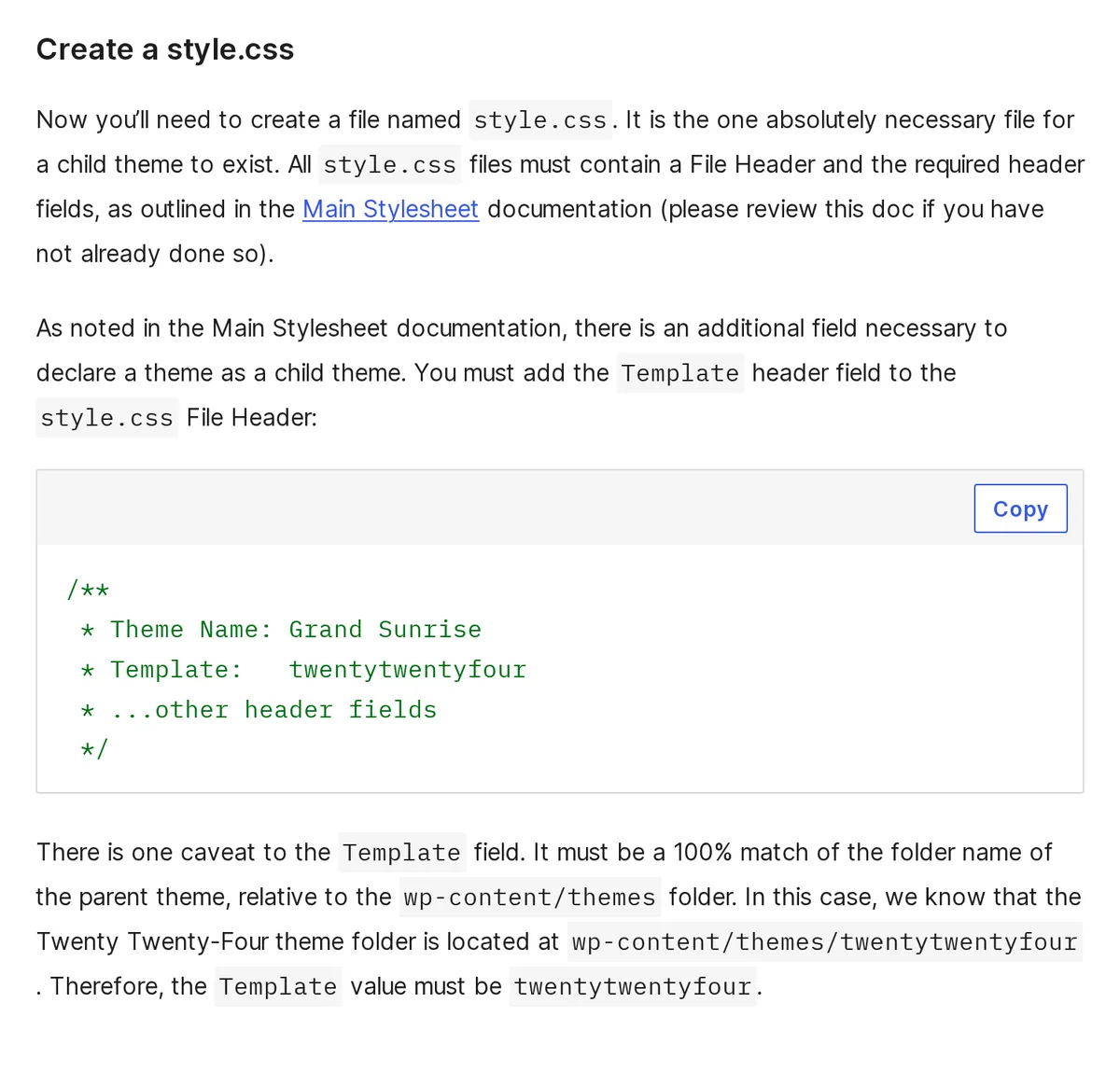
/*
 * Theme Name: My Theme Child
 * Template:   parent-folder-name
 */
Your own rules go below that header, exactly as in any stylesheet.
<?php
// functions.php in the child theme
add_action( 'wp_enqueue_scripts', function () {
    wp_enqueue_style( 'child-style', get_stylesheet_uri() );
} );
Whether you need that enqueue depends on what the parent already loads, so check before you add it. Parent theme updates leave the child’s files untouched, which is the whole point.
Skip it if you only need a dozen lines and never touch PHP. A maintained code snippet plugin can add site-wide CSS without a child theme, and it keeps working after a theme switch.
How do you check your custom CSS worked?
- Open the page in a private window so you are not looking at a logged-in or cached view.
- Right-click the element, choose Inspect, and find your rule in the Styles pane. A struck-through line means something more specific overrode it.
- On a classic theme, view the page source and search for
wp-custom-css. That is the style tag core prints for Customizer CSS. - If you cache pages, clear that one URL and reload. Elementor CSS that still will not appear usually needs Clear Files & Data in Elementor’s Tools screen.
Check type changes on a real paragraph, not a heading alone. Our guide to font combinations for web design is a handy test page idea: one body font, one heading font, checked at mobile width.
Finally, run the page through PageSpeed once. Rules that change heights after load can cause layout shift, which our Core Web Vitals guide for WordPress explains how to measure.
What breaks and how to undo it
- Nothing changes: a typo (a missing semicolon or brace) or a weaker selector. Fix specificity first; use
!importantonly as a quick test. - CSS vanished after a redesign: both core boxes are tied to the theme. Switch back to the old theme to recover it, copy it out, then paste it into the new one.
- Site Editor CSS overrides your Customizer rule: expected on block themes, since the Site Editor CSS loads later. Keep CSS in one place.
- Child theme breaks the layout: the parent stylesheet is not loading or the
Templateheader is wrong. Re-activate the parent while you fix it.
To undo: delete the rule and publish (Customizer), clear the box and save, or use Reset to defaults in Styles (this resets all Styles changes, not just CSS). Elementor can roll back through the page’s revision history.
⚠️ Warning: Never edit the parent theme’s style.css directly. The next theme update overwrites it, and your changes are gone without a trace.
Frequently Asked Questions
Where is Additional CSS in WordPress?
On a classic theme it is under Appearance, then Customize, then Additional CSS. On a block theme open Appearance, then Editor, then Styles, and pick Additional CSS from the three-dot menu in the Styles header. Per-block CSS sits under Styles, then Blocks.
Will I lose custom CSS when my theme updates?
No. CSS saved in the Customizer, the Site Editor, Elementor or a child theme is stored outside the parent theme files, so updates leave it alone. Only edits made directly to the parent theme files are overwritten. Switching to a different theme is the real risk.
Why is my custom CSS not working?
Usually a syntax error, a selector that is less specific than the theme rule, or a cached page. Inspect the element to see whether the rule is crossed out, raise specificity, clear the cache for that URL and test in a private window.
Can I add custom CSS in Elementor free?
No. Elementor Custom CSS fields on elements, pages and Site Settings are part of the paid plans, and the Essential plan does not include them, per Elementor checked November 2026. On the free version, use the theme Customizer, the Site Editor or a child theme instead.
What does selector mean in Elementor custom CSS?
It is a placeholder Elementor swaps for the unique wrapper class of the element you are editing. Write selector followed by a child such as .elementor-button to reach the inner element. It only works in element-level Custom CSS, not in Page or Site Settings.
Is a child theme better than the Customizer for CSS?
For a few lines, no. The Customizer is faster and previews live. A child theme is better when the CSS is long, you want it in version control, or you also override templates or functions. Both survive parent theme updates.
How do I add CSS to one page only?
In Elementor, use Page Settings, then Advanced, then Custom CSS. Elsewhere, scope the rule with the body class WordPress adds, such as .page-id-42, and put it in your normal CSS box. Find the ID in the edit screen URL.
Does custom CSS slow down WordPress?
Not for a normal set of tweaks. Core prints Customizer CSS inline in the page head, so it adds no extra file request. Trouble comes from huge blocks of unused rules, or from CSS that resizes elements after load and hurts layout stability.
Which method should you pick?
- Use the Customizer if you run a classic theme and need a quick fix you can preview live.
- Use the Site Editor if you run a block theme. Try the Styles controls first, then Additional CSS or per-block CSS for the gaps.
- Use Elementor Custom CSS if the rule belongs to one widget or one landing page and you are on a plan that includes it.
- Use a child theme if the CSS is long, lives in Git, or ships with template changes.
Our pick for most readers: keep CSS in exactly one place and write it down. CSS changes how content looks, not how it is structured; for structured content, start with our roundup of custom field plugins for WordPress.
Last updated November 2026.



[…] and every snippet manager above handles CSS. There is no gap left for this to fill. Our guide on how to add custom CSS in WordPress shows where each of those built-in boxes […]