

theme.json is the one file that decides which colors, fonts, font sizes and spacing values a block theme offers, and how the whole site looks before anyone touches a block.
It replaces scattered CSS rules with 7 top-level keys. Set it up once and every editor on the site picks from the same palette, type scale and spacing steps.
Below: where the file lives, what each section does, the version 3 defaults that trip people up, and how to undo a change.
⚡ Quick answer
- Best for: block theme sites where you want brand colors, fonts and spacing locked in for every editor, or freelancers handing a site to a client.
- Skip it if: you only need one or two tweaks. The Styles panel in the Site Editor does that without touching files.
- Time needed: about 60 minutes for a palette, two fonts, a type scale, a spacing scale and a few block styles.
- Our call: use version 3 in a child theme, set your own presets, and clear or export Styles panel changes before you edit, because they override the file.
Contents
- What is theme.json and where does it live?
- What you need before you start
- Step 1: Start a version 3 theme.json with the schema
- Step 2: Choose which block theme settings editors see
- Step 3: Add your color palette
- Step 4: Register fonts and theme.json font sizes
- Step 5: Set a spacing scale and content widths
- Step 6: Apply global styles to the site, elements and blocks
- How to check it worked
- What breaks and how to undo it
- Frequently Asked Questions
- Should you edit theme.json or use the Styles panel?
What is theme.json and where does it live?
theme.json is a configuration file in the root folder of a theme, next to style.css. WordPress reads it to build the controls in the block editor and to generate CSS for the front end and the editor.
It works in block themes and classic themes. In a block theme it is the foundation: the Site Editor, its Styles panel and every block’s design controls all read from it.
New to block themes? Our beginner’s guide to the Site Editor explains how templates, parts and Styles fit together.
The file has two halves that do very different jobs:
settingsdecides what editors can pick: which controls appear, plus the presets (palette, font families, font sizes, spacing steps) shown in those controls.stylesapplies design: the site background and text color, heading fonts, link colors, button styles and per-block defaults.- Smaller keys:
version,$schema,customTemplates,templatePartsandpatterns.
WordPress stacks design data in four layers. Core ships a default theme.json, the parent theme’s file overrides it, a child theme’s file overrides the parent, and changes made in the Styles panel override all three.
The catch: those Styles panel changes are saved in the database, not in your file. If a user already set a heading font in Styles, editing it in theme.json changes nothing on screen.
What you need before you start
- WordPress 6.6 or later. That is the minimum for theme.json version 3; the current release is WordPress 7.1.5.
- A block theme. Twenty Twenty-Five or any theme from our list of the best block themes for full site editing will do.
- A child theme or your own theme. Edits to a parent theme’s file are lost on the next theme update.
- File access: SFTP, your host’s file manager, or a local copy of the site.
- A code editor that understands JSON schemas, such as VS Code, so typos are flagged as you type.
- A backup. One of the WordPress backup plugins we recommend takes a restorable snapshot in a couple of minutes.
Common mistake: testing on the live site. Work on staging or locally, then deploy the file once it validates.
Step 1: Start a version 3 theme.json with the schema
Open the theme folder and create or open theme.json. Start every file with the schema URL and the version number:
{
  "$schema": "https://schemas.wp.org/trunk/theme.json",
  "version": 3,
  "settings": {},
  "styles": {}
}
The $schema line gives you autocomplete and error hints in most code editors. To match a specific WordPress release, swap trunk for a version, such as https://schemas.wp.org/wp/7.1/theme.json.
Do this if your file still says "version": 2: older versions keep working, but new features land in version 3. The official theme.json migration guide lists every change.
Leave version out entirely and WordPress reads the file as version 1.
Upgrading from 2 to 3 changes one thing that matters for most themes, covered in Step 4: default font sizes and spacing sizes are now shown alongside yours unless you switch them off.
Step 2: Choose which block theme settings editors see
Settings are switches. Each one shows or hides a control in the block sidebar. The shortcut is appearanceTools, which turns on a whole group at once:
{
  "version": 3,
  "settings": {
    "appearanceTools": true,
    "color": {
      "custom": false,
      "customGradient": false,
      "defaultPalette": false
    },
    "typography": {
      "customFontSize": false
    }
  }
}
That one flag does a lot.
According to the theme.json version 3 reference, appearanceTools enables border color, radius, style and width, link and heading colors, margin, padding and block spacing, minimum height, sticky position and line height, among others.
The other lines lock editors into your design system:
"custom": falseremoves the free color picker, so editors can only choose palette colors."defaultPalette": falsehides WordPress’s own palette, which usually clashes with a brand palette."customFontSize": falsestops editors typing in random font sizes.
Skip the lock-down if you are the only person editing the site. It mainly helps client sites and multi-author blogs.
Settings can also be set per block under settings.blocks, for example font size controls everywhere except the Heading block.
Step 3: Add your color palette
Register your brand colors under settings.color.palette. Each color needs a name for the editor, a slug and a color value:
"settings": {
  "color": {
    "palette": [
      { "name": "Base",     "slug": "base",     "color": "#ffffff" },
      { "name": "Contrast", "slug": "contrast", "color": "#111111" },
      { "name": "Primary",  "slug": "primary",  "color": "#2563eb" }
    ]
  }
}
Add more colors the same way.
WordPress turns every slug into a CSS custom property, so primary becomes --wp--preset--color--primary. It also generates classes such as .has-primary-color and .has-primary-background-color when an editor applies the color to a block.
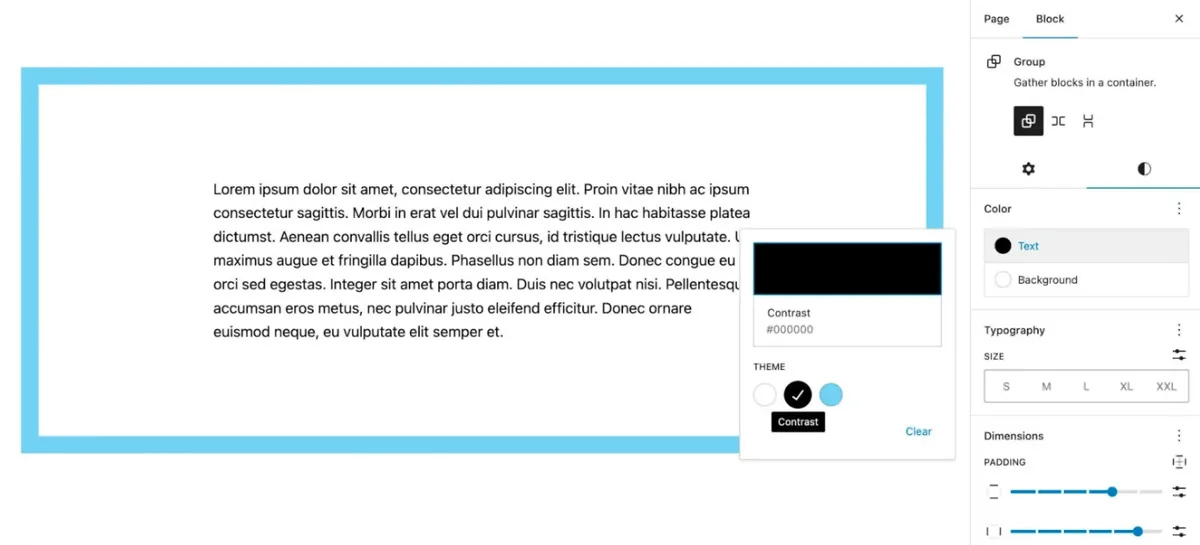
Use base and contrast for the background and text colors. The Theme Handbook calls them the de facto standard since Twenty Twenty-Three, so content keeps sensible colors if you later switch to another block theme.
Common mistake: naming slugs after the color, like blue. When the brand color changes to green, every block still says blue. Name the role, not the shade.
Step 4: Register fonts and theme.json font sizes
Font families
Add fonts under settings.typography.fontFamilies. System font stacks need only a name, slug and stack. Web fonts bundled with the theme add a fontFace array pointing at the files:
"typography": {
  "fontFamilies": [
    {
      "name": "Body",
      "slug": "body",
      "fontFamily": "system-ui, sans-serif"
    },
    {
      "name": "Heading",
      "slug": "heading",
      "fontFamily": "'Inter', sans-serif",
      "fontFace": [
        {
          "fontFamily": "Inter",
          "fontWeight": "400 700",
          "fontStyle": "normal",
          "src": [ "file:./assets/fonts/inter.woff2" ]
        }
      ]
    }
  ]
}
Swap Inter for your own font file.
The file:./ prefix points to a path relative to theme.json. Use .woff2 files: the format is compact and widely supported by browsers. Self-hosted fonts also avoid an extra third-party request, which helps your Core Web Vitals scores.
Two fonts are plenty for most blogs. For pairings that work, see our guide to font combinations for web design.
On a classic theme like GeneratePress, fonts are usually loaded differently, as in our walkthrough on adding Adobe Fonts to GeneratePress.
theme.json font sizes
Font sizes live in settings.typography.fontSizes. Set "fluid": true and give sizes a minimum and maximum so they scale with the screen width:
"typography": {
  "defaultFontSizes": false,
  "fluid": true,
  "fontSizes": [
    { "name": "Small",  "slug": "small",  "size": "0.9rem", "fluid": false },
    { "name": "Medium", "slug": "medium", "size": "1.125rem" },
    { "name": "Large",  "slug": "large",  "size": "1.75rem",
      "fluid": { "min": "1.375rem", "max": "1.75rem" } }
  ]
}
Add larger heading sizes the same way.
WordPress outputs each size as --wp--preset--font-size--{slug} and, with fluid enabled, writes a CSS clamp() value for you. Sizes below the default 14px minimum stay static.
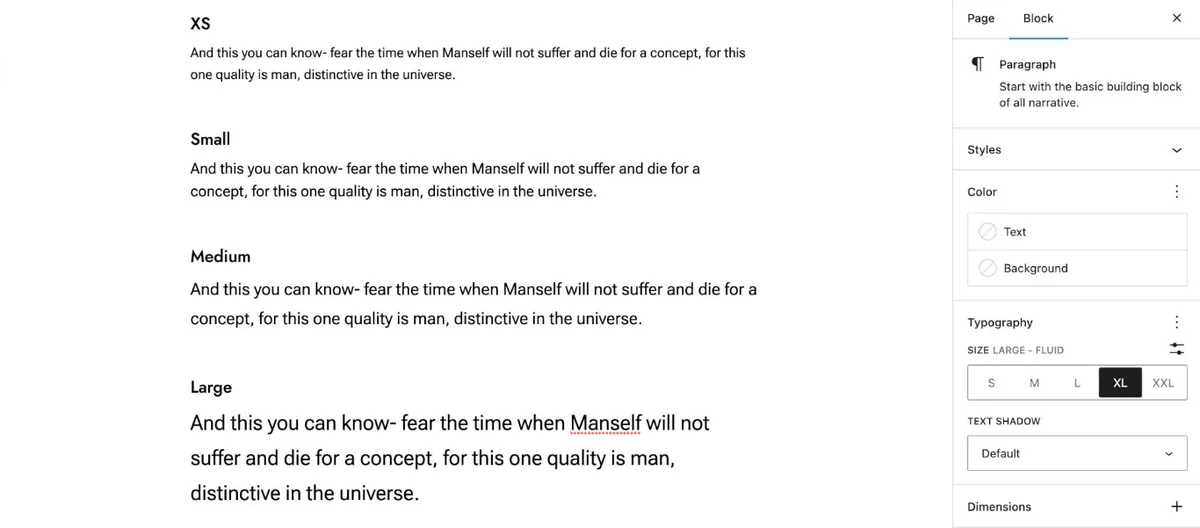
The version 3 trap: defaultFontSizes is true by default, so WordPress shows its own sizes and blocks your theme from reusing the slugs small, medium, large and x-large. Defining your own? Set it to false.
The size buttons turn into a dropdown once you register more than five sizes. Five is a good ceiling for editors anyway. The Theme Handbook typography page has the full font face options.
Step 5: Set a spacing scale and content widths
Spacing presets feed the Margin, Padding and Block Spacing controls. WordPress generates a seven-step default scale, from --wp--preset--spacing--20 up to --wp--preset--spacing--80:
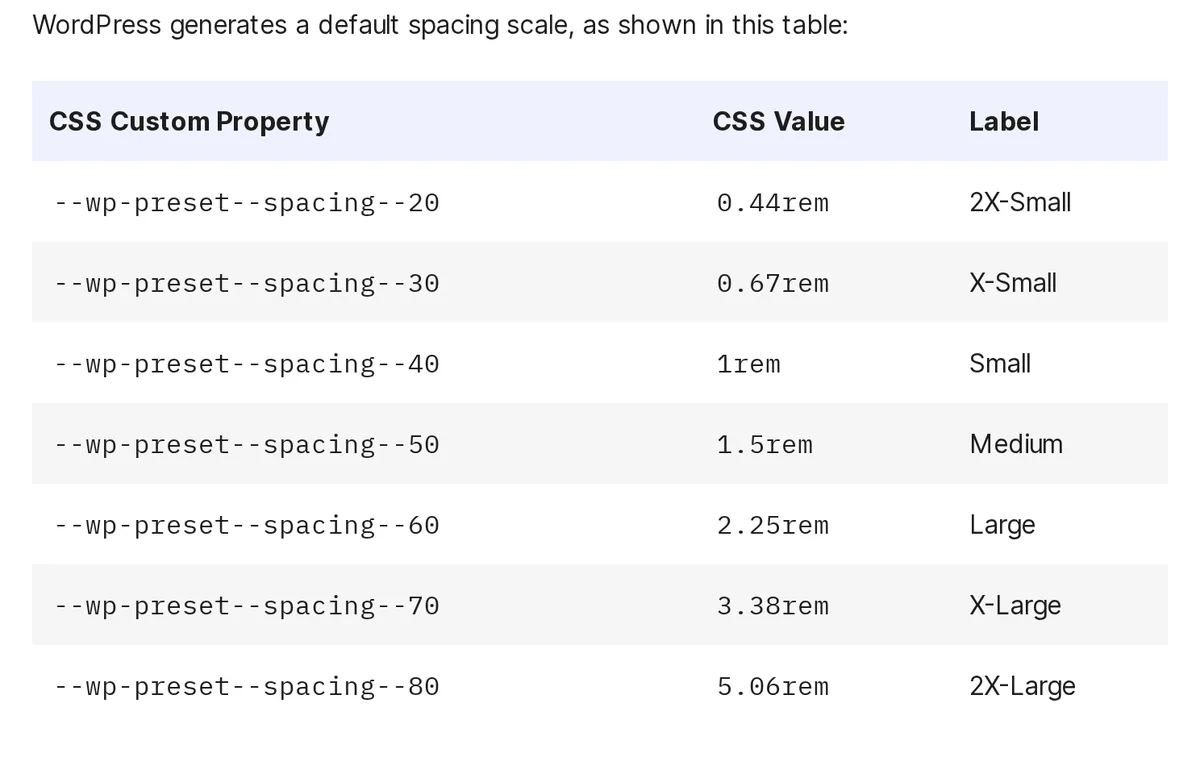
To use your own steps, generate a scale with spacingScale and turn off the defaults:
"settings": {
  "spacing": {
    "defaultSpacingSizes": false,
    "spacingScale": {
      "operator": "*",
      "increment": 1.5,
      "steps": 7,
      "mediumStep": 1.5,
      "unit": "rem"
    },
    "units": [ "px", "rem", "%" ]
  },
  "layout": {
    "contentSize": "720px",
    "wideSize": "1200px"
  }
}
The layout part sets widths.
The mediumStep value always becomes --wp--preset--spacing--50, and the other steps count up or down in tens. Seven or fewer presets show as a slider; more switch the control to a dropdown.
layout.contentSize sets the reading width of posts. wideSize sets the width of wide-aligned blocks and is also the maximum viewport used for fluid font sizes.
Decision: pick spacingScale for an even rhythm, or spacingSizes for hand-picked values. You can mix both, but one method is easier to maintain.
Step 6: Apply global styles to the site, elements and blocks
Now apply the presets. Styles work at three levels: the root (the body), elements (links, headings, buttons, captions) and individual blocks. Reference presets with the var:preset|type|slug shorthand:
"styles": {
  "color": {
    "background": "var:preset|color|base",
    "text": "var:preset|color|contrast"
  },
  "typography": {
    "fontFamily": "var:preset|font-family|body"
  },
  "elements": {
    "heading": {
      "typography": { "fontFamily": "var:preset|font-family|heading" }
    },
    "link": {
      "color": { "text": "var:preset|color|primary" },
      ":hover": { "color": { "text": "var:preset|color|contrast" } }
    }
  }
}
That sets the body, headings and links.
Element styles cover button, caption, cite, heading, h1 to h6 and link. Links and buttons also take :hover, :focus, :active and :visited.
"styles": {
  "blocks": {
    "core/image": {
      "border": { "radius": "8px" }
    }
  }
}
Every Image block now gets rounded corners.
Block styles target a block by its namespace and name, so core/image for the Image block. Third-party blocks work the same way, which helps if you use one of the Gutenberg block plugins in our roundup.
WordPress 7.0 added :hover, :focus, :focus-visible and :active directly on the Button block and its style variations, per the WordPress 7.0 dev note on pseudo-classes. These are theme.json only, with no Styles panel control yet.
Our WordPress 7.0 guide for site owners covers the rest of that release.
WordPress 7.1 goes a step further: its schema adds @mobile and @tablet keys for responsive block styles, with breakpoints you can change under settings.viewport.
For anything theme.json cannot express, use styles.css for a short custom CSS string, or follow our guide to adding custom CSS in WordPress for larger stylesheets.
How to check it worked
- Validate the JSON. Your editor should show no red underlines from the schema. A single trailing comma makes WordPress ignore the whole file.
- Open Appearance > Editor > Styles. Your palette should appear under Colors, and your fonts and sizes under Typography.
- Insert a Paragraph block in a draft. The color picker should list only your palette if you disabled custom and default colors, and the Size control should show your presets.
- Inspect the front end. In browser dev tools, the
bodyelement should list variables like--wp--preset--color--primarywith your values. - Check a phone-width window to confirm fluid font sizes shrink and nothing overflows.
Tip: the free Create Block Theme plugin from WordPress.org has an Inspect Theme JSON option, which shows the active theme’s theme.json without opening files.
What breaks and how to undo it
| Symptom | Likely cause | Fix |
|---|---|---|
| File edits change nothing | A Styles panel change overrides it | In Styles, open the three-dot menu and choose Reset to defaults, or save those changes into the theme first |
| Edits show only after a delay | theme.json data is cached | On a development site, add define( 'WP_DEVELOPMENT_MODE', 'theme' ); to wp-config.php, then clear page cache |
| Whole file ignored | Invalid JSON (trailing comma, missing quote) | Validate against the schema and fix the first error |
| Your small/medium/large sizes are replaced | Version 3 default font sizes win | Set defaultFontSizes to false |
| Spacing slider shows WordPress values | Version 3 default spacing sizes on | Set defaultSpacingSizes to false |
| Font does not load | Wrong file:./ path or file name | Check the path is relative to theme.json and the file is .woff2 |
| Gaps between blocks vanish | blockGap set to null | Set it to true (control shown) or false (CSS kept, control hidden) |
Development mode is for staging or local sites only. The WordPress core team advises against using it on a production site.
To undo everything: restore your backed-up theme.json, or delete the file from your child theme so the parent theme’s settings apply again.
Before you reset Styles, consider saving them. Create Block Theme’s Save Changes option writes Styles panel edits into the active theme’s files, so nothing is lost.
Frequently Asked Questions
Where is the theme.json file in WordPress?
It sits in the root folder of the active theme, next to style.css, at wp-content/themes/your-theme/theme.json. A child theme can have its own theme.json, which overrides the parent’s values. Changes made in the Styles panel are stored in the database, not in this file.
Should I use theme.json version 2 or 3?
Use version 3 if your site runs WordPress 6.6 or later. Version 2 still works, but new features are added to version 3. When upgrading, set defaultFontSizes and defaultSpacingSizes to false if your theme defines its own font sizes or spacing presets.
Why are my theme.json changes not showing?
Usually a Styles panel customization overrides the file, because user changes always win. Reset Styles to defaults or save them into the theme. Other causes are invalid JSON, which makes WordPress ignore the file, and cached theme.json data or page cache.
Does theme.json work with classic themes?
Yes. The Theme Handbook confirms theme.json works with both block and classic themes. In a classic theme it controls block editor settings and presets such as the color palette and font sizes, while the Site Editor’s Styles panel remains a block theme feature.
How do I add custom font sizes in theme.json?
List them in settings.typography.fontSizes, each with a name, slug and size. Turn on fluid to make them scale with screen width, and set defaultFontSizes to false in version 3 so WordPress does not show or protect its own small, medium, large and x-large sizes.
What is the difference between settings and styles in theme.json?
Settings decide which controls and presets editors can use, such as the color palette or spacing scale. Styles apply design values to the site, elements and blocks, such as the body font or link color. Settings define the options, styles use them.
Can I edit theme.json without breaking my site?
Yes, if you work in a child theme on a staging copy and validate the JSON before deploying. Invalid JSON makes WordPress ignore the file rather than crash the site, so the worst case is losing your design settings until you fix the error.
What are global styles in WordPress?
Global styles are the site-wide design values set in theme.json and the Styles panel of the Site Editor: colors, typography, layout and per-block defaults. The theme provides the starting values, and anything changed in the Styles panel overrides them for the whole site.
Should you edit theme.json or use the Styles panel?
- Edit theme.json if: you build or maintain the theme, want the design in version control, or need to lock editors to a palette and type scale.
- Use the Styles panel if: you run one site, want quick visual changes and never plan to switch themes.
- Use both, carefully, if: you prototype in Styles, then save the result into the theme with Create Block Theme and reset Styles, so the file stays the single source of truth.
- Pick a different theme if: you are fighting the theme’s file on every setting. Our picks of the best free WordPress blog themes include block themes with sensible presets.
Our pick for most StyleMyWP readers: a child theme with a version 3 theme.json: four to six palette colors, two fonts, four or five fluid font sizes, the default spacing scale, and element styles for links, headings and buttons.
Last updated November 2026.


[…] guide to the Site Editor. Its colors, fonts and spacing come from a theme.json file, which our theme.json guide for block themes […]
[…] and you find out when a client asks why their fonts panel is emptier than the tutorial’s. Our theme.json explainer shows what that file […]