

Heading tags in WordPress are the one formatting decision most people get backwards: they pick H2 or H3 based on which one looks the right size. That gives you a page that reads fine and outlines terribly. Headings are an outline, not a font menu. Get the outline right and screen readers, jump links, table-of-contents plugins and Google’s snippet extraction all get easier. This guide covers the hierarchy, the block editor mechanics, and the part almost every tutorial fudges.
Quick verdict
Best default: one H1 (your post title, which the theme already outputs), H2 for every real section, H3 only when a section genuinely splits. Two levels carry most blog posts.
Best free help: Rank Math’s free version, which flags whether your focus keyword appears in subheadings and counts them for you inside the editor.
Skip the plugin if: you publish short posts, or you already write from an outline. Nothing here needs paid software. Headings are core editor functionality.
Our call: fix hierarchy for accessibility and for your own table of contents, not because you think Google is grading the order. It is not, and Google says so in writing. More on that below.
What each heading level is actually for
HTML gives you six heading levels, H1 through H6. They describe rank, the same way indentation describes rank in a document outline. A browser renders lower levels smaller by default, which is where the confusion starts: people treat the tag as a size control instead of a structural label.
Here is the working version, the one we use when building out a client post.
| Tag | Use it for | How often | Common mistake |
|---|---|---|---|
| H1 | The post or page title | Once, and your theme usually does it for you | Adding a second H1 inside the body |
| H2 | Main sections | Our rule of thumb: four to eight in a 2,000-word post | Using H2 for every sub-point until the outline goes flat |
| H3 | Sub-points inside a section | Only where a section splits | Jumping straight to H3 with no H2 above it |
| H4 | Detail inside an H3, mostly step lists and spec breakdowns | Rare | Reaching for it because H3 looked too big |
| H5 and H6 | Long reference docs, legal pages, technical manuals | Almost never in a blog post | Using them at all in a 1,200-word article |
One caveat worth knowing before you audit anything: most WordPress themes print the post title as the H1 automatically on single posts. Open your live post, view source, search for <h1. If your theme already put one there, every heading you add in the editor should start at H2. Some page builder templates and a few full site editing themes let you delete or duplicate that title block, which is how pages end up with zero H1s or three.
Setting heading levels in the block editor
The mechanics take about thirty seconds to learn and then you never think about them again.
- Type
##followed by a space at the start of an empty block. WordPress converts it to an H2. Three hashes gives you an H3, and so on. - To change an existing heading, select the block and use the level buttons in the block toolbar, or open the block sidebar and pick a level there.
- Keyboard, which is faster: with the heading block selected, press Ctrl (or Cmd) + Alt + the level number.
- To convert a paragraph you have already written, click the block type icon on the far left of the toolbar and choose Heading. Your text stays put.
The list view (the icon top-left of the editor, or Shift + Alt + O) is the underrated part. It shows every block in order, and your headings read as a skeleton outline. If that skeleton doesn’t make sense on its own, the post doesn’t either. Third-party Gutenberg block plugins add their own heading widgets on top of the core one, and those sometimes default to a level you didn’t intend, so check the outline after inserting anything fancy.
Structuring a post so the headings carry the outline
Write the headings before the paragraphs. That single habit fixes more structural problems than any plugin, because it forces you to decide what the sections are before you’re emotionally attached to the prose sitting inside them.
Two rules that hold up in practice:
- A new H2 when the topic genuinely turns. Not every 200 words on a timer. Readers scan for the answer they came for, and a heading that promises a section it doesn’t deliver is worse than no heading.
- Headings should read as statements, not labels. “Setting heading levels in the block editor” tells a skimmer what they’ll get. “Editor” tells them nothing. This matters more on mobile, where the heading is often the only thing in the viewport.
Depth is where people overthink it. Two levels is enough for a standard blog post. You need H4 when you have genuinely nested detail, like a numbered install process sitting inside a broader “how to configure it” section. If you find yourself at H5, the section probably wants to be its own post. That’s also the moment to think about internal linking rather than more nesting, which is covered in our guide to optimising blog posts in WordPress.
Styling headings without wrecking the structure
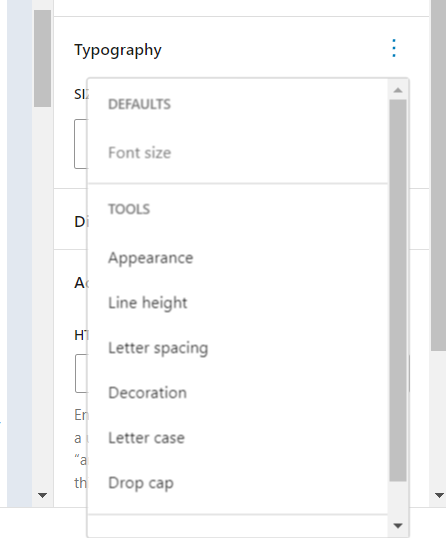
Here’s the rule that resolves the whole size-versus-tag argument: choose the tag from the outline, then change the size in CSS if you don’t like how it looks. MDN puts it bluntly in its reference on heading elements: do not use heading elements to resize text, use the CSS font-size property.
In a block theme, that lives in Appearance > Editor > Styles > Typography, where you can set each heading level independently. Classic themes usually expose the same thing through the Customizer.
Two things to watch while you’re in there. First, a custom heading font that loads late will reflow your page as it swaps in, and headings are large enough to move a lot of content when they do. That’s a Core Web Vitals problem, and the fix (font-display, preloading, or just using a system stack for headings) is in our notes on how to avoid layout shift in WordPress. Second, if your H2 and H3 look nearly identical at a glance, the visual hierarchy has stopped doing its job even though the markup is correct. Most SEO-optimized themes ship with sensible defaults here, but custom typography settings quietly break them.
Page builders deserve a specific warning. In Elementor Pro, the heading widget has an HTML tag dropdown that sits nowhere near the typography controls, so it is genuinely easy to build a page where every visual heading is a styled div or an H2 pretending to be a title. Bricks handles this more cleanly by putting the tag selector right in the element settings. Whichever tool you use, the habit is the same: set the tag first, style second. If you’re still choosing, our comparison of visual page builders for WordPress covers how each one handles semantic markup.
Headings, readability, and what SEO plugins measure
Long unbroken text is where readers leave. Headings break the wall, and they give someone scanning on a phone a place to stop and decide whether to keep going. Both major SEO plugins score this, though they measure slightly different things.
AIOSEO’s Readability tab includes a subheading distribution check that flags long stretches of text with no heading in them, alongside suggestions about sentence length and transition words.
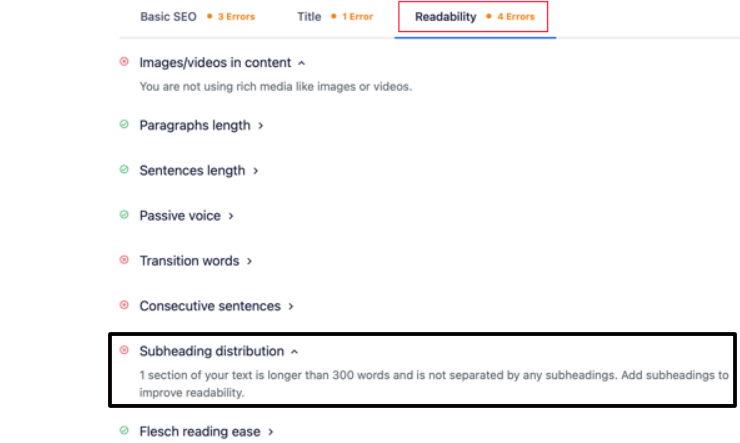
Treat these scores as a nudge, not a grade. A green light means you broke the text up. It says nothing about whether the headings are any good. I’ve seen plenty of posts hit a perfect readability score with headings that read like filing cabinet labels.
Keywords in headings, without the stuffing
Your H1 should contain your primary keyword, because it is the page’s topic sentence. Your H2s should cover the questions and subtopics people search for around that topic. That is roughly the whole strategy, and it works because those subtopics genuinely are what the post is about.
What doesn’t work is bolting the exact keyword onto every H2. It reads badly, and it flattens your outline into six variations of the same phrase, which helps nobody. Pull the subtopics from real queries instead. Our roundup of keyword research tools covers where to find “people also ask” style questions worth turning into H2s.
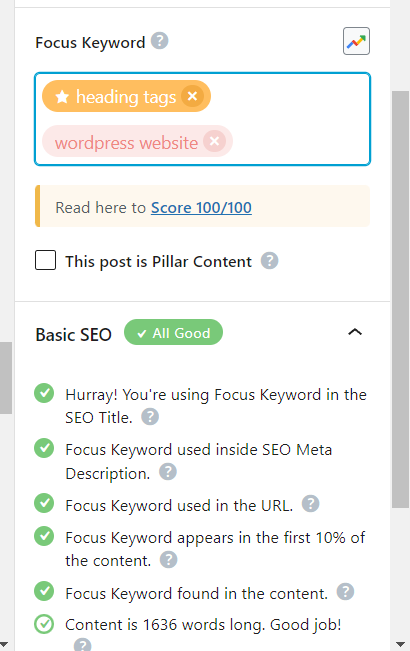
Both plugins will tell you whether your focus keyphrase shows up in subheadings. Rank Math does it in the free version, which is the main reason it’s my default recommendation for people who don’t want another subscription. If you want the wider comparison, we cover the field in our roundup of WordPress SEO plugins.
| Plugin and plan | Heading-related feature | Entry price | Renewal |
|---|---|---|---|
| Rank Math (free) | Focus keyword in subheadings, subheading count, content analysis | Free | Free |
| Rank Math PRO | Same, plus multiple focus keywords per post | €7.99/month, billed annually | €8.99/month + taxes |
| AIOSEO Lite | Basic SEO analysis; free on WordPress.org | Free | Free |
| AIOSEO Basic (1 site) | Readability tab, subheading distribution, Table of Contents block | €49.50/year, first term | €99.00/year |
| AIOSEO Pro (10 sites) | Same, plus the wider Pro feature set | €199.50/year, first term | €399.00/year |
Neither plugin will improve a heading. They will tell you a keyword is missing from one. That is a different job, and it is worth remembering before you pay for it. If what you actually want is to know whether the headings are working, that’s a job for rank tracking tools and Search Console, not an editor sidebar.
Turning your headings into a table of contents
A table of contents is the clearest payoff for getting hierarchy right, because it is built directly from your heading levels. Nested H3s indent under their parent H2. If your outline is a mess, the TOC displays the mess back to you, which makes it a decent free audit tool.
The plugin route
AIOSEO ships a Table of Contents block. Click the blue + icon in the editor, search for “AIOSEO – Table of Contents”, and drop it where you want the list. It reads the headings on the page, builds the links, and lets you edit the label text without touching the heading itself.

Worth knowing: WordPress core still has no stable Table of Contents block. One exists in the Gutenberg plugin, and its block.json in the Gutenberg repository still carries the __experimental flag, which is why it only appears when the Gutenberg plugin is active. So for now this is plugin territory, whether that’s an SEO suite or a dedicated TOC plugin.
The manual route
No plugin needed, and it’s about ten minutes of work. Select a heading, open the block sidebar, expand Advanced, and type a unique slug into the HTML anchor field. No spaces.

Then build a list at the top of the post, highlight each item, hit the link icon, and type # followed by the anchor you set. Press Enter to create the link.

The catch with manual anchors is maintenance. Rename a heading six months later, forget to update the anchor, and you have a jump link that silently goes nowhere. Plugins rebuild the list on save. If you publish long posts weekly, that’s the argument for the plugin; if you publish a 3,000-word pillar page twice a year, do it by hand.
Headings and featured snippets
Featured snippets are frequently pulled from content that sits directly underneath a heading matching the query. A question-shaped H2 with a short, direct answer immediately below it gives Google a clean block to lift. We aim for roughly 40 to 60 words in that answer, but that is our own editorial habit rather than a published threshold; Google has never named a length. Numbered lists under a “how to” heading get picked up as list snippets the same way.
Be realistic about this, though. You are giving Google a well-formed candidate, not triggering a mechanism. Plenty of perfectly structured posts never get a snippet because a stronger domain already holds it. Structure improves your odds; it doesn’t buy the slot.
What most heading tag guides get wrong
Nearly every article on this subject implies that Google penalises a broken heading order. It doesn’t, and Google says so directly in its SEO Starter Guide: “Having your headings in semantic order is fantastic for screen readers, but from Google Search perspective, it doesn’t matter if you’re using them out of order.” The same page adds that there is “no magical, ideal amount of headings a given page should have.”
So why bother with hierarchy at all? Because the real beneficiaries are the ones nobody screenshots. Screen reader users navigate a page by jumping between headings, and the level is the map. The W3C’s accessibility guidance on headings is explicit that skipping ranks, an H2 followed immediately by an H4, is confusing and should be avoided. Going back up a level is fine: an H2 after an H4 simply closes the subsection.
Two more myths worth retiring. “Multiple H1s will hurt you” is not supported by anything Google has published; it’s still bad practice, but for outline clarity rather than rankings. And “put your keyword in every heading” is advice from a decade ago that now mostly produces posts that read like they were written by a checklist.
The honest summary: fix your headings because it makes the page usable, gives your TOC something to work with, and makes your own editing easier. Any ranking benefit arrives through relevance, not compliance.
Which approach fits you
- New blogger, short posts, no budget. Learn the H1/H2/H3 rule, use the list view to check your outline before publishing, and skip every plugin in this article. Core does all of it.
- Blogger publishing 2,000-word posts regularly. Install Rank Math free for the subheading check, and add a TOC so renamed headings do not leave dead jump links behind.
- Freelancer or agency auditing an inherited site. Start by viewing source on the templates, not the posts. Missing or duplicated H1s at the template level affect every page at once, and no amount of per-post editing fixes that.
- Building with a page builder. Audit the tag dropdowns before you audit the prose. This is where broken hierarchy comes from far more often than sloppy writing does.
- Running an accessibility review. Ignore the SEO plugin scores entirely and test with a screen reader’s heading navigation. That’s the audience the hierarchy exists for.
Our verdict
Stay free if you write your own posts and can hold an outline in your head. The block editor gives you every heading level, HTML anchors, and a list view that shows your structure. That’s the whole toolkit, and it costs nothing.
Add Rank Math free if you want a second pair of eyes on subheading usage while you draft, without paying a subscription for it.
Buy AIOSEO instead if you specifically want the readability panel and a supported TOC block from the same vendor, and you’re comfortable with a first-term price that roughly doubles on renewal.
Our pick: core WordPress plus Rank Math’s free version. Spend the money you saved on something that actually moves traffic. The heading hierarchy is a twenty-minute habit, not a product category.
Frequently Asked Questions
Should a WordPress post have only one H1?
Yes, use one H1 per post and let it be the title. WordPress themes output the post title as the H1 automatically, so adding another one in the body duplicates it. HTML technically allows more, but a single H1 keeps the outline unambiguous for screen readers and for anything parsing your page.
Do heading tags affect SEO rankings?
Only indirectly, and less than most guides claim. Google says headings help it understand page structure, but its own starter guide states that using them out of order does not matter for Search. The real gain comes from descriptive headings that match what people actually search for.
Can I skip from H2 to H4?
You can, and Google will not penalise you, but do not. The W3C accessibility guidance says skipping ranks is confusing and should be avoided, because screen reader users navigate by heading level. Going back up a level is fine, so an H2 after an H4 closes the subsection correctly.
How do I change a heading level in the WordPress block editor?
Select the heading block, then use the level buttons in the block toolbar, or open the block sidebar and pick a level there. The keyboard shortcut is faster: with the block selected, press Ctrl or Cmd plus Alt plus the number key for the level you want.
Should my H1 match my SEO title?
They should overlap but do not have to be identical. The H1 is what readers see on the page; the SEO title is what shows in search results and has a tighter character budget. Keep the same primary keyword in both, then write the SEO title for the click.
Do I need a plugin for a table of contents?
No, you can build one by hand with HTML anchors and a linked list in about ten minutes. A plugin earns its place once you publish long posts regularly, because it rebuilds the list automatically whenever you edit a heading. WordPress core still ships no stable Table of Contents block.
How many headings should a blog post have?
There is no target number. Google states plainly that no ideal amount of headings exists for a page. A practical rule for a 2,000-word post is a new H2 whenever the topic genuinely turns, which usually lands somewhere between four and eight, with H3s only where a section splits.
Can I use a heading block just to make text bigger?
No. MDN is blunt about this: do not use heading elements to resize text, use CSS font size instead. A heading block adds an entry to the document outline, so a stray H3 used for emphasis shows up as a phantom section in screen readers and table of contents plugins.
Do page builders like Elementor handle heading tags properly?
They can, but the tag and the size are separate controls and it is easy to mismatch them. In Elementor the HTML tag dropdown sits apart from the typography controls; Bricks puts the tag selector in the element settings. Set the tag from the outline you want, then style the size afterwards.



[…] bullet has produced more bad prose than any other feature in this category, particularly around the heading tag structure it keeps […]
[…] a sensible outline. Get this wrong and every article you publish inherits the mistake. Our guide to using heading tags in WordPress covers what a clean outline looks like before you commit to a […]
[…] Post Title. Set the HTML tag to H1 yourself rather than accepting whatever appears. A template that ships H2 as the largest heading leaves every post without an H1, which is worth understanding properly if you have read our guide to using heading tags in WordPress posts. […]