

MySQL not starting in XAMPP usually comes down to one of four causes, and the control panel names none of them. You hit Start, the log line flashes red, the module goes quiet again. Guessing your way through random forum fixes is how people lose databases. XAMPP writes a plain-text error log every time the server dies, and that log names the cause. Read it, match it, apply one fix.
Quick verdict
- Start here:
C:\xampp\mysql\data\mysql_error.log. The last block of lines names your cause. Everything below is just matching that block to a fix. - First suspect: a second
mysqld.exealready sitting on port 3306, usually a previous XAMPP session that never shut down cleanly, or a Windows MySQL service that claims the port at boot. - Do not do this: delete
ibdata1on its own. That file holds the InnoDB data dictionary. Removing it orphans every InnoDB table you own, and no amount of restoring folders brings them back. - Our call: copy the whole
datafolder somewhere safe, read the log, apply exactly one fix, restart, re-read the log. Reinstalling XAMPP is the last resort, not the first step.
Step 1: Read the error log before you touch anything
MariaDB’s own documentation on what to do when the server does not start puts it plainly: “The reason for the failure will almost certainly be written in the error log.” XAMPP writes that log to C:\xampp\mysql\data\mysql_error.log on a default install. You can also open it from the XAMPP Control Panel by clicking Logs on the MySQL row.
Open it and scroll to the bottom. Ignore the history. You want the block of lines stamped with the time of your most recent failed start attempt, which is usually the last ten to thirty lines. Then match what you see to the table below.
| What the log shows | What it means | Go to |
|---|---|---|
| A bind or socket error naming port 3306, or the server dying immediately with no recovery attempt | Another process already owns the port | Fix 1 |
| InnoDB page corruption, checksum mismatches, or the same crash-recovery lines looping on every start | The InnoDB files in data are damaged | Fix 2 |
| “Check that you do not already have another mariadbd process using the same InnoDB data or log files”, or a failure to lock the Aria control file | A second server instance still holds the data directory | Fix 3 |
| Access denied, or a failure to create or write a file inside the data directory | Permissions, install location, or security software | Fix 4 |
If the log is empty, or has no entry at all from your last attempt, MySQL never got far enough to write anything. That is a permissions or install-path problem. Skip to Fix 4.
Fix 1: Something else already owns port 3306
Port 3306 is the default MySQL and MariaDB port, and XAMPP’s own Windows FAQ lists it in the ports XAMPP expects to claim. Only one process can hold it. If something got there first, the server exits before it does any real work.
Confirm it
Click Netstat in the XAMPP Control Panel. The screenshot below is exactly what a conflict looks like: two separate mysqld.exe processes, PIDs 11036 and 31644, both listening on port 3306. XAMPP owns one of them and cannot have the other.
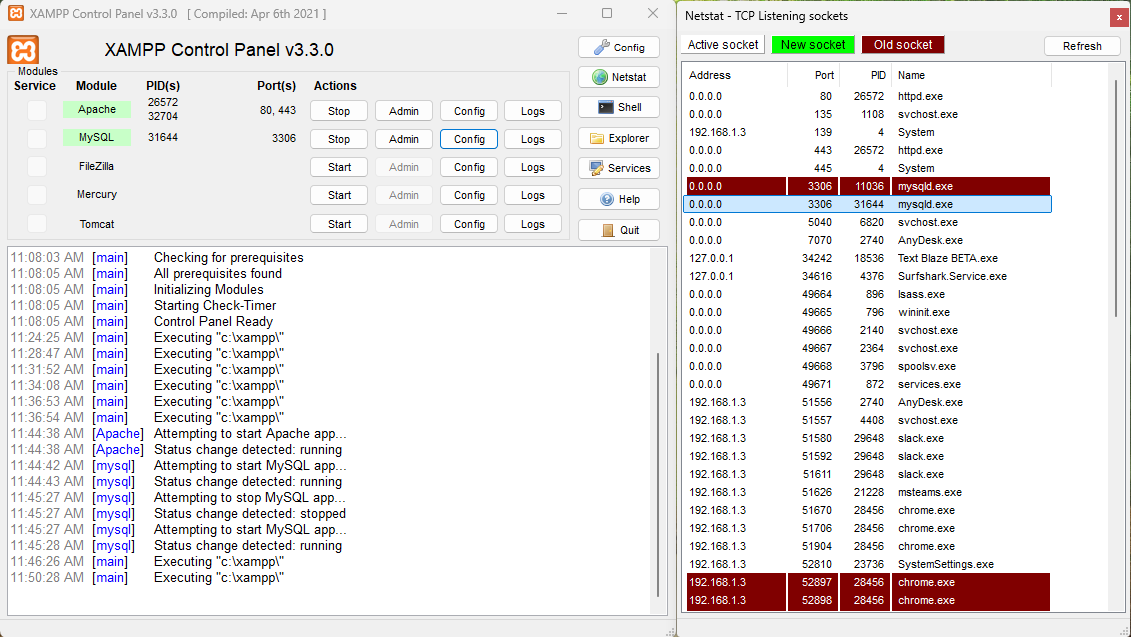
From a command prompt, netstat -ano | findstr :3306 gives you the same answer, and tasklist /FI "PID eq 11036" tells you which program the offending PID belongs to.
Fix it: evict the other process
This is usually the fix you want, because you probably do not want two database servers on one machine anyway. Run taskkill /PID 11036 /F with your own PID, then start MySQL from the control panel. If the culprit turns out to be a Windows service such as MySQL80 or MariaDB, open services.msc, stop it, and set its startup type to Manual. Otherwise it wins the race again on every reboot and you get to repeat this next week.
Or move XAMPP to port 3307
If you genuinely need both servers, move XAMPP’s. Click Config on the MySQL row and choose my.ini, which lives in C:\xampp\mysql\bin. It is the same edit-a-config-and-restart routine as enabling WebP uploads in XAMPP, and it is just as easy to half-finish.
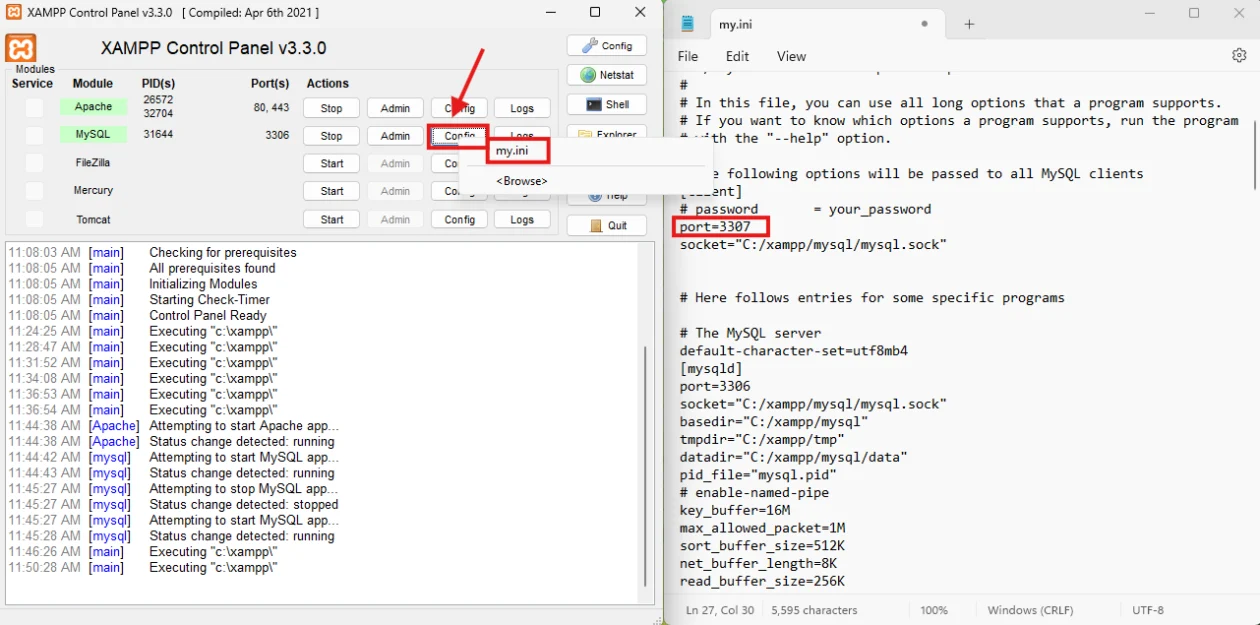
Look closely at that screenshot, because it shows the mistake people actually make. The highlighted port=3307 sits under [client], while further down [mysqld] still says port=3306. The [client] value only changes where the command-line tools try to connect. The server keeps binding to 3306 and keeps failing. Change the port in four places or do not bother:
[mysqld]inmy.ini. This is the one that matters, because it decides what the server binds to.[client]in the same file, somysql.exeandmysqldump.exefollow.C:\xampp\phpMyAdmin\config.inc.php, where you set$cfg['Servers'][$i]['port'] = '3307';- Every local
wp-config.php, whereDB_HOSTbecomes'127.0.0.1:3307'rather than'localhost'.
Confirm it worked
The MySQL row in the control panel should show a PID and the port you chose, and stay green for a full minute rather than flicking back to stopped. Click Netstat again: exactly one mysqld.exe. Then load http://localhost/phpmyadmin and confirm your databases are listed. If phpMyAdmin throws a connection error after a port change, you missed item three or four above.
Fix 2: Corrupt InnoDB files after an unclean shutdown
If Windows was force-restarted, the machine lost power, or you closed the control panel while MySQL was running, InnoDB can come back with damaged pages. The log gives it away: crash-recovery lines that repeat identically on every start attempt, or explicit page corruption and checksum errors.
Before anything else, copy the entire C:\xampp\mysql\data folder to your desktop. Not the databases you care about. The whole folder. Every fix below is destructive in some way, and a flat copy is the only thing standing between you and a rebuild. This is the local-development equivalent of the scheduled snapshots you would run on a live site with a WordPress backup plugin.
Restore the system tables from the backup folder
XAMPP keeps a reference copy of its system tables in C:\xampp\mysql\backup, in the state they were in when you installed it. Stop every XAMPP service and close the control panel, then open that folder and select everything except ibdata1.
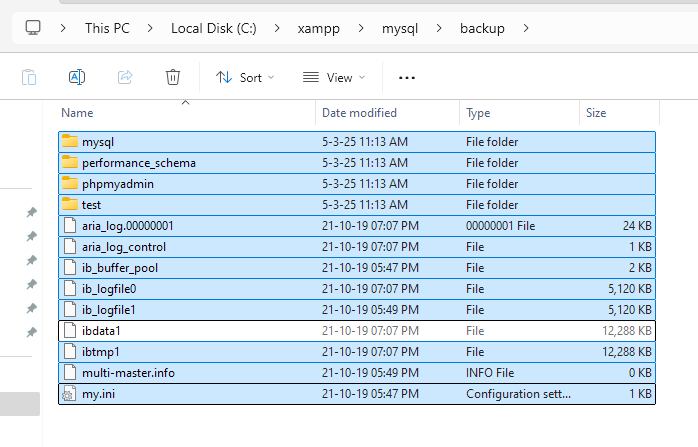
Copy those files, open C:\xampp\mysql\data, paste, and choose Replace the files in the destination.
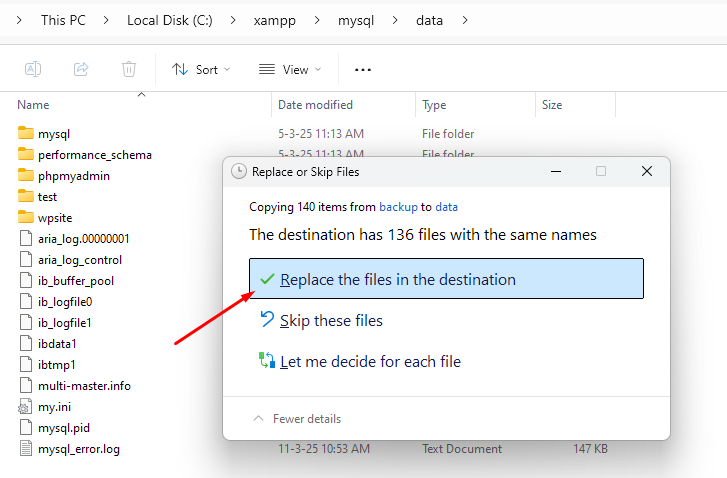
Why this works, and what it actually costs: you are replacing the damaged mysql, performance_schema and phpmyadmin system tables with install-time defaults, along with the Aria and InnoDB log files. You keep ibdata1 because that is where your InnoDB table data and the data dictionary live. Your own database folders in data are untouched. The price is that user accounts and grants revert to the defaults from the day you installed XAMPP.
If the log points at Aria instead of InnoDB
Aria is the storage engine MariaDB uses for its own system tables, and it has its own log files. MariaDB’s Aria documentation says that with the server shut down, a corrupted log can be fixed “by deleting all aria_log files”, and that “if the control_file is corrupted, then one has to delete the aria_control_file and all aria_log.* files”. The engine then checks and repairs Aria tables the next time they are opened.
If it still will not start: forced recovery
Add innodb_force_recovery=1 under [mysqld] in my.ini and start MySQL. If it comes up, immediately dump everything with mysqldump and rebuild from that dump. Per MariaDB’s InnoDB recovery modes documentation, write transactions are permitted at mode 3 or lower; at 4 “secondary indexes could be corrupted”, at 5 “results could be inconsistent”, and a value of 6 “leaves pages in an obsolete state, which might cause more corruption”. Escalate one level at a time, never start above 1, and set it back to 0 the moment you have your dump.
Confirm it worked
Green for sixty seconds is the bare minimum, because a corrupt-data crash often takes a few seconds to happen. Open phpMyAdmin, confirm your databases are listed, and run a SELECT COUNT(*) against your largest table so InnoDB has to actually read pages. Then reopen mysql_error.log and check no new errors landed after your restart. A server that starts but logs fresh corruption on every query is not fixed.
Fix 3: A leftover mysql.pid or a second server on the same data folder
When mysqld is killed rather than stopped, the mysql.pid file it wrote on startup stays behind, and locks on the data directory can survive with it. You can see both mysql.pid and mysql_error.log sitting in the data folder screenshot above.
The log is specific here. MariaDB’s troubleshooting page notes that a failure to lock the Aria control file “almost always happens because there is already an existing MariaDB service running on this data directory”, and the InnoDB variant of the message tells you outright to “check that you do not already have another mariadbd process using the same InnoDB data or log files”.
Confirm and fix it
Open Task Manager with Ctrl + Shift + Esc and switch to the Details tab. If XAMPP reports MySQL as stopped but mysqld.exe is still listed, you have found it. End every mysqld.exe task, close the control panel completely, then delete mysql.pid from C:\xampp\mysql\data. Reopen XAMPP and start MySQL.
To confirm: the control panel shows a new PID, and if you reopen mysql.pid in a text editor it contains that same number. If it still holds the old PID, the file was never rewritten and the server did not truly start.
Stopping this from recurring is the easy part. Stop MySQL from the control panel before you shut Windows down, and never close the panel while a module is green. It kills the process rather than asking it to shut down.
Fix 4: Permissions, install location and security software
This is the cause behind an empty error log. If mysqld cannot write to its own data directory, it dies before it can tell you why. XAMPP’s Windows FAQ is direct about administrator rights under User Account Control: “it is necessary to run the scripts or the Control Panel with Administrator privileges”.
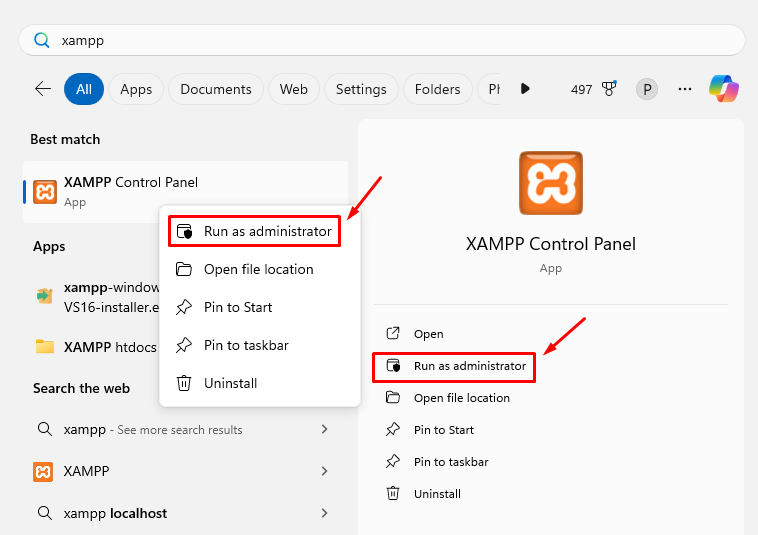
Right-click XAMPP Control Panel and choose Run as administrator. Treat that as a diagnostic rather than a cure. If MySQL starts as administrator and fails as a normal user, you have confirmed a permissions problem, and there are two real causes worth fixing properly:
- XAMPP is installed under
C:\Program Files. Windows guards that tree, and mysqld writes to its own folder constantly. The installer defaults toC:\xamppfor exactly this reason. Moving the install is less work than fighting the ACLs. - Security software is blocking writes to the data folder. Controlled folder access under Windows Security, and the ransomware shields in most third-party antivirus, both block unknown executables from writing to protected directories. Add an exclusion for
C:\xampp. Do not leave the protection switched off as a permanent arrangement.
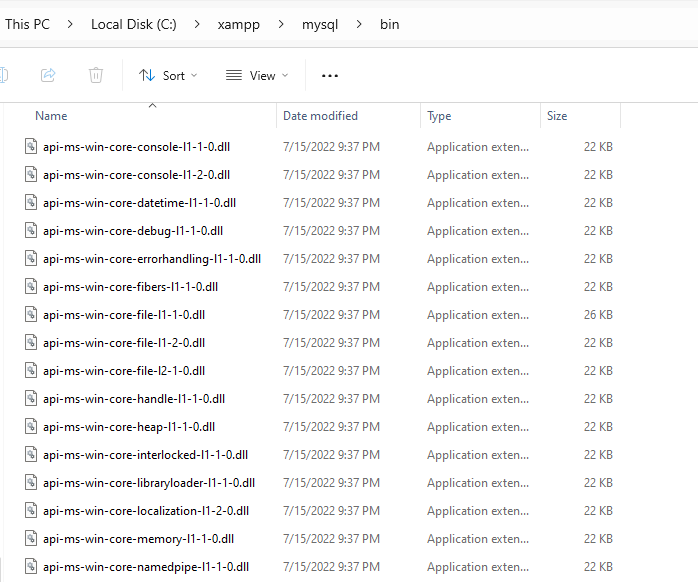
The my.ini file you may need to check sits in C:\xampp\mysql\bin, alongside the MariaDB binaries. Confirm that datadir points where you think it does, that port appears once under [mysqld], and that nothing is duplicated after an edit.
One more my.ini trap worth knowing: a buffer pool sized larger than the free memory on the machine makes mysqld fail at startup on smaller laptops. If you have ever raised innodb_buffer_pool_size, halve it and try again. The reasoning is the same as when you raise the WordPress memory limit: the number has to fit inside what the machine actually has.
What each fix breaks
None of these are free. Know the cost before you run one.
| Fix | What it costs you |
|---|---|
| Killing the other mysqld | Any uncommitted work in that other server. If it is a real project database rather than a stray XAMPP process, stop it properly instead. |
| Moving XAMPP to port 3307 | Every local site keeps working only if you update phpMyAdmin and each wp-config.php. Miss one and it throws a database connection error. |
| Restoring from the backup folder | Database users and grants revert to install-time defaults. Anything created in phpmyadmin or performance_schema since install is gone. |
| Deleting Aria log files | Aria tables get checked and repaired on next open, which is slow on large tables and can drop unrecoverable rows. |
| innodb_force_recovery above 1 | Real risk of permanent damage. Modes of 4 and above can corrupt secondary indexes. Dump and rebuild, do not keep running on it. |
| Reinstalling XAMPP | An evening, and it fixes neither a port conflict nor corrupt data files you copy back in. |
What most XAMPP guides get wrong
It is not MySQL. XAMPP for Windows 8.2.12 bundles MariaDB 10.4.32 according to the Apache Friends download page. The control panel still says MySQL because the label never changed. This matters when you paste an error message into a search box: search it with the word mariadb and the results get dramatically more useful. Worth knowing too that MariaDB 10.4 reached end of life on 18 June 2024. That is acceptable for a throwaway local sandbox and a poor thing to mirror on a live server, so check what your host actually runs before you assume they match.
“Just change the port to 3307” is half an instruction. As the screenshot in Fix 1 shows, the change is easy to make in the wrong section and get nothing for it. The [mysqld] port is the one the server binds to.
“Delete ibdata1” is the tip that eats databases. It appears in an alarming number of guides, usually with no warning attached. The backup-folder recipe works precisely because it keeps that file. If a set of instructions tells you to delete it and does not tell you to copy the data folder first, close the tab.
Reinstalling is the default advice and it is usually wrong. A reinstall does not evict the process holding port 3306, does not clear a stale lock on a data directory you are keeping, and does not repair files you copy back in afterwards. It only helps when the XAMPP install itself is broken, which is rare.
Which fix applies to you
- Netstat shows two
mysqld.exeon 3306, or the log names the port → Fix 1. - The log mentions another process using the same InnoDB data or log files, or an Aria control file lock → Fix 3 first, then Fix 1 if it persists.
- The log loops through crash recovery or reports page corruption → Fix 2, after copying the data folder.
- The log is empty, or MySQL only starts when you run XAMPP as administrator → Fix 4.
- MySQL was fine until you edited
my.ini→ undo the edit. A duplicated key or a buffer pool larger than free memory stops the server dead.
When XAMPP is the wrong tool for the job
XAMPP is a shared stack with one MariaDB instance behind every site on the machine, which is why a single bad shutdown takes all of them down together. If you are losing an evening a month to this, per-site local environments or a browser-based sandbox like InstaWP keep the damage inside one project instead of all of them.
Moving a finished local build to a real server is its own job. A WordPress migration plugin handles the database export properly, and it pays to choose a host whose database version is close to what you built against, rather than discovering the gap during launch week. Our comparison of WordPress hosting platforms covers what each one runs.
Frequently Asked Questions
Why does XAMPP say MySQL when the error log says MariaDB?
Because XAMPP has shipped MariaDB instead of MySQL for years, while the control panel label never changed. XAMPP for Windows 8.2.12 bundles MariaDB 10.4.32. This matters when you search an error message: search it with the word mariadb rather than mysql and the results get far more useful.
Will deleting ibdata1 delete my databases?
For InnoDB tables, yes. That file holds the shared tablespace and the data dictionary, so removing it orphans your InnoDB tables even though the folders under data still look intact. That is exactly why the backup-folder restore copies every file except ibdata1. Copy the whole data folder before you start.
Where is the XAMPP MySQL error log on Windows?
In the data directory, at C:/xampp/mysql/data/mysql_error.log on a default install. You can also reach it from the XAMPP Control Panel by clicking the Logs button on the MySQL row. Read the last block of lines, the ones stamped with the time of your most recent failed start attempt.
Is changing the MySQL port to 3307 safe?
Safe, but only if you change it everywhere. Set the port under the mysqld section of my.ini, match it in the client section, update the port in phpMyAdmin config.inc.php, then change DB_HOST in every local wp-config.php to 127.0.0.1:3307. Miss one and that site throws a database connection error.
MySQL starts and then stops after a few seconds. What now?
That is a crash rather than a failed launch, so the log will hold a fresh stack of lines to read. Repeated InnoDB crash-recovery attempts point at corrupt data files. A buffer pool sized larger than the free memory on the machine does the same thing on smaller laptops.
Does XAMPP need to run as administrator every time?
No, and needing to is a symptom. Running as administrator is a diagnostic, not a fix. If it only starts that way, the real problem is folder permissions, security software, or the install location. Install XAMPP at C:/xampp rather than under Program Files and the need usually disappears.
Is innodb_force_recovery safe to use?
Only after copying the data folder, and only one level at a time starting at 1. MariaDB permits write transactions at mode 3 or lower. Modes of 4 and above can corrupt secondary indexes, and mode 6 leaves pages in an obsolete state. Dump your data, rebuild, then set it back to 0.
Will reinstalling XAMPP fix this?
Rarely, and it costs you an evening. A reinstall does not remove whatever else is sitting on port 3306, and it does not repair database files you copy back in afterwards. Work the error log instead. Keep the reinstall as a last option, after a full copy of the data folder.
Our call
Read the log first, every time. It turns a four-hour guessing session into a five-minute repair, and it is the one step almost every guide on this topic skips.
Then work in this order, safest first: rule out the port conflict and the stale PID file, since neither can lose you data. Only then touch the data folder, and only with a copy of it sitting on your desktop. Save innodb_force_recovery for the case where the server will not come up at all, and treat anything above mode 1 as a way to get a dump out rather than a way to keep running.
The habit that ends this problem for good is dull: stop MySQL from the control panel before you shut the machine down, and copy the data folder before every fix. Two minutes of discipline against an evening of recovery is not a close call. The same logic is why client sites end up on a maintenance service eventually, because nobody keeps that habit for someone else forever.