

To enable WebP upload in XAMPP you usually do not need to touch php.ini at all, which is exactly why the standard advice fails so often. XAMPP already ships with GD switched on. The upload still breaks, WordPress still shows an empty thumbnail, and you lose an hour uncommenting a line that was never commented. This guide finds the layer that is actually failing, fixes that one, and proves it with phpinfo() before you upload anything.
Quick answer
What is actually broken: rarely php.ini. It is normally GD loaded without a WebP codec, WordPress unable to build the resized copies, or a php.ini you edited that Apache never reads.
The two-minute check: open phpinfo(), scroll to the gd block, and read the WebP Support row. If it says enabled, PHP is fine and your problem sits above it in WordPress or below it in Apache.
Skip this guide if: your WebP files upload and display correctly but simply look soft. That is an encoder quality setting, not a XAMPP problem.
Our call: on any XAMPP 8.x install, run phpinfo() first and edit php.ini only if it tells you to. Most people who follow the copy-paste guides change nothing and restart Apache for no reason.
Why WebP fails in a default XAMPP stack
A WebP upload passes through a chain of separate systems before it becomes a thumbnail in your Media Library: the PHP extension, the image codec compiled into that extension, WordPress’s own MIME and image-editor checks, and Apache’s Content-Type mapping when the file is served back. Each one fails differently, and the error you see rarely names the layer at fault.
Here is the whole chain, with the check that settles each link.
| Layer | What has to be true | How to check it | Usual state on XAMPP 8.x |
|---|---|---|---|
| GD extension | extension=gd is loaded | phpinfo() shows a gd section | Already uncommented in the php.ini XAMPP ships |
| WebP codec inside GD | GD built against libwebp | gd_info()['WebP Support'], or imagetypes() & IMG_WEBP | Normally on in the Windows builds. Verify, do not assume |
| PHP image reader | getimagesize() can parse WebP | Needs PHP 7.1 or newer | Fine. Every current XAMPP ships PHP 8.x |
| WordPress MIME list | image/webp is an allowed upload type | WordPress 5.8 or newer | Fine on any supported WordPress |
| WordPress image editor | GD or Imagick reports WebP support | Tools > Site Health > Info > Media Handling | GD only. XAMPP bundles no Imagick |
| Apache Content-Type | image/webp mapped to .webp | Open a .webp file directly by URL | Already in Apache’s bundled conf/mime.types |
| Upload limits | File fits upload_max_filesize and post_max_size | phpinfo(), Local Value column | Read yours. PHP’s own shipped defaults are 2M and 8M |
Notice how few rows need action. That is the honest summary of this whole topic: on a modern XAMPP, most of the chain is already correct, and the fix is usually a single row.
Step 1: Find the php.ini XAMPP actually loads
The most common wasted afternoon in this whole process is editing a php.ini that Apache never reads. XAMPP installs more than one, and the PHP CLI binary can load a different file from the one the Apache module uses. Start from the Control Panel so you open the right one.
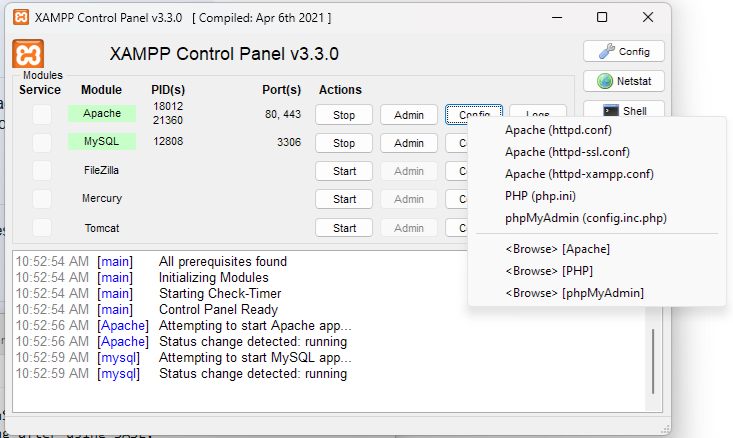
- Open the XAMPP Control Panel.
- Click Config on the Apache row, not the Config button at the top right. That top button is for the Control Panel itself.
- Choose PHP (php.ini).
On a default install that opens C:\xampp\php\php.ini on Windows, /opt/lampp/etc/php.ini on Linux, and /Applications/XAMPP/xamppfiles/etc/php.ini on the classic macOS build. If you run the macOS VM version, the stack lives inside a Linux virtual machine and those Mac paths do not apply, so use the VM’s terminal instead.
Do not trust any of those paths blindly. Step 4 shows you the Loaded Configuration File row in phpinfo(), which is the only authoritative answer.
Step 2: Check GD before you change anything
Open the php.ini and search for extension=gd. On the XAMPP install pictured below, that line is already active with no leading semicolon, alongside extension=fileinfo, extension=exif and extension=mbstring. If yours looks the same, the classic instruction to uncomment it does nothing at all.
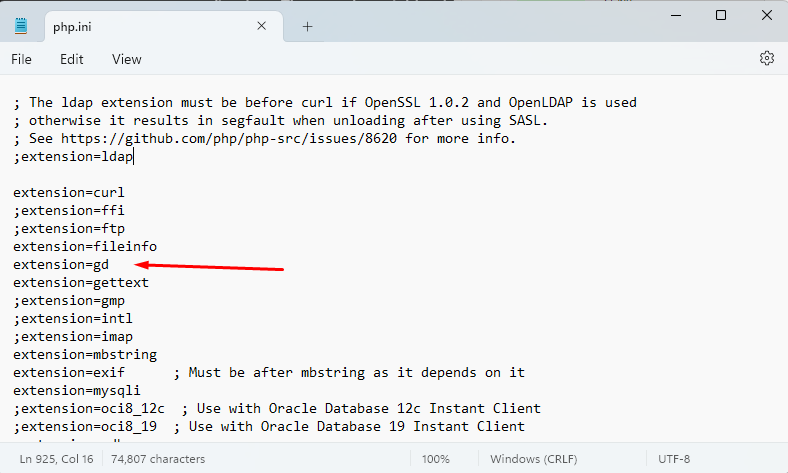
Two details in that screenshot matter more than the arrow. The line reads extension=gd, not extension=gd2, which tells you this is PHP 8. The PHP manual’s GD installation page confirms the Windows DLL was renamed from php_gd2.dll to php_gd.dll in PHP 8.0.0. Guides written for PHP 7 tell you to look for gd2, you do not find it, and you conclude GD is missing when it is loaded and working.
The line being present is not proof of WebP support, though. GD can be compiled with or without the WebP codec, and that is the row you actually care about. Drop this file into C:\xampp\htdocs\webp-check.php and load http://localhost/webp-check.php:
<?php
$gd = function_exists('gd_info') ? gd_info() : [];
echo 'GD loaded: ', extension_loaded('gd') ? 'yes' : 'no', "\n";
echo 'GD version: ', $gd['GD Version'] ?? 'n/a', "\n";
echo 'WebP Support: ', !empty($gd['WebP Support']) ? 'yes' : 'no', "\n";
echo 'AVIF Support: ', !empty($gd['AVIF Support']) ? 'yes' : 'no', "\n";
echo 'imagetypes IMG_WEBP: ', (imagetypes() & IMG_WEBP) ? 'yes' : 'no', "\n";
echo 'Imagick present: ', class_exists('Imagick') ? 'yes' : 'no', "\n";
The WebP Support key comes from gd_info(), and AVIF Support joined it in PHP 8.1. The imagetypes() line matters most, because that bitmask is precisely what WordPress itself tests before it agrees to resize a WebP file. IMG_WEBP has existed since PHP 7.0.10 per the imagetypes() reference.
If every line except the Imagick one says yes, PHP is already capable and you can jump to Step 5. Imagick saying no is normal and not a fault: Imagick is a separate PECL extension and XAMPP does not bundle it. You would add it yourself from the imagick PECL package, and for WebP alone there is no reason to bother.
Step 3: Enable what is missing, then restart properly
If GD is genuinely commented out, remove the leading semicolon from extension=gd, save, and move on. If GD is loaded but WebP Support reads no, php.ini cannot help you, because the codec is a compile-time decision. That build simply has no WebP encoder in it. Your options are to install a XAMPP release built with one, or swap the PHP folder for an official Windows build of the same version.
Three things go wrong at the save-and-restart stage more than anything else in this guide:
- The editor never wrote the file. On Windows,
C:\xampp\php\often needs elevation. Notepad can appear to save and silently redirect the file elsewhere. Reopen php.ini after saving and confirm your change survived. - You used the wrong restart. Stop Apache, wait for the port to release, then Start it. The Control Panel’s quick restart does not always reload php.ini cleanly.
- You edited the CLI php.ini. Running
php -iin a terminal can report different values from the Apache module. Trust the browser, not the terminal.
While the file is open, glance at memory_limit, upload_max_filesize and post_max_size. PHP’s own shipped php.ini sets those last two to 2M and 8M, which is small enough to reject a large hero image and produce an error that looks nothing like a WebP problem. If WordPress reports failures midway through processing rather than at upload, you are more likely looking at a memory ceiling, and our guide to increasing the WordPress memory limit covers the WP_MEMORY_LIMIT side of that.
Step 4: Verify with phpinfo(), the step everyone skips
Uploading a test image to find out whether it worked is a bad experiment, because a failure could come from any of seven places. phpinfo() isolates PHP from everything else. Create C:\xampp\htdocs\info.php containing <?php phpinfo(); and open http://localhost/info.php.
Read four things, in this order:
- Loaded Configuration File, near the top. If this is not the path you edited in Step 1, nothing else on the page is relevant. Go back and edit the file it names.
- The gd section. No
gdheading at all means the extension is not loading. Agdheading with WebP Support: enabled is the result you want. - upload_max_filesize and post_max_size, in the Core table. Read the Local Value column, which is what actually applies.
- PHP Version, top of the page. WebP reading through
getimagesize()arrived in PHP 7.1.0 per the getimagesize() changelog, so anything from the PHP 8 era is comfortably clear.
Delete info.php and webp-check.php when you are done. They are harmless on localhost and a gift to attackers the moment a folder like that reaches a public server during a migration.
Step 5: Make WordPress accept and process the file
WordPress stopped needing help here some time ago. Core has allowed WebP uploads since WordPress 5.8, and AVIF followed in WordPress 6.5. If you are still copying an upload_mimes snippet into functions.php to add image/webp, delete it. It has been redundant for years and it can mask the real failure.
Core is also more forgiving than most people expect. When it validates an upload it sniffs the actual file, and if the image library cannot identify a WebP it falls back to reading the raw RIFF and WEBP markers in the first twelve bytes. So a WebP file will usually get past the MIME gate even on a stack with no WebP codec at all.
That is exactly why the symptom is so confusing. The file uploads. It appears in the Media Library. It just never gets a thumbnail, because the resize step runs through the image editor, and the GD editor only accepts a MIME type when imagetypes() reports the matching bit. No IMG_WEBP bit, no resized copies. Confirm it from the admin: Tools > Site Health > Info > Media Handling lists your GD version and, if Imagick is present, its supported formats.
Once local uploads behave, remember that generating WebP for a live site is a different job from accepting it. That belongs to your optimization stack, and our roundup of image optimization plugins compares the tools that convert and serve modern formats automatically. Delivery tuning sits alongside it in lazy load plugins and the broader WordPress speed optimization walkthrough.
What breaks, and what each failure looks like
Match the symptom to the layer instead of applying every fix at once.
- “Sorry, you are not allowed to upload this file type.” That is the core upload handler refusing the MIME type. On WordPress 5.8 or newer it almost always means a plugin or a snippet is filtering
upload_mimes. Deactivate security plugins one at a time. - The file uploads but the Media Library tile is blank. The upload passed, the resize failed. Go back to Step 2 and check the
IMG_WEBPbit. - The browser downloads the .webp instead of showing it. Content-Type, not PHP. This is rare, because Apache has carried
image/webp webpin its bundled conf/mime.types since long before the 2.4 releases XAMPP ships. If it does happen, addAddType image/webp .webpto httpd.conf and restart. - An animated WebP produces a broken thumbnail. Not a configuration error and not fixable in php.ini. The PHP manual states plainly that animated WebP files cannot be read by GD. Use a still image, or Imagick.
- Processing fails partway through. Usually memory or execution time on a large source file, not the format.
- Nothing changed after editing php.ini. Wrong file, unsaved file, or a restart that did not take. Step 4 settles all three in ten seconds.
What most XAMPP WebP guides get wrong
Four claims get repeated constantly and none of them survive a look at the primary source.
“Uncomment extension=gd.” Look again at the screenshot in Step 2. It is already uncommented in the php.ini XAMPP ships. Advice that starts by fixing something that is not broken tends to end with a reader who has restarted Apache four times and learned nothing.
“WebP needs PHP 5.5 or newer.” The version numbers are wrong in both directions and they are not one number anyway. imagewebp() landed in PHP 5.4.0, IMG_WEBP in 7.0.10, and getimagesize() only learned to read WebP in 7.1.0. None of it matters on a current XAMPP, which is the real point: stop debugging PHP versions that no current build ships.
“Set the uploads folder to 777.” Never do this, not even locally. It fixes nothing WebP-specific, and localhost habits travel with you to production more often than anyone admits.
“Enable Imagick for WebP.” XAMPP does not bundle Imagick, and GD handles still WebP fine. Imagick is worth installing for animated WebP or for color-profile work, and for nothing else in this context.
The catch: XAMPP is further behind than your host
This is the part that costs people real time later, and no WebP tutorial mentions it. Checked August 2026: the Apache Friends download page still offers 8.0.30, 8.1.25 and 8.2.12 as its current installers. Those builds date from November 2023 and carry PHP 8.2.12, Apache 2.4.58 and MariaDB 10.4.32.
Set that against WordPress’s own requirements page, which recommends PHP 8.3 or greater and MariaDB 10.11 or MySQL 8.0. Your local stack is a full PHP minor version and several MariaDB releases behind what WordPress asks for. WebP itself is unaffected, since PHP 8.2 covers both WebP and AVIF in GD. The database gap is the one that bites, usually as a query that runs locally and fails after you push, or as a plugin that quietly needs a newer MariaDB.
If you are building a local WordPress stack in 2026, treat XAMPP as a place to write code, not as a rehearsal for production. Match your PHP version to your host deliberately, test the real thing on staging, and lean on proper WordPress migration plugins rather than a database export you hand-edited. If you are still choosing where the site will eventually live, our comparison of WordPress hosting platforms lists the PHP versions each one actually offers. And when the local stack refuses to boot at all, the fix for MySQL not starting in XAMPP is a separate, equally annoying story.
Worth keeping in perspective: WebP is worth the setup effort. Google’s own WebP documentation puts lossy WebP at 25 to 34 percent smaller than comparable JPEG at equivalent SSIM, and lossless WebP at 26 percent smaller than PNG.
Which path applies to you
- You only need to place WebP files you already have. Run Step 4. If
WebP Supportis enabled, you are finished. Change nothing. - You need WordPress to generate WebP thumbnails. Steps 2 and 3, and confirm the
IMG_WEBPbit specifically rather than the GD section as a whole. - You work with animated WebP. GD cannot help. Install Imagick from PECL and accept the extra maintenance.
- You are tired of maintaining a local stack at all. A hosted sandbox spins up a matching PHP version in seconds and skips this entire article. InstaWP is the one we point clients at, and pairing it with a proper production cache layer from our WordPress cache plugins comparison, or WP Rocket, is a better use of an afternoon than debugging php.ini.
Frequently Asked Questions
Does enabling WebP upload in XAMPP require editing php.ini?
Usually not. XAMPP ships with extension=gd already active, and the Windows PHP builds normally include the WebP codec. Load phpinfo() and read the WebP Support row in the gd section first. Only edit php.ini if that row is missing or reads disabled.
Why does a WebP image upload but show no thumbnail?
The upload passed WordPress MIME validation but the resize failed. WordPress only builds resized copies when GD reports the IMG_WEBP bit through imagetypes(). If that bit is absent, the original file is stored and no intermediate sizes are created.
Where is the php.ini file in XAMPP?
Open the XAMPP Control Panel, click Config on the Apache row, and choose PHP (php.ini). The Windows default sits in the php folder inside your XAMPP directory, and Linux uses /opt/lampp/etc/php.ini. Always confirm against the Loaded Configuration File row in phpinfo().
Does WordPress still need an upload_mimes snippet for WebP?
No. WordPress has allowed WebP uploads natively since version 5.8, and AVIF since 6.5. Custom upload_mimes filters are redundant on any supported version and can hide the real problem, which is normally the image editor rather than the MIME list.
Is Imagick required in XAMPP for WebP?
No. XAMPP does not bundle Imagick and GD handles still WebP images perfectly well. Install Imagick from PECL only if you need animated WebP, since GD cannot read animated files, or if you work with color profiles that GD ignores.
Why does Apache download my WebP file instead of displaying it?
That is a Content-Type problem, not a PHP one. It is uncommon, because Apache has shipped image/webp in its bundled conf/mime.types for many releases. If it happens, add AddType image/webp .webp to httpd.conf and fully stop and start Apache.
What PHP version is needed for WebP support?
Any PHP 8 release covers everything. For reference, imagewebp() arrived in PHP 5.4.0, the IMG_WEBP constant in 7.0.10, and getimagesize() gained WebP reading in 7.1.0. Every current XAMPP installer ships PHP 8.0 or newer, so version is rarely the issue.
Should the XAMPP PHP version match the live host?
Yes, and it takes deliberate effort. The current XAMPP installers ship PHP 8.2 and MariaDB 10.4, while WordPress recommends PHP 8.3 or greater with MariaDB 10.11 or MySQL 8.0. Test on staging before you push anything database heavy.
The verdict
Run phpinfo() before you edit anything. On a current XAMPP the answer is almost always that GD is loaded, WebP Support is enabled, and the config change every tutorial recommends would have done nothing. That single check saves the hour most people spend here.
When something genuinely is broken, it is the resize step rather than the upload step, and imagetypes() & IMG_WEBP is the line that tells you so. Fix that, restart Apache with a full stop and start, and WebP behaves exactly like JPEG from then on.
One last piece of advice, worth more than the fix itself: the version gap between XAMPP and what WordPress now recommends is the thing that will actually cost you a Saturday. WebP will work locally in ten minutes. Matching your local PHP and database to your live host is the job worth doing properly.


[…] my.ini, which lives in C:xamppmysqlbin. It is the same edit-a-config-and-restart routine as enabling WebP uploads in XAMPP, and it is just as easy to […]