Local WordPress development means running a full WordPress site on your own computer, so you can build, update and break things without a single visitor noticing.
4 free tools cover almost every case: Local, XAMPP, the WordPress Playground CLI and wp-env on Docker. This guide helps you pick one in two minutes, set it up, match your host’s PHP version and copy a live site down.
⚡ Quick answer
- Best for most people: Local, a free desktop app that installs WordPress, PHP, a database and SSL in one wizard.
- Fastest throwaway test: one command,
npx @wp-playground/cli@latest start, if Node.js is installed. - Plugin and theme developers: wp-env, the official Docker-based tool, with config you can commit to Git.
- Time needed: 10 to 30 minutes for a blank site, longer to copy a large live site.
- Our call: match your host’s PHP version whichever tool you pick, or the local copy will hide the bugs you are trying to catch.
Contents
- What you need before you start
- Which local WordPress tool should you use?
- Option 1: Set up WordPress with Local
- Option 2: Install WordPress on XAMPP
- Option 3: Run WordPress Playground from the command line
- Option 4: Use Docker with wp-env
- How do you match your live site’s PHP and database?
- How do you copy a live site to your computer?
- How do you check the local site works?
- What breaks and how do you fix it?
- Frequently Asked Questions
- Which local setup should you pick?
What you need before you start
- A computer with room to spare. Local asks for at least 4 GB of RAM and 1.5 GB of disk for a few sites.
- Admin rights on that computer. Local edits your hosts file, and XAMPP and Docker need installer permissions.
- Your live site’s versions, if you plan to copy it: PHP, database, WordPress, theme and plugins. Tools → Site Health → Info lists them all.
- A code editor such as VS Code, plus a browser with good developer tools. Our list of Chrome extensions for WordPress users adds a few that help while you test.
- Node.js only for the Playground CLI or wp-env, and Docker only for wp-env or Docker Compose.
You do not need a domain, hosting or a paid licence. All of these tools are free.
Which local WordPress tool should you use?
Pick by how you work, not by which tool is newest. The table sums up the trade-offs, checked against each vendor’s documentation in November 2026.
| Tool | How you use it | Database | Needs | Best for |
|---|---|---|---|---|
| Local | Desktop app with a wizard | MySQL | Nothing extra | Site builders, freelancers, client sites |
| XAMPP | Control panel plus manual WordPress install | MariaDB | Nothing extra | People who already know Apache and phpMyAdmin |
| Playground CLI | One terminal command | SQLite | Node.js 20.18+ | Quick tests, plugin demos, throwaway sites |
| wp-env | Terminal, config in .wp-env.json | MariaDB | Docker and Node.js | Plugin, theme and block development |
| Docker Compose | Terminal, a compose.yaml you write | MySQL or MariaDB | Docker | Full control over every container |
| WordPress Studio | Desktop app from Automattic | Managed by the app | Nothing extra | WordPress.com and Pressable users |
Do this if you are unsure: start with Local. It hides the server plumbing and still gives you WP-CLI, SSL and a PHP switcher when you need them.
Skip the desktop apps if you write plugins for a team. A wp-env config file in the repository gives every developer the same site with one command.
Option 1: Set up WordPress with Local
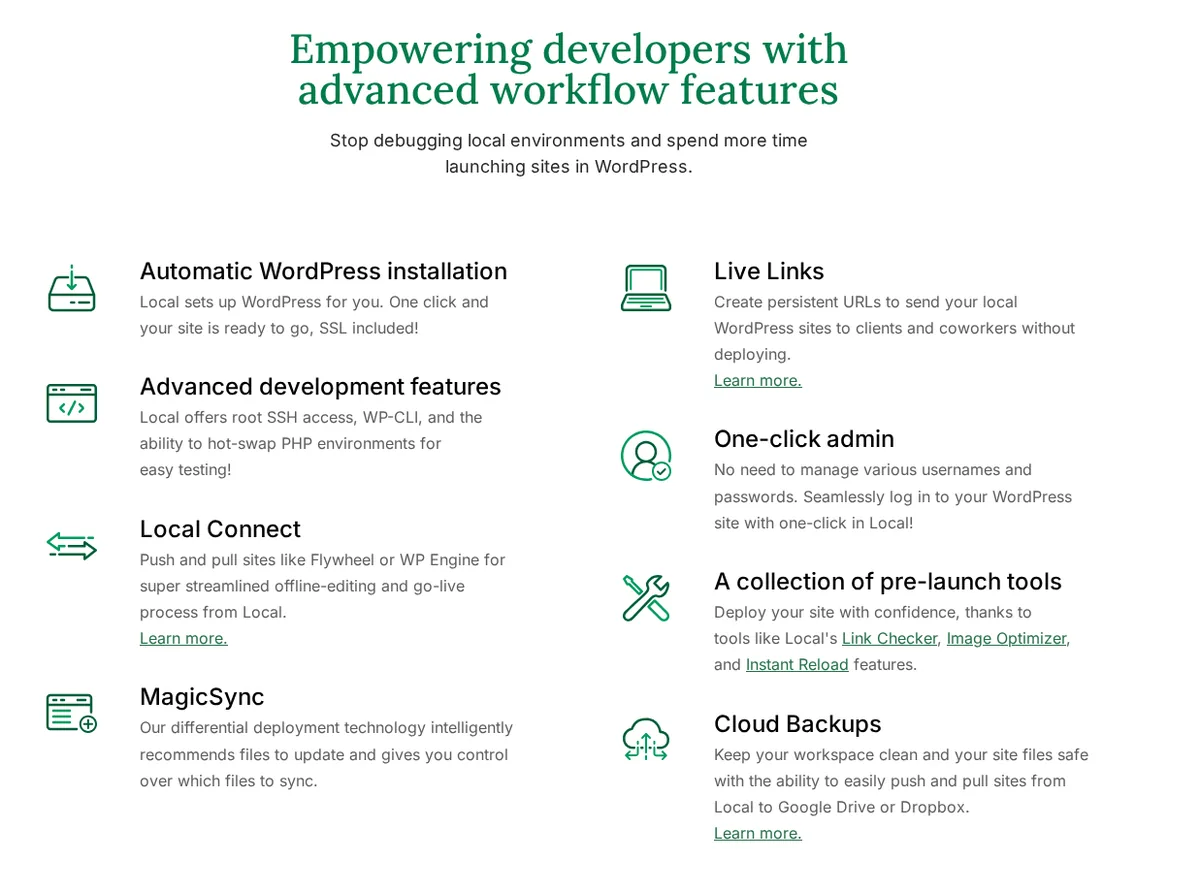
Local is made by WP Engine and is free. It runs on macOS 12 or later, 64-bit Windows 10 and 11, and Debian- and RPM-based Linux, per its installation docs.
Step 1: Install Local
Download the installer for your system from localwp.com. On a Mac, drag Local into Applications. On Windows, run the installer and click Allow access on each Windows Defender prompt, or Local’s services cannot talk to each other.
Step 2: Create the site
- Click + (or Create a new site) and enter a site name.
- Open Advanced options if you want a custom domain. Keep the
.localending; Local adds it to your hosts file. - Choose Preferred for Local’s default PHP, web server and MySQL, or Custom to pick versions that match your host.
- Set the admin username, password and email, then click Add site.
When it finishes, the site appears in the sidebar. Click WP Admin to log in, or turn on one-click admin to skip the login screen.
Step 3: Use the extras
- Open site shell gives you WP-CLI already pointed at the site.
- Mailpit catches every email the site sends through
wp_mail(), so password resets and form notifications never reach a real inbox. - Live Links create an HTTPS URL a client can open. You need a free Local account for this.
💡 Tip: test a new plugin stack here before it touches production. A good first project is trying the field plugins from our roundup of custom field plugins for WordPress side by side.
Option 2: Install WordPress on XAMPP
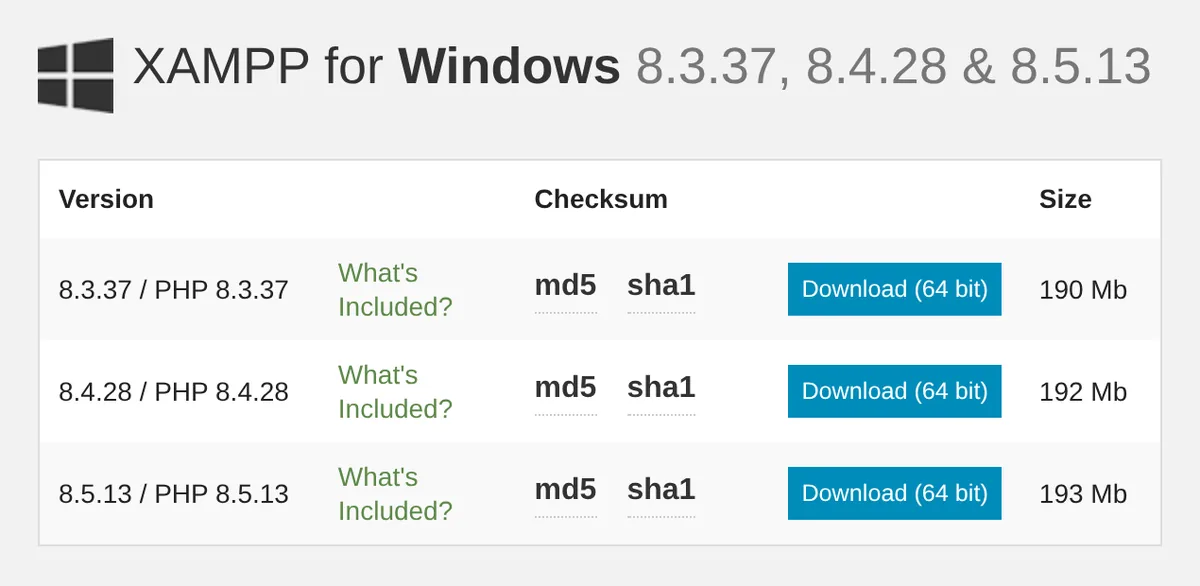
XAMPP bundles Apache, MariaDB, PHP and phpMyAdmin. In November 2026 the Apache Friends download page lists builds with PHP 8.3.37, 8.4.28 and 8.5.13 for Windows, Linux and macOS.
Unlike Local, XAMPP does not install WordPress for you. Here is the manual route.
- Install the XAMPP build whose PHP version matches your host, then start Apache and MySQL from the XAMPP Control Panel.
- Open
http://localhost/phpmyadmin, click Databases, and create an empty database such aswp_local. - Download WordPress from wordpress.org and unzip it into the
htdocsfolder, for examplehtdocs/mysite. - Visit
http://localhost/mysiteand run the installer. Use database namewp_local, userroot, an empty password and hostlocalhost. - Set the site title and admin account, and you are in.
That empty root password is fine on a laptop and dangerous anywhere else. Apache Friends says it plainly in its Windows FAQ: XAMPP is not meant for production use.
Two XAMPP problems come up again and again. If the database refuses to start, follow our guide to fixing MySQL not starting in XAMPP.
If the Media Library rejects WebP files, our walkthrough on enabling WebP uploads in XAMPP covers the GD and php.ini settings behind it.
The catch: XAMPP runs one PHP version per install. Testing PHP 8.4 and 8.5 side by side means two installs, which Local or wp-env handle with a setting.
Option 3: Run WordPress Playground from the command line
WordPress Playground runs WordPress on PHP compiled to WebAssembly, with SQLite instead of MySQL. The browser version lives at playground.wordpress.net. The CLI version runs the same engine on your computer.
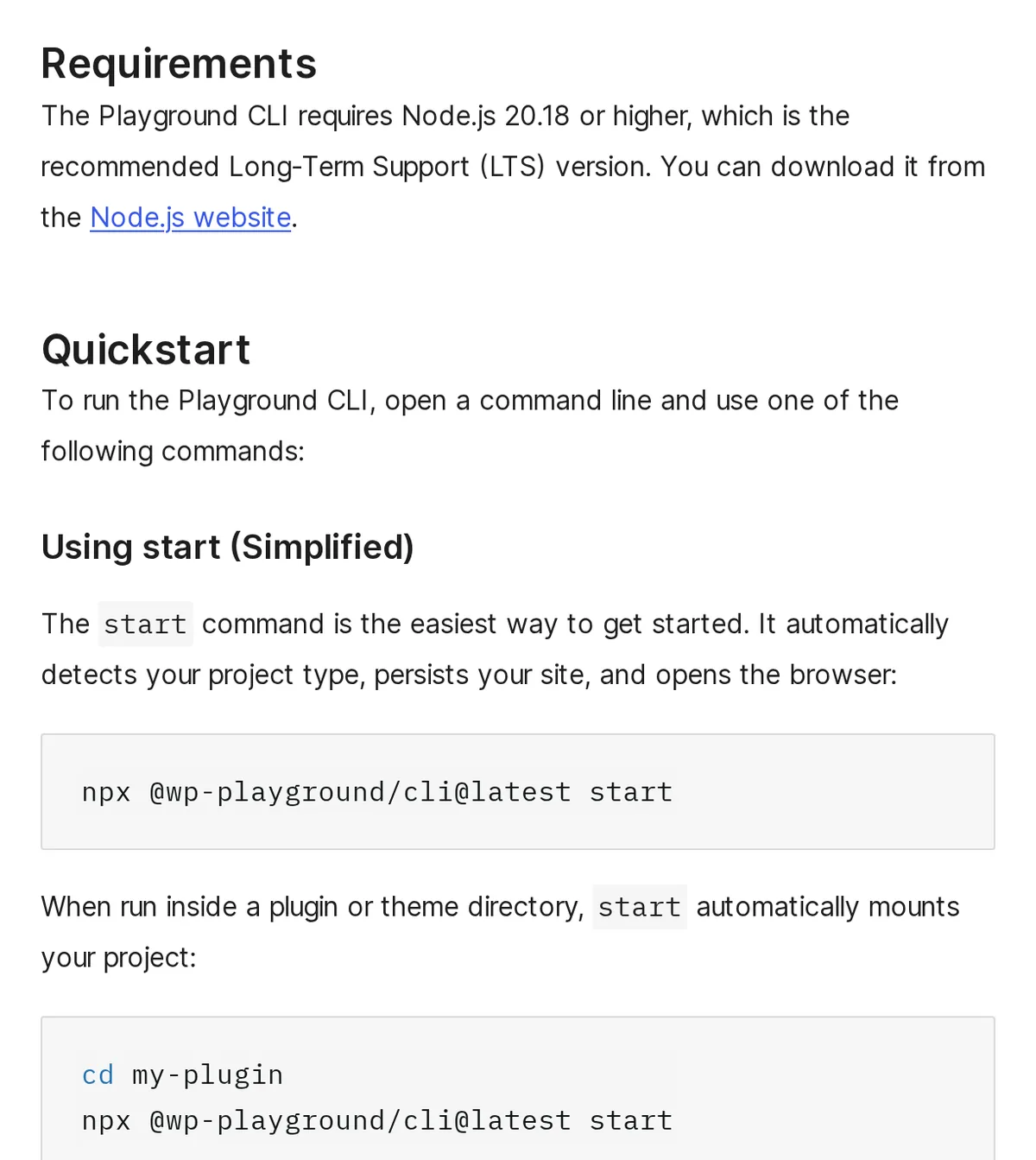
With Node.js installed, open a terminal and run:
npx @wp-playground/cli@latest startThe start command logs you in as admin, opens your browser and keeps the site between sessions in ~/.wordpress-playground/sites/.
Run it inside a plugin or theme folder and Playground mounts that folder for you, so edits show up on refresh.
For more control, the Playground CLI docs describe a server command. We ran it on a Linux machine on 24 November 2026, and it printed:
WordPress Playground CLI

PHP 8.3  WordPress latest
Extensions intl, redis, memcached

Ready! WordPress is running on http://127.0.0.1:9400 (6 workers)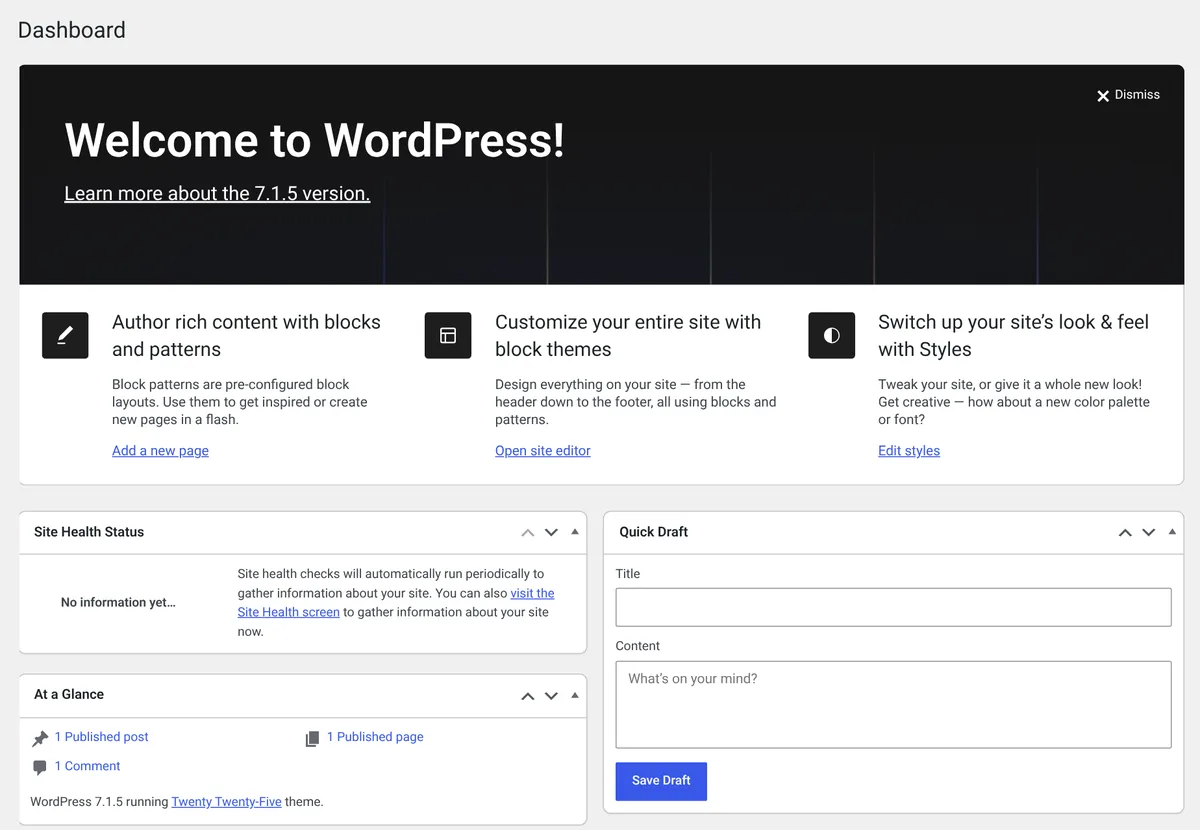
Useful flags:
--php=8.4picks the PHP version. The CLI accepts 7.4 through 8.5 and defaults to 8.3.--wp=7.0pins a WordPress version instead of the latest.--port=9500changes the default port of 9400.--blueprint=blueprint.jsonpreinstalls plugins, themes and settings from a JSON file.
The catch: SQLite is not MySQL. A plugin that writes raw MySQL queries can behave differently, so do final testing on a MySQL or MariaDB stack.
Also note that server mode stores the site in a temporary folder, which the CLI cleans up once it is two days old and no longer in use. Mount your wp-content folder if you want to keep the work.
Option 4: Use Docker with wp-env
@wordpress/env, or wp-env, is the official environment tool from the WordPress project, and the Gutenberg repository ships its own config for it. It needs Docker (Docker Desktop, Colima, Rancher Desktop or Docker Engine), Node.js and Git.
- Start Docker.
- Install the tool with
npm -g i @wordpress/env. - Open a terminal in your plugin or theme folder, or in an empty folder.
- Run
wp-env startand wait for the containers to download the first time. - Visit
http://localhost:8888/wp-adminand log in with admin and password.
To pin versions, add a .wp-env.json file to the folder:
{
  "$schema": "https://schemas.wp.org/trunk/wp-env.json",
  "core": null,
  "phpVersion": "8.4",
  "plugins": [ "." ],
  "port": 8888
}
A null core means the latest production WordPress. The wp-env reference also lists mariadbVersion, themes, multisite and phpmyadmin.
WP-CLI runs inside the container, for example wp-env run cli wp plugin list. Stop everything with wp-env stop.
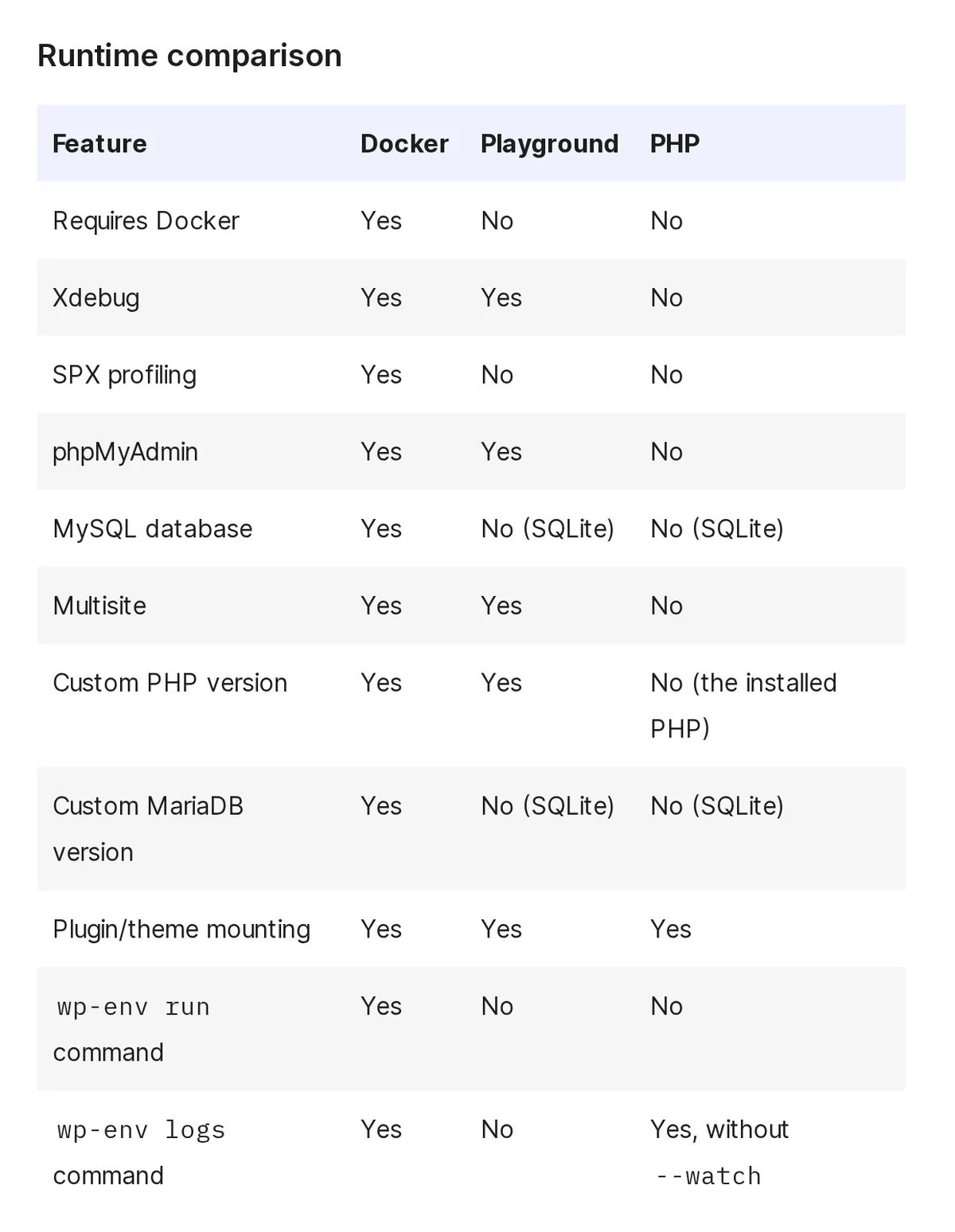
No Docker? wp-env start --runtime=playground uses Playground instead. Both experimental runtimes swap MySQL for SQLite and drop the run command.
This is the natural home for code-heavy work, like registering post types the way our guide to creating custom post types in WordPress shows, with the plugin folder mounted and reloading as you save.
Plain Docker Compose
If you want every container in view, the official WordPress image on Docker Hub ships a compose.yaml example. Here is a shortened version, with the database moved from the example’s MySQL 8.0 to 8.4:
services:
  wordpress:
    image: wordpress
    ports: ["8080:80"]
    environment:
      WORDPRESS_DB_HOST: db
      WORDPRESS_DB_USER: wp
      WORDPRESS_DB_PASSWORD: wp
      WORDPRESS_DB_NAME: wp
  db:
    image: mysql:8.4
    environment:
      MYSQL_DATABASE: wp
      MYSQL_USER: wp
      MYSQL_PASSWORD: wp
      MYSQL_RANDOM_ROOT_PASSWORD: "1"
    volumes: ["db:/var/lib/mysql"]
volumes:
  db:
Run docker compose up, then open http://localhost:8080.
Docker Hub notes the image adds no extra PHP extensions and cannot send email on its own.
How do you match your live site’s PHP and database?
A local site is only a fair test if it runs what your host runs. WordPress.org’s requirements page recommends PHP 8.3 or greater and MariaDB 10.11+ or MySQL 8.4+.
The current release is WordPress 7.1.5, from 18 November 2026.
| Tool | Where you set PHP | Where you set the database |
|---|---|---|
| Local | Custom environment when creating the site, or the site’s PHP dropdown later | Custom environment |
| XAMPP | Pick the matching installer (8.3, 8.4 or 8.5) | Bundled MariaDB |
| Playground CLI | --php=8.4 | SQLite only |
| wp-env | "phpVersion" in .wp-env.json | "mariadbVersion" |
| Docker Compose | Image tag, such as wordpress:php8.4-apache | Database image tag |
Common mistake: leaving the local PHP newer than the host. Everything works on your laptop, then a deprecated function throws errors on the server.
Match first, then test the upgrade on purpose, as in our guide to updating WordPress, plugins and PHP safely.
Copy memory settings too. A local site with a bigger memory limit than the host hides “Allowed memory size exhausted” errors. Our guide to increasing the WordPress memory limit shows where that value lives.
How do you copy a live site to your computer?
A blank site is good for learning. For real work you usually want a copy of the live site: same theme, plugins, content and settings.
- Export the live site with a migration plugin. Our comparison of WordPress migration plugins covers which ones handle large sites on free plans.
- Create an empty local site in your tool of choice, with the same PHP version as the host.
- Install the same plugin locally and import the archive. Good migration plugins rewrite URLs as they import.
- Check URLs. If links still point at the live domain, run a search and replace with WP-CLI.
wp search-replace 'https://example.com' 'https://mysite.local' --skip-columns=guidSwap in your own domains. --skip-columns=guid leaves post GUIDs alone; Local’s own Live Links docs use the same flag.
⚠️ Watch out: a copy of a live store contains real customer emails. Disable email sending, payment gateways and scheduled tasks that call external services before you click around. Local’s Mailpit handles the email part for you.
Cannot install anything on your computer? A cloud sandbox works as a middle ground. Our InstaWP review covers spinning up temporary WordPress sites in the browser.
How do you check the local site works?
- The front end loads at the local address and shows your theme, not a white screen.
- You can log in to wp-admin, and Tools → Site Health → Info shows the PHP version you chose.
- Permalinks work. Open a post; if you get a 404, visit Settings → Permalinks and click Save to rewrite the rules.
- Uploads work. Add an image to the Media Library, including a WebP file.
- Emails are caught, not sent. Trigger a password reset and look for it in Mailpit or your tool’s mail log.
- Debug mode is on, with
WP_DEBUGandWP_DEBUG_LOGset to true, so errors land inwp-content/debug.log.
Once those pass, the local site is safe for real work, such as editing theme.json in a block theme. Our theme.json guide is a good first project because every change shows up on refresh.
What breaks and how do you fix it?
| What you see | Likely cause | Fix |
|---|---|---|
| Apache will not start in XAMPP | Another program is using port 80 | Close the other web server or change Apache’s port |
| MySQL stops right after starting | Port 3306 in use or damaged data files | See our MySQL-not-starting guide linked above |
| wp-env fails with a Docker error | Docker is not running | Start Docker Desktop or colima start, then wp-env start |
| Port 8888 already in use | Another wp-env site or app | Run WP_ENV_PORT=3333 wp-env start |
| Local site redirects to the live domain | siteurl and home still hold the live URL | Run WP-CLI search-replace, then clear caches |
| Browser warns about the certificate | Local’s SSL certificate is not trusted yet | Trust the certificate from the site’s SSL setting in Local |
| Memory exhausted errors | PHP memory limit too low | Raise WP_MEMORY_LIMIT in wp-config.php |
When nothing obvious is wrong, turn plugins off one at a time. Adding temporary debug snippets with one of the WordPress code snippet plugins is easier than editing functions.php on a site you are still learning.
Last resort for wp-env: wp-env destroy removes the containers and data so you can start clean. It deletes local content, so export anything you need first.
Frequently Asked Questions
What is the best local WordPress development tool for beginners?
Local is the easiest start for most beginners. It is a free desktop app that installs WordPress, PHP, MySQL and SSL through a short wizard, and it adds WP-CLI, email catching and shareable Live Links. You never touch a terminal unless you want to.
Is LocalWP free?
Yes. Local by WP Engine is free to download for macOS, Windows and Linux, and the vendor says it always will be. Some extras, such as Live Links and cloud backups, ask you to sign in with a free Local account first.
Is XAMPP still good for WordPress development?
XAMPP still works and ships current PHP 8.3, 8.4 and 8.5 builds. It is more manual than Local, because you create the database and install WordPress yourself, and it runs one PHP version per install. Apache Friends says it is not meant for production use.
Can I use WordPress Playground for real development?
Yes, for plugin and theme work and quick tests. The Playground CLI runs a persistent local site with one command and mounts your project folder. It uses SQLite instead of MySQL, so do final testing on a MySQL or MariaDB stack before release.
Do I need Docker for local WordPress development?
No. Local, XAMPP and the Playground CLI all run without Docker. You need Docker for wp-env and for Docker Compose setups. wp-env also has experimental Playground and PHP runtimes that skip Docker but drop some features, such as the run command.
How do I move a local WordPress site to a live server?
Use a migration plugin to export the local site, install WordPress on the host, and import the archive there. Most migration plugins replace the local URL with the live one during import. If any links still point to your local address, run a WP-CLI search-replace on the server.
Can I run several local WordPress sites at once?
Yes. Local manages many sites from one sidebar. With wp-env, give each project its own port using WP_ENV_PORT or a separate config file. The Playground CLI accepts a port flag, and each XAMPP site can live in its own htdocs folder.
Why does my local site redirect to the live URL?
The site still stores the live address in its siteurl and home settings, usually after importing a database. Run wp search-replace with the old and new URLs, skipping the guid column, then clear any cache. Good migration plugins do this replacement during import.
Which local setup should you pick?
- Pick Local if: you build or maintain client sites and want a point-and-click setup with SSL, email catching and Live Links.
- Pick the Playground CLI if: you want a disposable site in seconds to test a plugin, a theme or a WordPress version.
- Pick wp-env if: you write plugins or themes, already run Docker, and want the setup stored in Git.
- Keep XAMPP if: it already works for you and you only need one PHP version at a time.
Our pick for most StyleMyWP readers: install Local, create one site that mirrors your live PHP version, and make it the first stop for every plugin, theme and core update before it reaches production.
Last updated November 2026.