

To clean a hacked WordPress site, lock every account first, back up the infected copy, then replace WordPress core, plugins and themes with clean copies of the same versions. Files are only half the job.
The database, rogue admin accounts and the hole the attacker used matter just as much, or the hack comes back. Below are 8 steps in the order that stops reinfection, plus the checks that prove it worked.
⚡ Quick answer
- Best for: site owners who see spam pages, strange redirects, unknown admin users, a host suspension or a Google "This site may be hacked" warning.
- Skip DIY if: the site takes payments or stores customer data, you have no SFTP or database access, or the infection already came back once.
- You need: hosting panel, SFTP or file manager, database access (phpMyAdmin or Adminer), and a computer you have scanned for malware.
- Our call: replace, do not repair. Swap every core, plugin and theme file for a fresh download, then hunt down what a reinstall cannot reach: uploads, the database and wp-config.php.
Contents
- How do you know your WordPress site was hacked?
- What you need before you start
- Step 1: Contain the damage and write it down
- Step 2: Back up the infected site
- Step 3: Reset every password and the security keys
- Step 4: Scan and find the malicious files
- Step 5: Replace core, plugins and themes
- Step 6: Clean the database and user accounts
- Step 7: Update everything and close the hole
- Step 8: Get Google’s hacked warning removed
- How do you check the site is really clean?
- What breaks during cleanup and how to undo it
- Frequently Asked Questions
- Should you clean it yourself or hire help?
How do you know your WordPress site was hacked?
“Hacked” describes a feeling, not a diagnosis. The WordPress.org hacked-site FAQ asks you to name the symptoms, which security people call indicators of compromise. The symptom tells you where to look first.
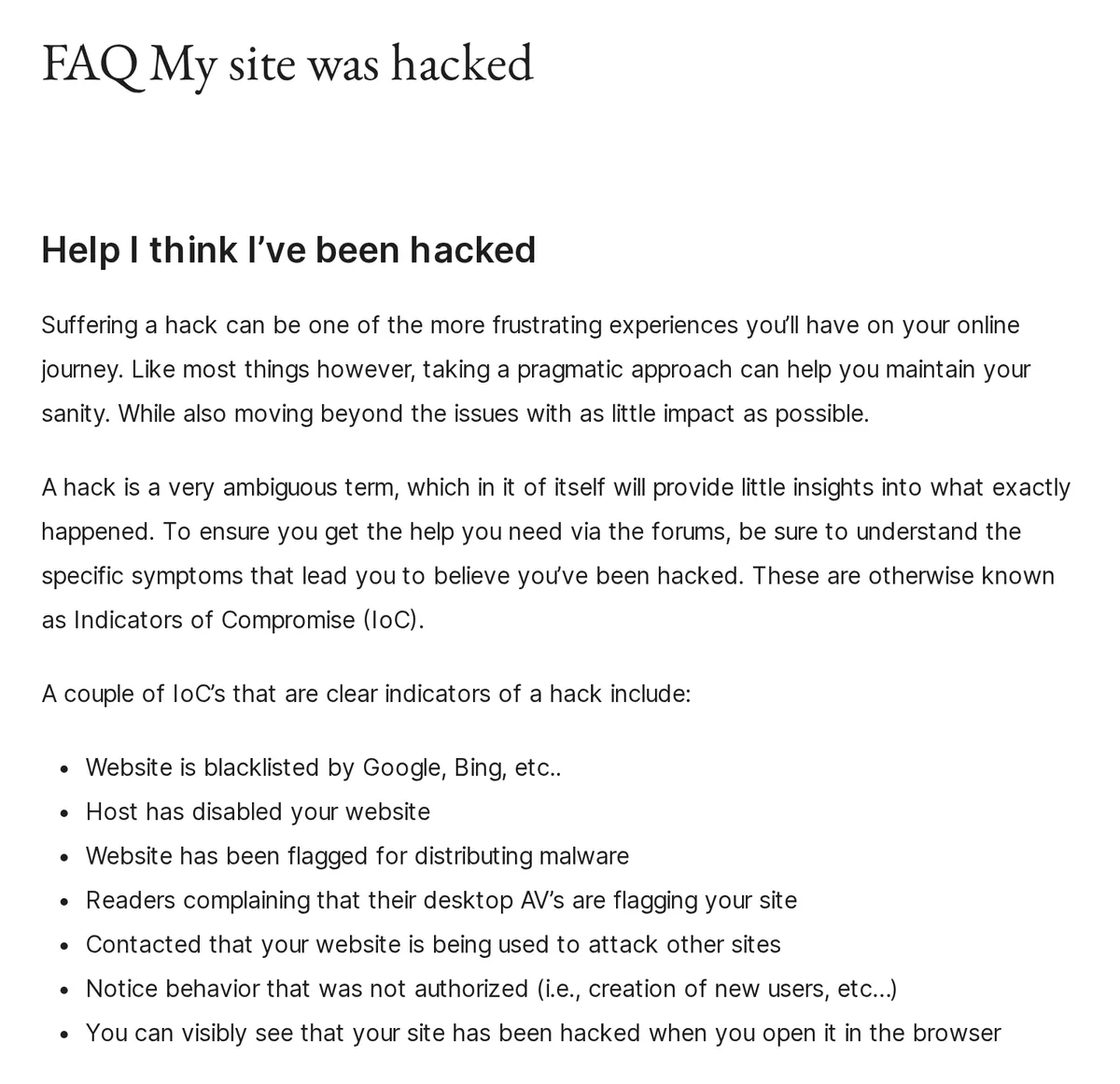
| What you see | What it usually means | Look here first |
|---|---|---|
| Google or Bing shows a warning, or Chrome blocks the site | Malware, phishing or injected spam was detected | Search Console Security issues report |
| Visitors from Google land on a pharma, casino or scam site | Conditional redirect that only fires for search traffic | .htaccess, theme functions.php, injected JavaScript |
| Thousands of new spam URLs in search results | Hacker-created pages or a doorway script | Unknown PHP files in the web root and uploads |
| Admin users you never created | Stolen password or a vulnerable plugin | Users screen and the users table |
| Host suspended the account or flagged outgoing spam | Server-side malware or a mailer script | Host’s malware report and recent file changes |
The catch: many infections hide from logged-in admins and only show to search engines or first-time visitors. A clean-looking homepage in your browser proves nothing.
What you need before you start
- Hosting control panel login, so you can reach backups, file manager, databases and passwords.
- SFTP or a file manager. If your host has none, a WordPress file manager plugin works, but only while wp-admin is still trustworthy.
- Database access through phpMyAdmin or Adminer, both commonly provided by hosts.
- A clean computer. Run a full malware scan on it first. The hardening guide warns that a keylogger on your own machine defeats every server-side fix.
- Fresh copies of the exact WordPress version, every plugin and the theme, including premium ZIPs from each vendor’s account.
- Storage off the server for two backups of the infected site.
Set aside a full working session. Cleaning is fast; finding the last backdoor is the slow part.
Step 1: Contain the damage and write it down
Write down what you saw, when you noticed it (with time zone) and what changed recently: a new plugin, a theme edit, a new user. WordPress.org calls this the baseline of your incident report.
Then tell your host. On shared hosting the infection may reach beyond your site, and the host can confirm a real hack versus an outage. Hacked sites often send spam, which can get the server IP blacklisted for email.
Avoid browsing infected pages in your normal browser. Google’s guidance is to inspect them with the URL Inspection tool or from the command line, faking a search referrer to catch redirects that only fire for Google visitors:
curl -sI --referer "https://www.google.com/" -A "Mozilla/5.0" https://example.com/some-page/Common mistake: deleting files the minute you spot them. You lose the evidence that shows how the attacker got in.
Step 2: Back up the infected site
Take a full snapshot of files and database before you clean anything, and label it “infected”. It sounds backwards. If a cleanup step breaks the site, that copy holds your content, uploads and settings.
Then check what clean backups you have. The web.dev cleanup guide splits the job three ways:
| Your backup situation | What to do |
|---|---|
| Clean and current (taken before the hack) | Restore it, update everything, fix the hole, change passwords again |
| Clean but outdated | Back up the infected site, restore the old copy, diff the two, then move over only new content you can verify |
| No clean backup | Make two infected backups, clean a copy, then rebuild from fresh software and the cleaned content |
The catch: “clean” means taken before the infection began, which can be long before you noticed. Compare the backup date with the oldest suspicious file you find in Step 4.
For a dependable routine afterwards, compare the options in our WordPress backup plugins roundup.
Step 3: Reset every password and the security keys
Change every password that touches the site: WordPress admins and editors, SFTP and FTP, the hosting panel and the MySQL database user. Update DB_PASSWORD in wp-config.php together with the database password, or the site goes down.
Next, log everyone out by replacing the eight secret keys and salts in wp-config.php. Generate a fresh set from the WordPress.org secret-key service and paste them over the old lines. Every existing login cookie stops working instantly.
Locked out of wp-admin? WordPress.org suggests changing your email address in the users table through phpMyAdmin, then using “Lost your password?” on the login screen.
Turn on two-factor login for every admin while you are here. Our two-factor authentication plugins guide compares the options, and you will change these passwords once more after the cleanup.
Step 4: Scan and find the malicious files
Use two kinds of scanner, because each sees different things. A plugin scanner reads files on the server. A remote scanner such as Sucuri SiteCheck or VirusTotal fetches pages from outside, the way visitors and Google see them.
For the plugin side, our malware removal plugins comparison covers which scanners repair core files from clean originals and which plans include cleanup by an analyst.
If you have SSH, WP-CLI gives a faster and more trustworthy check. It compares every core file against checksums from WordPress.org without loading WordPress, so malware in the site cannot interfere:
wp core verify-checksums --include-root
wp plugin verify-checksums --all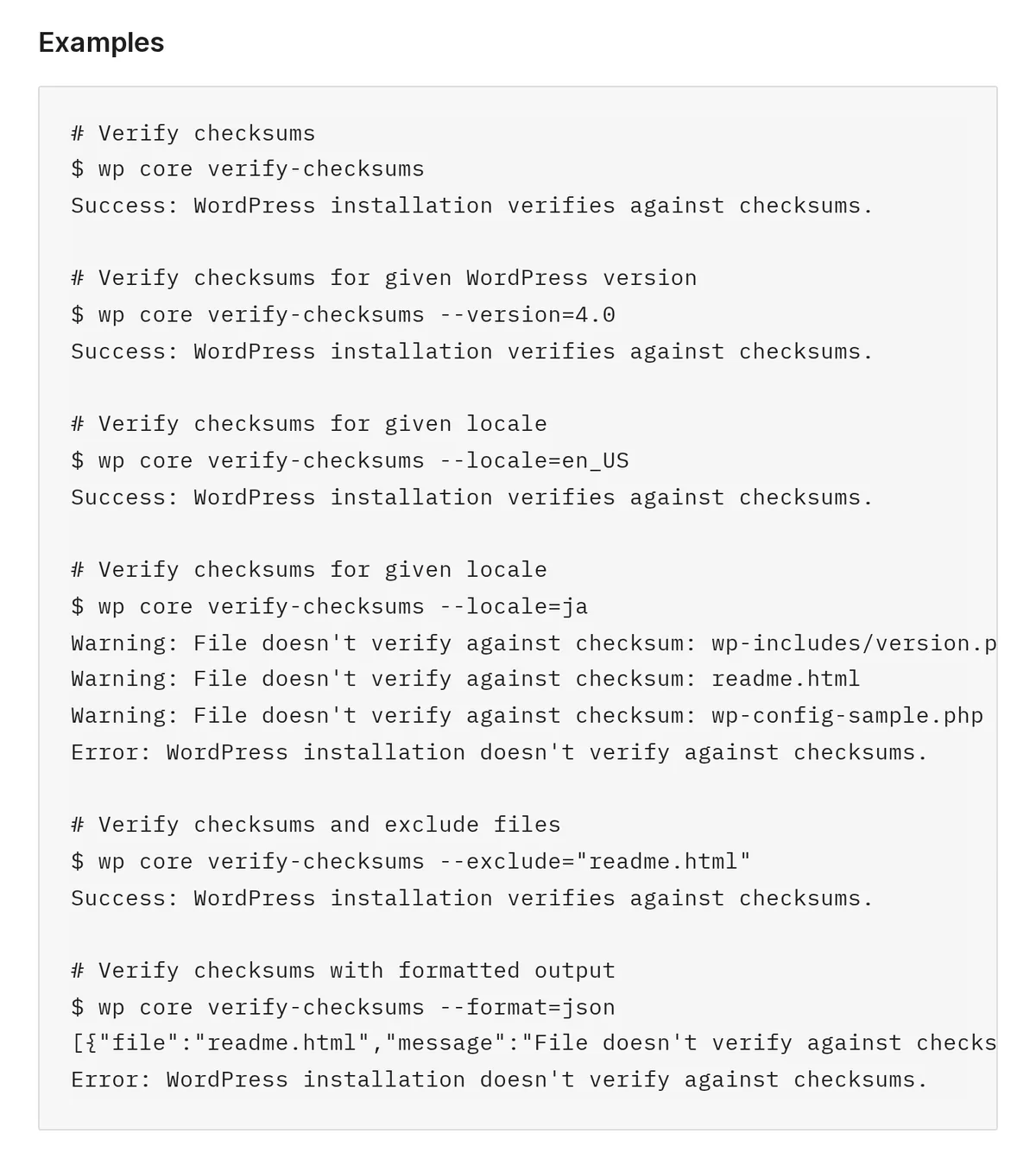
wp core verify-checksums examples. Source: developer.wordpress.org, captured November 2026.The --include-root flag also warns about files in the web root that are not part of WordPress. Plugin checksums come from WordPress.org, so premium plugins need a manual comparison against a fresh vendor ZIP.
Every flag is listed in the WP-CLI verify-checksums reference.
Where malware hides on WordPress
- .htaccess in the root and in subfolders, a favourite spot for search-only redirects.
- index.php, header.php, footer.php and functions.php, because they run on every page request.
- wp-content/uploads. Media folders should hold images and documents; a PHP file in there deserves suspicion.
- wp-config.php and mu-plugins, which load before everything else and never show in the plugin list.
Google suggests searching code for eval, base64_decode and unescape. Legitimate plugins use some of these, so treat a hit as a lead to check against a fresh copy, not proof on its own.
Step 5: Replace core, plugins and themes
This is where most of the cleaning happens. Replacing files is faster and safer than editing out injected code line by line, and it catches files the attacker added that no scanner flagged.
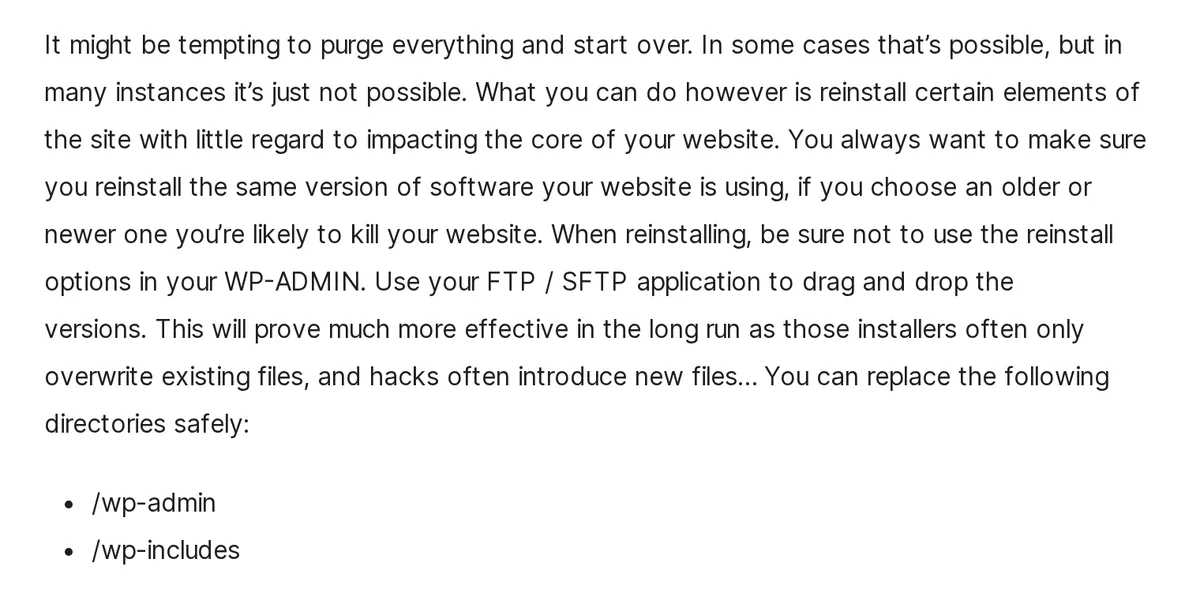
- Core: download the same WordPress version the site runs. Delete
/wp-adminand/wp-includesover SFTP and upload the fresh folders. Then compare the root files with the download and remove anything extra. - Plugins: delete each plugin folder and upload a fresh copy. Delete plugins you no longer use; web.dev counts unused software as future attack surface.
- Themes: replace the parent theme from a fresh download. Check child theme files by hand, since nobody else has a clean copy of them.
- Keep: wp-config.php (after a line-by-line read) and the uploads folder (after removing scripts).
Why not the “Re-install” button in Dashboard → Updates? WordPress.org explains that those installers often only overwrite existing files, while hacks often add new ones. A dashboard reinstall leaves the attacker’s extra files exactly where they were.
⚠️ Warning: Match versions exactly. WordPress.org warns that reinstalling an older or newer version than the site runs can take the site down. Update in Step 7, once the site is clean.
Step 6: Clean the database and user accounts
A file-only cleanup misses anything stored in the database, which is how many spam and redirect hacks come back after a “successful” reinstall. Work in phpMyAdmin or Adminer, and remember your table prefix may not be wp_.
- Users: list every administrator in the users table and delete any you cannot name. Attackers often add a second admin as a spare key.
- Options: check that
siteurlandhomepoint to your own domain, and look for unfamiliar entries holding long encoded strings. - Posts and widgets: search post content and widget options for
<scriptandiframetags you did not add, especially on old posts. - Scheduled tasks: once wp-admin is trustworthy again, review scheduled events for hooks that belong to no installed plugin.
Common mistake: running a bulk find-and-replace on the live database. Export the table first, change one record, and reload the page before touching the next.
Step 7: Update everything and close the hole
Now update WordPress core, every plugin and the theme. WordPress.org is blunt about it: older versions are more prone to hacks. If a major core update worries you, our guide to WordPress 7.0 covers what changed.
Then find the way in, or you are cleaning the same site again next month. Your host’s access logs show which IPs requested which files, and when. Match them against the timeline from Step 1:
- A POST request to an unfamiliar PHP file points to an uploaded backdoor.
- Bursts of login requests point to a guessed password; brute force protection plugins close that gap.
- Requests to one plugin’s folder right before the first bad file point to a vulnerable plugin. Remove it or replace it.
Finally, harden what the attacker used. Add define( 'DISALLOW_FILE_EDIT', true ); to wp-config.php so a stolen login cannot edit PHP in the dashboard, and set files to 644 and folders to 755.
The full list is in our WordPress security hardening checklist.
Step 8: Get Google’s hacked warning removed
If Google flagged the site, open the Security issues report in Search Console. It shows the issue type, the date it was first detected and sample URLs. The samples are not complete, so fix the problem across the whole site.
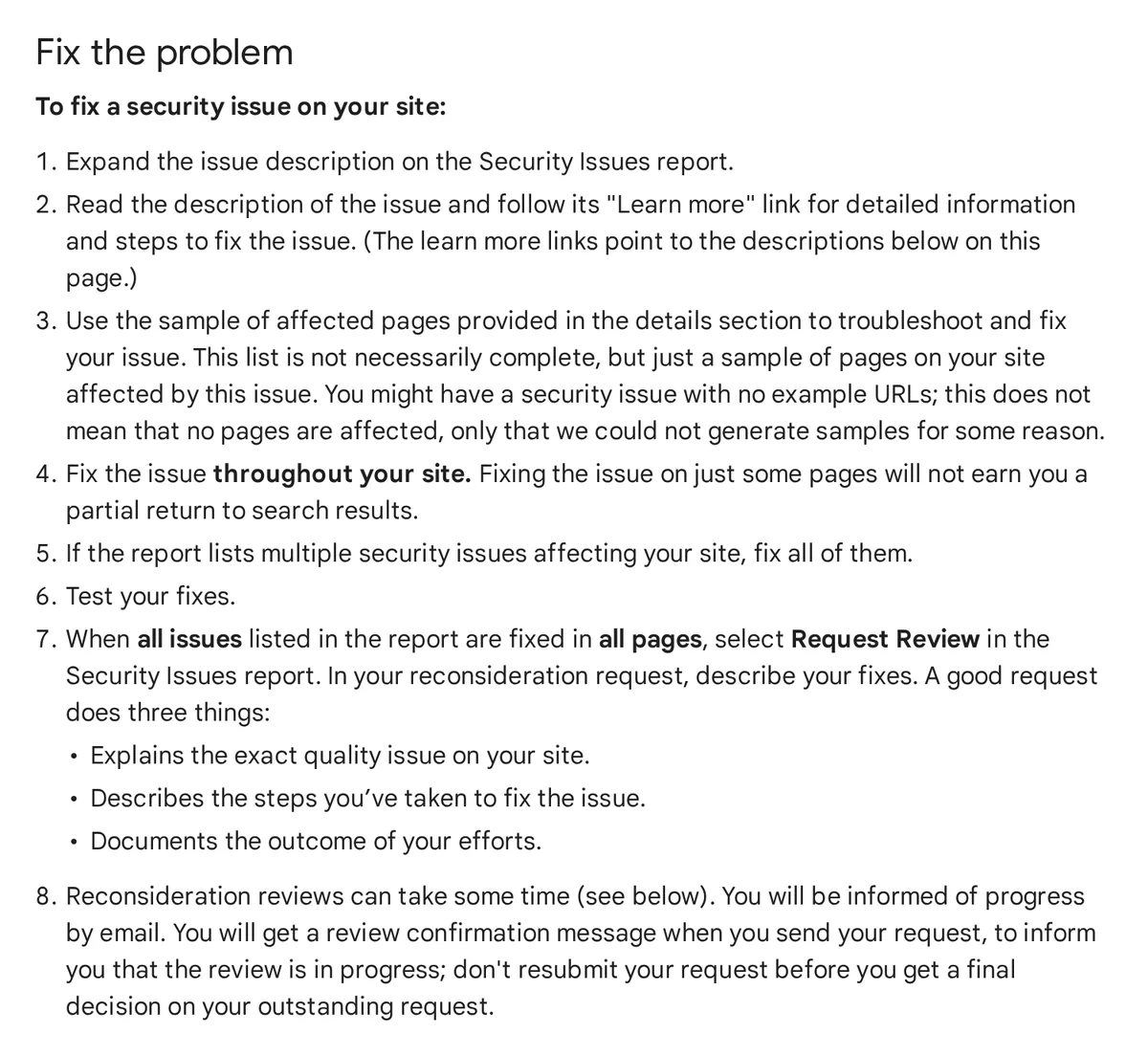
When every listed issue is fixed, click Request Review and describe the problem, what you did and the result. Per Google’s Security issues documentation, a security review takes a few days to a few weeks.
Do not resubmit while a review is pending. Google says a request sent before the issue is fixed can slow the next review or mark you as a repeat offender.
For spam URLs the hacker created, return a 404. If they are doing damage, the Removals tool in Search Console hides them faster.
How do you check the site is really clean?
- Rerun the plugin scanner and a remote scanner, and repeat
wp core verify-checksums. All three should come back clean. - Fetch key pages with curl using a Google referer and a mobile user agent. No redirects, no foreign links.
- Search Google for
site:yourdomain.complus spam words such as casino or pharmacy, and check URL Inspection on a few infected samples. - Change every password one more time. WordPress.org says to do it again after the cleanup, because the first change happened while the site was still infected.
- Scan again a week later. A file that reappears means a backdoor survived.
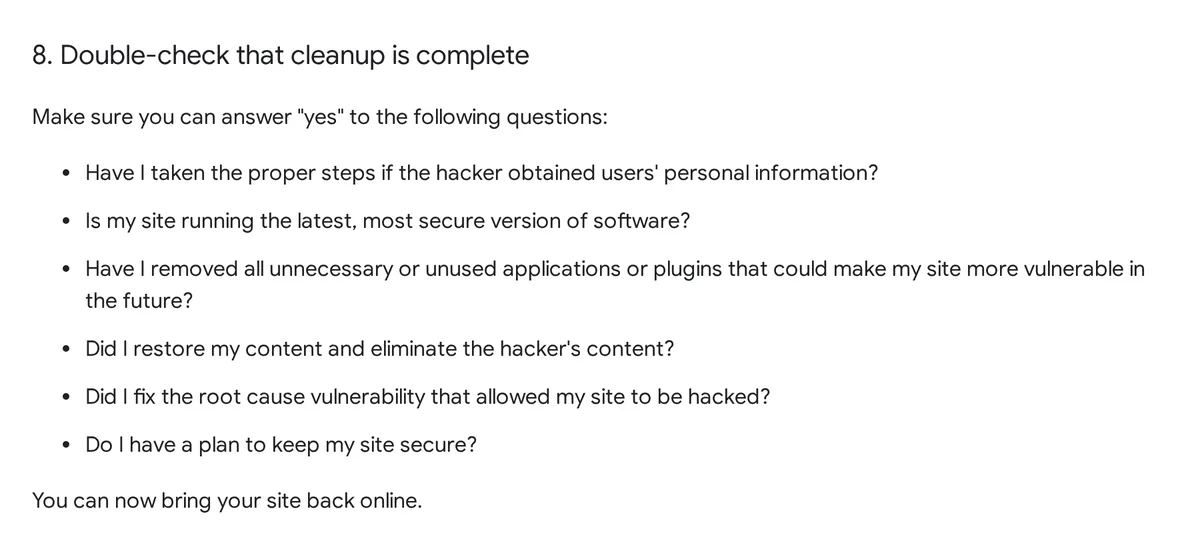
If the hacker reached personal data, such as customer details from a phishing page or form entries, web.dev advises checking your business, regulatory and legal duties before deleting anything.
What breaks during cleanup and how to undo it
| What breaks | Why | How to undo it |
|---|---|---|
| White screen after replacing core | Version mismatch between files and database | Upload the exact version the site ran, then update properly |
| A premium plugin stops working | Licence data or a missing add-on folder | Download it again from the vendor account and re-enter the key |
| Site still shows the old infected page | Page cache or CDN cache serving stale HTML | Purge the cache plugin, the host cache and the CDN |
| Theme changes are gone | Customisations lived in parent theme files | Rebuild them in a child theme using your infected backup as reference only |
| Everyone is logged out | New salts invalidated all sessions | Expected. Log in again with the new passwords |
Your infected backup from Step 2 is the safety net for all of these. Copy content out of it, never code.
Frequently Asked Questions
Can I clean a hacked WordPress site myself?
Yes, if you have SFTP and database access and can read PHP well enough to spot code that does not belong. Replacing core, plugins and themes is routine. The hard part is finding backdoors in uploads, wp-config.php and the database, so hire help if the infection returns.
Will reinstalling WordPress remove the malware?
Only partly. A reinstall replaces core files, but malware also hides in plugins, themes, uploads, wp-config.php and the database. The dashboard re-install button also overwrites existing files without deleting new ones, so attacker files survive. Replace folders over SFTP and check the rest manually.
Should I restore a backup instead of cleaning the site?
Restore when you have a backup taken before the infection started. Then update everything, fix the vulnerability and change all passwords, or the attacker walks straight back in. If the backup is older or its date is uncertain, scan it first and treat it as possibly infected.
How long does Google take to remove the hacked site warning?
After you fix every issue and click Request Review in the Search Console Security issues report, Google says a review takes from a few days to a few weeks. You get an email when the review starts and another when it ends. Do not resubmit while it is pending.
Why does my WordPress site keep getting hacked again?
Repeat infections usually mean a backdoor survived, the original vulnerability is still there, or a stolen password was never changed. Check uploads and mu-plugins for stray PHP, remove or update the plugin that let the attacker in, rotate every password and salt, and scan your own computer.
Do security plugins remove malware automatically?
Some do, often as a paid feature, while free versions mostly detect and report. A scanner is a good way to find changed files, but it cannot fix the hole that let the attacker in. Use its results as a list, then replace files from clean sources.
Do I need to tell my users after my site was hacked?
If the attacker could reach personal data, such as customer accounts, form entries or payment pages, check your legal and regulatory duties before you delete anything. Web.dev advises this step first. For a brochure site with no user data, changing passwords and cleaning the site is usually enough.
Can I just delete everything and rebuild the site?
You can, but you still need your content and media. Reinstall fresh WordPress, plugins and theme, then import only content you have checked, such as posts and images. Never copy old PHP files, the old wp-config.php or unknown database tables across, or the infection moves with them.
Should you clean it yourself or hire help?
- Clean it yourself if: it is a content site, you have SFTP and database access, and you have a backup or a clear timeline of when the trouble started.
- Restore and harden if: you have a backup from before the infection. It is the fastest path, as long as you still patch the hole and change every password.
- Hire a professional if: the site takes payments, holds customer data, was reinfected after a cleanup, or every day offline costs real money. Our WordPress maintenance services roundup shows which providers include malware cleanup and which quote it separately.
- Move hosts if: the host cannot show you logs or backups, or other sites on the server keep getting hit. Our WordPress hosting comparison covers hosts with daily backups and malware scanning.
Our pick for most StyleMyWP readers: follow Steps 1 to 8 in order, replace every file you did not write, then add a scanner and firewall from our best WordPress security plugins guide.
Last updated November 2026.


[…] if you are mid-incident. Restore a clean backup first, then harden. Our guide to cleaning a hacked WordPress site covers the cleanup […]
[…] They treat scanning and cleaning as the same thing. Most of the plugins here detect. Two of them, MalCare and Sucuri, remove. If you are infected right now, a scanner is a diagnosis, not a treatment, and you need a known-clean backup or a human being. To do the work yourself, follow our step-by-step guide to cleaning a hacked WordPress site. […]