


To speed up an Elementor website, fix the server first, then set six options on Elementor’s Performance tab, then deal with the hero image, fonts and layout.
Do it in that order. The server and the hero image decide more of your Largest Contentful Paint than any toggle, and 2.5 seconds is the line Google counts as good. Budget one to two hours.
Everything below is checked against Elementor 4.4.1, the current release since 16 November 2026, including which settings are stable and which are still experiments.
⚡ Quick answer
- Best for: Elementor sites failing PageSpeed Insights on mobile, or pages that feel sluggish even after a cache plugin went in.
- Skip it if: only the editor is slow and visitors are fine. That is a PHP memory or plugin conflict problem, covered in the FAQ.
- Time needed: 60 to 120 minutes, then a few weeks before field data fully reflects it.
- Our call: one page cache, External File CSS, a hero image that is not lazy-loaded, and fewer addon packs. Start there.
Contents
- Why is an Elementor site slow?
- What you need before you start
- Step 1: Measure a baseline
- Step 2: Fix hosting, PHP and page caching
- Step 3: Set the Elementor Performance tab
- Step 4: Turn on the stable Features
- Step 5: Use Element Caching safely
- Step 6: Trim fonts and icons
- Step 7: Make the hero image load first
- Step 8: Build lighter layouts
- Step 9: Clear Elementor files and purge caches
- How to check it worked
- What breaks and how to undo it
- Frequently Asked Questions
- Which fixes are worth your afternoon?
Why is an Elementor site slow?
“Elementor is slow” usually means one of two different problems, and they have different fixes.
- The editor is slow: the panel spins and saving drags. That is server-side (PHP memory, CPU, a conflicting plugin). Visitors never see it.
- The live site is slow: visitors wait and Core Web Vitals fail. That is server response time plus everything the page makes the browser download and render.
For the live site, two numbers tell you where to dig. Per web.dev, good Time to First Byte is 0.8 seconds or less, and good LCP is 2.5 seconds or less at the 75th percentile.
High TTFB points at hosting and caching. Fine TTFB with poor LCP points at the page: images, fonts, CSS and DOM size. Our guide on how to pass Core Web Vitals in WordPress explains the metrics.
⚠️ The catch: Elementor’s settings trim Elementor’s own overhead. They cannot rescue a 3 MB hero photo or a host that takes two seconds to answer. The big wins sit in Steps 2, 7 and 8.
What you need before you start
- Elementor 4.4 or later. Menu paths follow the 2026 layout, Elementor → Editor → Settings; older installs use Elementor → Settings.
- A host that meets Elementor’s published system requirements: WordPress 6.8+, PHP 7.4 minimum with PHP 8.3+ recommended, and a WordPress memory limit of 256 MB minimum, 512 MB recommended, 768 MB for best performance.
- Administrator access to WordPress, plus your hosting panel if you need to change PHP or caching.
- A fresh backup or a staging copy. Several settings change markup and CSS output. Test there first if the site earns money.
- Two or three test URLs: the homepage, your busiest landing page and one blog post.
Step 1: Measure a baseline
Run each test URL through PageSpeed Insights on mobile and write down five things: TTFB, LCP, INP, CLS and the LCP element itself.
If the report shows field data from real Chrome users, trust it over the lab score, which swings between runs.
Also note the “Avoid an excessive DOM size” audit. Per Chrome’s Lighthouse docs it warns at roughly 800 body nodes and errors at about 1,400.
Common mistake: changing five settings at once. Change one group, clear caches, retest. Otherwise you will not know which change broke the slider.
Step 2: Fix hosting, PHP and page caching
Elementor builds each page in PHP from stored data. Without a page cache, every visit repeats that work, and a slow shared server shows it as high TTFB.
Check PHP and memory
Open Tools → Site Health → Info and look at the PHP version and the WordPress memory limit. If either sits below Elementor’s recommended level, ask the host to raise it before anything else.
Add one page cache, not two
A page cache serves finished HTML without running Elementor at all. Pick one layer: your host’s server cache, LiteSpeed Cache on a LiteSpeed server, or a plugin from our comparison of WordPress cache plugins.
Stacking two page caches causes stale pages and purge headaches with no speed gain. If TTFB stays high with caching on, work through our checklist on how to reduce server response time before blaming Elementor.
Step 3: Set the Elementor Performance tab
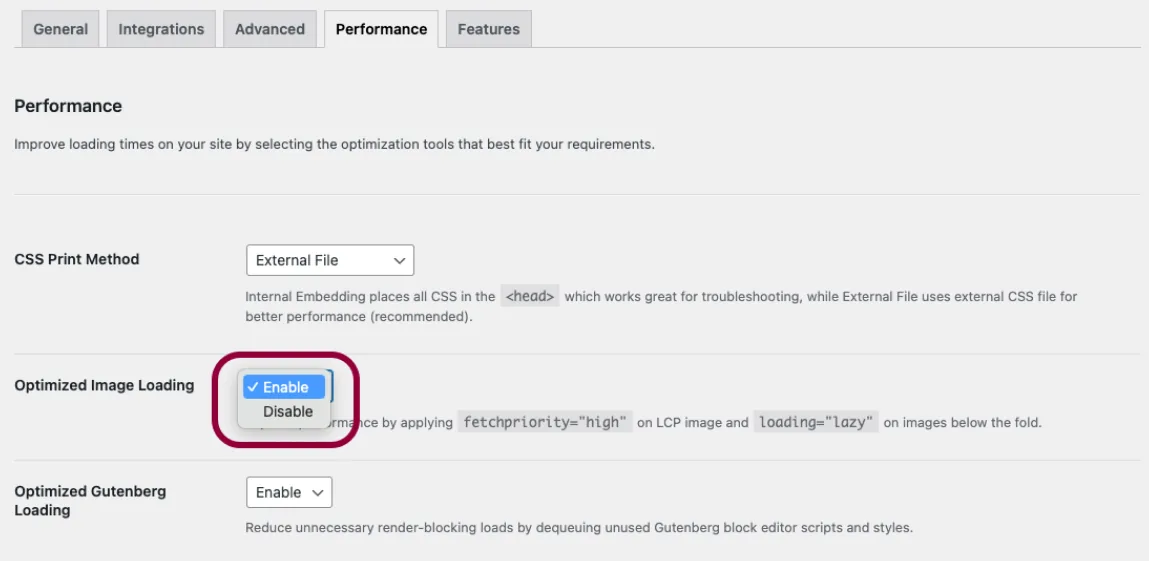
Go to Elementor → Editor → Settings → Performance. In Elementor 4.4 this tab holds six controls. All of them are stable features, not experiments.
| Setting | What it does | Set it to | The catch |
|---|---|---|---|
| CSS Print Method | Writes page CSS to a file instead of the page <head> | External File | Use Internal Embedding only if your host cannot write to uploads |
| Optimized Image Loading | Adds fetchpriority=”high” to the LCP image and loading=”lazy” below the fold | Enable | Turn off if WP Rocket or another plugin already handles lazy loading |
| Optimized Gutenberg Loading | Dequeues unused block editor scripts and styles | Enable | Check pages that mix core blocks with Elementor |
| Lazy Load Background Images | Lazy loads every background image except the first one | Enable | A hero that is not the first background can still get delayed |
| Load Google Fonts Locally | Serves Google Fonts from your own server | Enable | Off by default since Elementor 3.32.1; re-enable after that update |
| Element Cache | Sets how long cached widget HTML is kept | 1 Day (or Disable) | See Step 5 before you shorten or disable it |
Elementor claims Optimized Image Loading “typically improves page loading times by 5-10%”. Treat that as a vendor estimate; your own retest is the number that counts.
Using WP Rocket? Its Elementor compatibility doc (April 2026) says to deactivate Optimized Image Loading, Lazy Load Background Images and Element Cache, since WP Rocket handles lazy loading and page caching.
Our WP Rocket review covers its own settings.
Step 4: Turn on the stable Features
Next, open the Features tab on the same screen. Per Elementor’s page on performance features and experiments, two entries here matter for speed.
- Inline Font Icons (Stable): renders icons as inline SVG, so the Font Awesome and eicons libraries and their CSS and font files are not loaded.
- Optimized Markup: removes extra wrapper divs from widgets, which shrinks the DOM. The changelog shows it reached Beta in 3.28 and was switched on for new sites in 3.30 (July 2025). Older sites have to opt in, so check its status label first.
Anything marked Alpha or Dev is still an experiment that can change or disappear. Leave those off on a live site.
⚠️ Common mistake: enabling Optimized Markup when custom CSS targets wrappers such as .elementor-widget-container. Those styles stop applying.
Step 5: Use Element Caching safely
Element Caching stores each widget’s rendered HTML in the database and serves that copy next time, instead of rendering the widget again. Elementor says it cuts server memory use and TTFB.
Per the changelog, it arrived as an experiment in 3.22 (June 2024), became Stable in 3.30, was activated for all sites in 3.31 and moved into the Performance tab in 3.32 (September 2025).
Elementor’s help article on it still calls the feature “experimental” and “inactive by default”, which no longer matches the changelog. Trust what your own Performance tab and widget panel show.
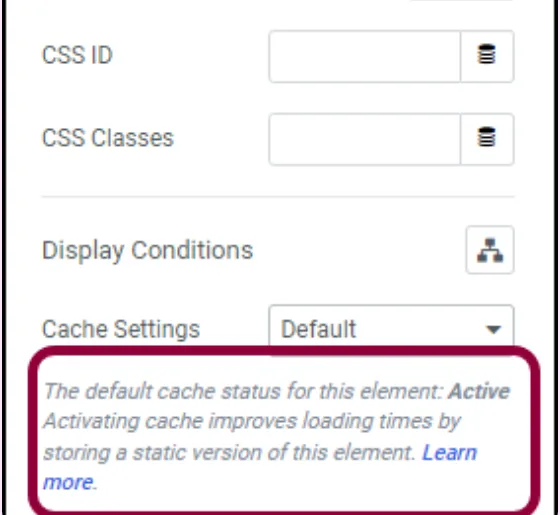
- Containers, Grid Containers, Off Canvas, Sections, Columns and Inner Sections are cached automatically. You cannot change them.
- For any other widget, open it, go to Advanced → Cache Settings and choose Default, Active or Inactive.
- Set Inactive on anything personal or fast-changing: a greeting with the visitor’s name, a cart count, a random testimonial.
- Set the site-wide expiry on the Performance tab. Options run from 1 hour to 1 year.
Elementor’s developer docs add a safety net: a widget with a dynamic tag or a display condition skips the cache and renders fresh. Shortcodes that print per-visitor content are the gap to watch.
The catch: Element Caching does not remove a byte from what the browser downloads. It helps most where page caching cannot run, such as logged-in members.
Step 6: Trim fonts and icons
Fonts are a frequent reason for slow LCP and text that jumps on load. Elementor gives you three levers.
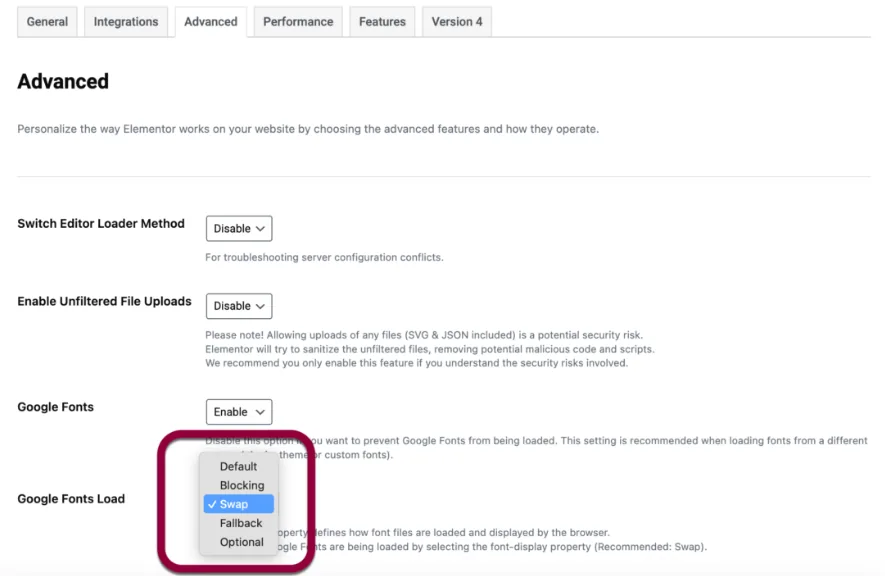
First, go to Elementor → Editor → Settings → Advanced → Google Fonts Load and pick Swap, the option Elementor itself labels as recommended. Text then shows immediately in the fallback font.
Second, enable Load Google Fonts Locally on the Performance tab. Elementor downloads the fonts in use to /wp-content/uploads/elementor/fonts/ and rewrites the CSS to point there.
Third, cut the list to two families and only the weights you use. Every weight is another file.
If a theme or plugin already loads your fonts, Elementor’s help article on slow sites documents a filter that stops Elementor printing Google Fonts at all. Add it in a child theme or a snippets plugin:
add_filter( 'elementor/frontend/print_google_fonts', '__return_false' );Skip that filter if: any page uses a Google Font picked inside Elementor. Those headings fall back to system fonts once it is in place.
Step 7: Make the hero image load first
On most Elementor homepages the LCP element is the hero image, and it is often set as a container background. That slows it down.
web.dev’s LCP optimization guide explains why: the browser only discovers a CSS background image after it downloads and parses the stylesheet. It also says flatly: never lazy-load your LCP image.
- Use an Image widget for the hero rather than a background, so the image sits in the HTML where the browser finds it early.
- Keep Optimized Image Loading on (unless another plugin does this job) so the hero gets
fetchpriority="high"and no lazy attribute. - Compress and resize. Elementor’s own guidance is WebP and under 1 MB per image. For a hero, aim far lower.
- Drop the slider. A three-slide carousel as the first screen loads three images and a script to show one.
An optimizer plugin handles compression and WebP conversion in bulk. Our list of the best image optimization plugins compares the free tiers and their limits.
Step 8: Build lighter layouts
Older Elementor layouts carry extra weight in structure: section, column, inner section and column again, each adding wrapper divs.
Elementor’s own comparison shows it: one five-widget block took 37 divs as sections and 23 divs as a Flexbox container.
Rebuild the templates that load everywhere first. Your header and footer render on every page, so our walkthrough for an Elementor Theme Builder header and footer is a good place to apply container discipline.
The newer V4 atomic elements go further, with cleaner markup and fewer wrappers. Our explainer on Elementor V4 and its atomic elements covers what changes before you switch editors on a live site.
Audit your addon packs
Elementor says its own unused widgets do not load their assets, so leave native widgets alone. Third-party addons are different: some load files on every page.
Our roundup of the best Elementor addons notes which packs let you disable modules.
Go to Elementor → Editor → Home → System → Element Manager and click Scan Element Usage to see which widgets each plugin actually uses. If a whole pack powers one widget, replace it.
For files that still load where they are not needed, an asset manager such as the one in our Perfmatters review can unload scripts per page.
Step 9: Clear Elementor files and purge caches
After changing CSS, font or markup settings, Elementor’s generated files need rebuilding. Go to Elementor → Editor → Tools, and on the General tab click Clear Files & Data.
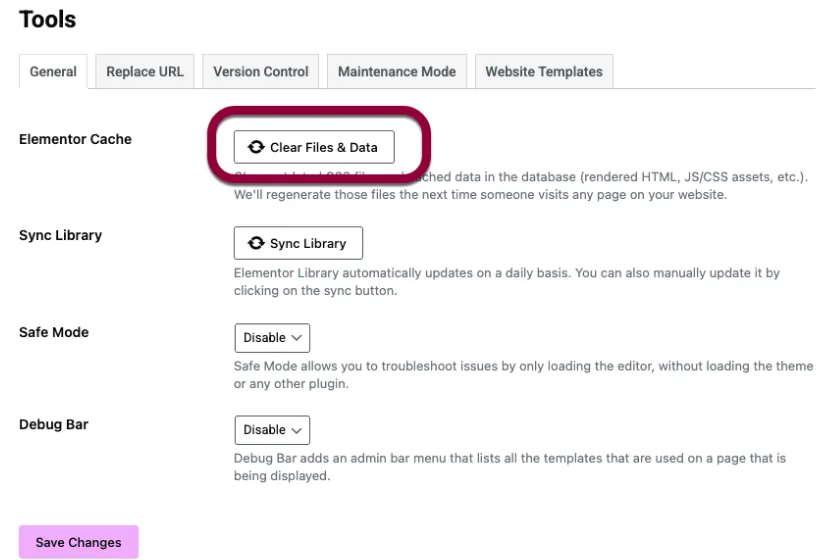
Elementor rebuilds the files on the next visit to each page. Then purge your page cache and CDN so no cached HTML points at old CSS.
The catch: the first visit to each page is slower while files rebuild. Back up first, as Elementor’s docs advise.
How to check it worked
- Open each test page in a private window, logged out. Check layout, fonts, icons and any dynamic widget.
- Re-run PageSpeed Insights on mobile and compare TTFB, LCP and the DOM size audit with your Step 1 notes.
- View the page source and search for your hero image file name. It should carry
fetchpriority="high"and noloading="lazy". - Check the Network tab in DevTools: Elementor CSS should load from
/uploads/elementor/css/files, fonts from your own domain. - Give field data a few weeks; real-user numbers in PageSpeed Insights update gradually.
If LCP is fine but taps still feel laggy, the problem is interaction responsiveness, not loading. Our guide to fixing poor INP in WordPress tackles heavy JavaScript and long tasks.
What breaks and how to undo it
| Symptom | Likely cause | Undo or fix |
|---|---|---|
| Page looks unstyled after a settings change | Stale CSS files or page cache | Clear Files & Data, then purge page cache and CDN |
| Fonts missing on the front end | Load Google Fonts Locally could not write or fetch fonts | Set it to Disable, clear files, then check the uploads folder is writable |
| Custom CSS stopped working | Optimized Markup removed a wrapper your CSS targets | Deactivate Optimized Markup, then rewrite selectors |
| Widget shows old or wrong content | Element Cache on a widget with personal data | Set that widget’s Cache Settings to Inactive |
| Hero loads late or flickers | Two plugins lazy loading the same images | Keep one lazy loading system; turn the other off |
| Editor will not load behind Cloudflare | Rocket Loader rewrites editor scripts | Add Cloudflare rules to skip Rocket Loader on Elementor URLs |
Every toggle here is reversible: set it back, save, clear Elementor’s files and purge the page cache.
Frequently Asked Questions
Why is my Elementor website so slow?
Usually it is the server and the page, not Elementor alone. Slow shared hosting without a page cache gives a high TTFB, while large hero images, several addon packs, many font weights and nested sections slow LCP. Measure TTFB and LCP separately to see which side to fix first.
Does Elementor slow down WordPress?
Elementor adds CSS, JavaScript and markup that a plain block theme does not, so an uncached Elementor page costs more to build. With a page cache, External File CSS, a lean hero and few addons, Elementor sites can pass Core Web Vitals. Bloat mostly comes from how pages are built.
Is Elementor Element Caching safe to turn on?
It is safe on static widgets. Elementor bypasses the cache for widgets with dynamic tags or display conditions, but shortcodes or custom code that print visitor-specific content can still show stale output. Set those widgets to Inactive under Advanced → Cache Settings and test pages while logged out.
Should I use External File or Internal Embedding for CSS?
Use External File. Elementor recommends it because browsers and CDNs can cache the CSS file between pages and the HTML stays smaller. Internal Embedding is a troubleshooting option for hosts where Elementor cannot write files to the uploads folder.
Do unused Elementor widgets slow down my pages?
Not Elementor’s own widgets. Elementor says widget-specific assets load only on pages that use the widget, apart from a small shared base. Third-party addon packs can be different and may load files everywhere, so audit those with Element Manager and PageSpeed Insights.
Do I still need a caching plugin with Elementor?
Yes, unless your host already provides page caching. Elementor’s settings reduce what each page loads, but a page cache stops WordPress and Elementor from rebuilding the HTML on every visit. Use exactly one page cache layer to avoid stale pages and purge conflicts.
Is the Hello theme faster for Elementor?
Hello is a minimal theme built for Elementor, and Elementor suggests switching to it as a test when diagnosing slowness. If a page gets much faster on Hello, your current theme is part of the problem. A lightweight theme you already use well can perform similarly.
Why is the Elementor editor slow when the live site is fast?
The editor runs on your server without page caching, so it depends on PHP version, memory and plugin conflicts. Elementor recommends 512 MB of WordPress memory and PHP 8.3 or newer. Visitors never load the editor, so editor speed does not affect PageSpeed scores.
Which fixes are worth your afternoon?
- Start with the server if: TTFB is over 0.8 seconds. One page cache and a supported PHP version come before any Elementor toggle.
- Start with the hero if: TTFB is fine but LCP is poor. Swap a background hero for an Image widget and compress it.
- Start with layout if: PageSpeed flags DOM size. Rebuild the header, footer and top templates with containers.
- Leave alone: Alpha experiments, and Elementor’s lazy loading if WP Rocket or a similar plugin already handles it.
Our pick: page cache, External File CSS, Optimized Image Loading, local fonts with Swap, and one fewer addon pack.
For the rest of the stack, our guide to speed optimizing a WordPress website goes beyond Elementor.
Weighing whether Elementor Pro is still the right builder for a performance-sensitive site? Our hands-on Elementor review covers what Pro adds and costs.
Last updated November 2026.




[…] one atomic heading and forty old widgets won’t get faster. For the Elementor side, see our guide to speeding up an Elementor website. For the full picture on what actually moves page speed, see our WordPress speed optimization […]