

To migrate Elementor V3 to V4, you don’t convert anything. You update to Elementor 4.x, switch on the Atomic Editor, and rebuild pages one section at a time while your old widgets keep working.
Elementor 4.0 shipped on 30 March 2026, and the current release is 4.4.0 (9 November 2026). This guide gives you the safe order: backup, staging, update, opt in, design tokens, rebuild, and the three ways to undo it.
⚡ Quick answer
- Best for: V3 sites that get regular redesign work, new landing pages, or a brand refresh where a shared design system pays off.
- Skip it if: the site is finished, stable and rarely edited, or a critical add-on widget has no atomic equivalent yet.
- Time needed: about an hour to update and opt in on staging; rebuilding pages is a project measured per page, not per site.
- Our call: update now, opt in on staging, build new work atomic, and rebuild old pages only when they are due a redesign anyway.
Contents
- Can you migrate an Elementor V3 site to V4?
- What you need before you start
- Step 1: Audit what the site depends on
- Step 2: Back up and clone to staging
- Step 3: Update Elementor Pro, then Elementor
- Step 4: Turn on the Atomic Editor
- Step 5: Sync your colours and fonts
- Step 6: Build new work atomic, rebuild old pages in sections
- Step 7: Push the changes to the live site
- How do you check the migration worked?
- What breaks and how to undo it
- Frequently Asked Questions
- Should you migrate now?
Can you migrate an Elementor V3 site to V4?
Yes, but “migrate” means something different from what most people expect. There is no one-click V3-to-V4 converter.
None of the Elementor changelog entries from 4.0.0 to 4.4.0 adds one, and the official Version 4 FAQ says more advanced syncing and migration tools will come in future versions.
What Elementor does guarantee is coexistence. Per that FAQ, updating an existing site changes nothing on its own: you get a notice at the top of the Elements panel, and you can activate or dismiss it.
After activating, legacy widgets and Atomic Elements can sit on the same page.
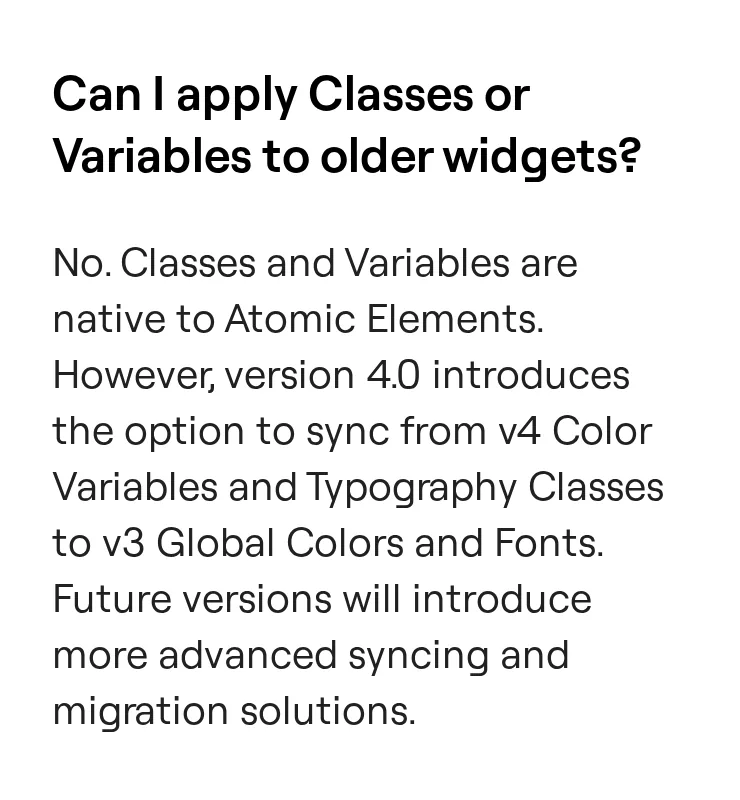
So a real migration has two halves. The technical half (update and opt in) is quick. The content half (rebuilding sections with Atomic Elements, Classes and Variables) is gradual, and you choose the pace.
If the vocabulary is new, read our Elementor V4 explainer on atomic elements, classes and variables first, then come back for the order of operations.
The catch: blog posts that promise an automatic “70-80% conversion” describe a tool Elementor has not documented. Plan for manual rebuilds and you won’t be surprised.
What you need before you start
- Versions: Elementor 4.4.0 requires WordPress 6.8+ and PHP 7.4+, per its WordPress.org listing and changelog. Elementor Pro must be updated alongside it.
- Access: an administrator account, plus SFTP or host panel access in case a plugin update locks you out of wp-admin.
- A full backup: files and database, stored off the server. A backup that lives only on the same host is not a backup.
- A staging copy: a host staging site, a local install, or a disposable clone.
- A page list: your top 10-20 URLs by traffic or revenue, so you know what to test after every change.
Common mistake: testing on staging with Pro unlicensed. Elementor notes that local installs on .local, .dev and .test domains don’t count as a Pro activation, but a hosted staging domain may, so check your licence before you start.
Step 1: Audit what the site depends on
Before touching versions, write down what the site leans on. Most V4 surprises come from code that Elementor doesn’t own.
- Add-ons: list every Elementor add-on and the widgets each page uses. If you run several suites, our roundup of the best Elementor addons helps decide which ones to keep.
- Custom CSS: search your theme, Customizer, snippet plugins and Elementor Custom CSS fields for
.elementor-widget-container,.elementor-sectionand.elementor-column. - Global Widgets: note where they appear. Our guide to creating a global widget in Elementor covers how V3 handles them.
- Loops and dynamic data: Loop Grid templates, ACF fields and Theme Builder conditions.
- Layout model: whether pages still use Sections and Columns or already use Flexbox Containers.
Why the CSS check matters: Atomic Elements render with a single wrapper div instead of V3’s nested wrappers. Treat any rule aimed at V3 wrapper classes as suspect once a section is rebuilt.
Our guide to where custom CSS lives in WordPress and Elementor shows every place to look.
Step 2: Back up and clone to staging
Elementor’s own pre-update checklist is short: make a backup, read the release notes and changelogs, check add-on compatibility with each vendor, and test on staging. Do all four.
- Take a full backup of files and database. Pick a tool from our list of WordPress backup plugins if your host doesn’t offer restorable snapshots.
- Download the backup and confirm the archive opens. Untested backups fail at the worst moment.
- Clone the site to staging. A host staging tool is easiest; a cloning plugin from our WordPress migration plugins roundup works anywhere.
- Block search engines on the clone and disable outgoing email, so forms on staging don’t message real customers.
Do this if you manage several client sites: a disposable sandbox speeds things up. Our InstaWP review covers spinning up test copies in minutes.
Step 3: Update Elementor Pro, then Elementor
On staging, update both plugins to the current 4.x release. Elementor’s update guide warns that updating Core without Pro, or Pro without Core, can break the site.
When you update from the Plugins screen, it recommends updating Elementor Pro first, then Elementor.
Then update your add-ons and theme on staging too. Load your page list logged out and compare it with the live site.
At this point you haven’t opted in to anything, so pages should look identical; if they don’t, the problem is a plugin update, not V4.
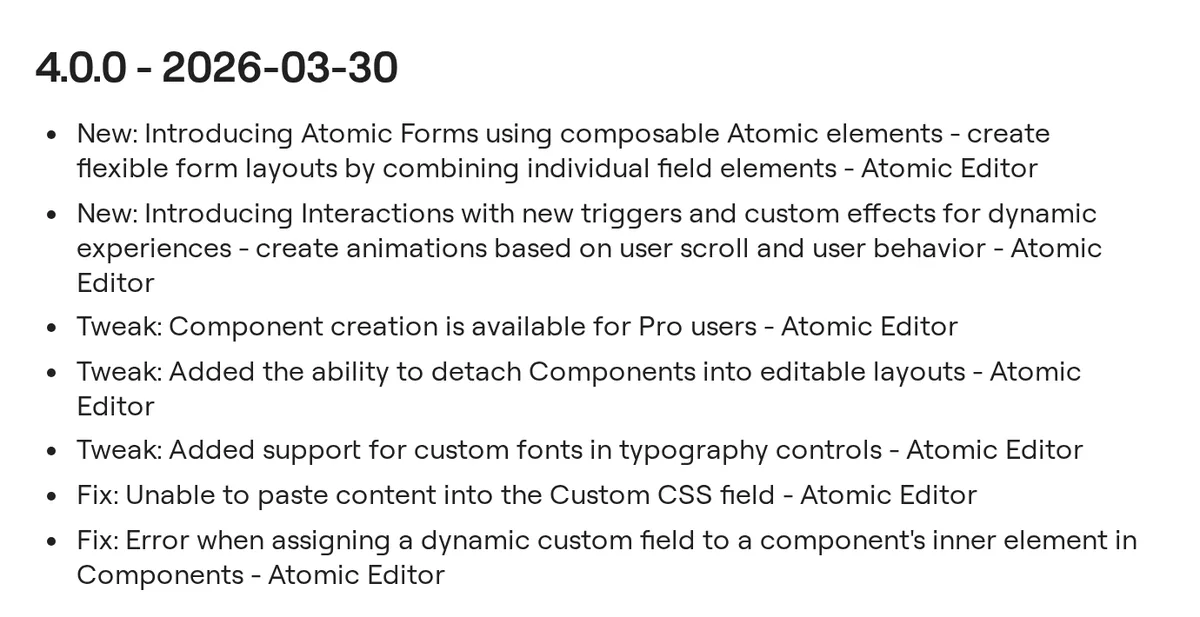
The catch: the Pro changelog above shows where the paywall sits. Components, Atomic Forms and Interactions are Pro, and so is the Atomic Loop. Core V4 itself is free.
Step 4: Turn on the Atomic Editor
Now opt in. Go to Elementor → Editor → Settings, open the Atomic Editor tab and activate it. You can also accept the notice at the top of the Elements panel inside the editor.
Read the side effects first. Per Elementor’s getting-started doc (updated September 2026), enabling V4 also switches on Flexbox Containers, Nested Elements and the Top Bar.
You can turn those off later. If your pages still use Sections and Columns, test them now.
When you drop an Atomic Element onto the canvas, Elementor wraps it in a V3 container, so mixed pages behave predictably. New Elementor installs have this switched on by default since 4.0.
⚠️ Warning: turn the Atomic Editor on in staging first. Elementor itself advises a complete backup before enabling new features on a live site.
Step 5: Sync your colours and fonts
This is the step that makes a half-migrated site look like one site. Classes and Variables only style Atomic Elements, so V3 widgets can’t use them directly. Elementor bridges the gap with sync, added in 4.0.0.
- Create colour Variables for your palette and font Variables for headings and body text.
- Open the Variables Manager, click the three-dot menu next to a variable and choose Sync to Global Colors or Sync to Global Fonts.
- Click Save Changes. The variable now appears as a choice in the global colour picker of classic widgets.
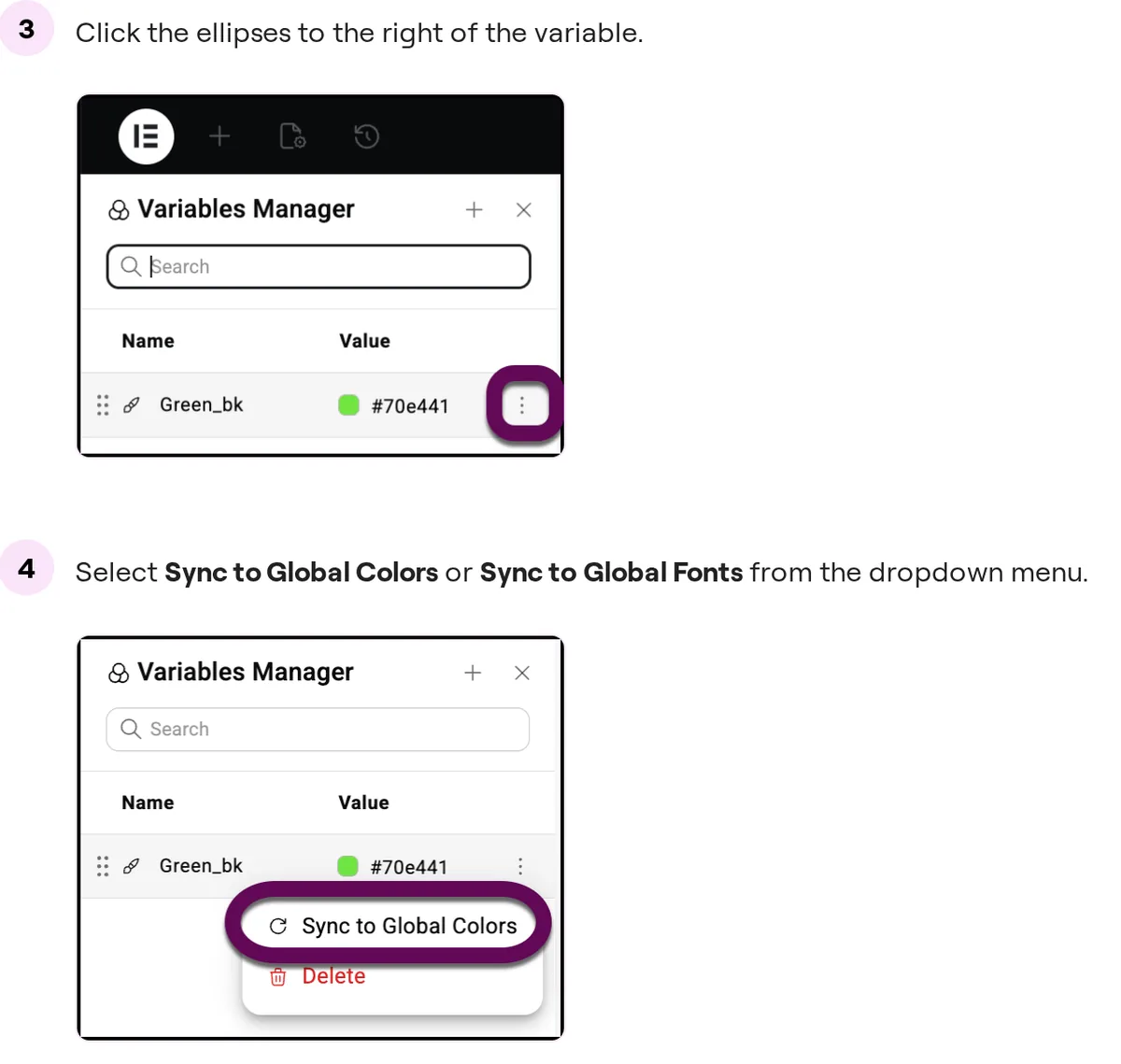
Per Elementor’s sync documentation, font sync covers typography only; colour, size and weight are not synced. If you later choose Stop syncing, V3 widgets may substitute another global, so recheck colours afterwards.
Best for: brand refreshes. Change a synced variable once and both atomic and legacy elements follow, which is the cheapest win in the whole migration.
Step 6: Build new work atomic, rebuild old pages in sections
Elementor’s FAQ recommends introducing Atomic Elements gradually on existing sites. In practice that means two rules: every new page is atomic, and old pages are rebuilt one section at a time.
Rebuild order that keeps risk low
- New landing pages first. They have no history to break and teach you the Style tab.
- Shared sections next. Turn a rebuilt CTA or banner into a Component (Pro) so every instance stays in sync. Components are V4’s answer to reusable sections; your V3 Global Widgets keep working meanwhile.
- High-traffic pages last, section by section. Duplicate the page, rebuild the copy, compare, then swap the content.
Keep URLs, heading order and internal links identical while you rebuild, so nothing changes for search.
Elementor credits its single-wrapper markup with cleaner output and better Core Web Vitals, but its FAQ admits gains vary on mixed V3/V4 pages. Measure each page before and after.
Loops: the Atomic Loop is a Pro element. Elementor documents copying widgets from an existing V3 Loop Item template into an Atomic Loop Item as a temporary migration bridge.
If those loops pull custom fields, our ACF tutorial for beginners explains how the fields are set up.
Skip it if a page relies on an add-on widget with no atomic version. Leave that widget as V3 inside the rebuilt section; mixing is allowed.
The atomic set keeps growing: Grid arrived in 4.2.0, Accordion in 4.3.0, and List and Google Maps elements in 4.4.0. Check the changelog before deciding a widget has no equivalent.
Step 7: Push the changes to the live site
Once staging looks right, repeat the plugin updates on live (Pro first), then turn on the Atomic Editor there. For your design system, Elementor can move Classes and Variables between sites:
- On staging, go to Elementor → Editor → Tools and open Website Templates.
- Export with everything off except Settings & configurations, then switch everything off except Classes and Variables.
- Choose Export as zip and import that file on the live site.
Elementor’s 4.0 developer notes say the import includes conflict resolution, so incoming styles don’t silently overwrite existing ones.
Rebuilt pages themselves are easiest to move by repeating the rebuild on live or with a page template export. Avoid pushing a whole staging database over a live store or membership site, because you’ll overwrite new orders and users.
How do you check the migration worked?
- Front end: load your page list logged out on desktop and mobile. Compare against screenshots taken before the update.
- Forms and checkout: submit every form and run a test order if the site sells anything.
- Design tokens: change one synced colour on staging and confirm both an atomic element and a V3 widget update.
- Speed: re-test rebuilt pages in PageSpeed Insights and compare with the before numbers.
- Console: open browser dev tools on key pages and look for JavaScript errors from add-ons.
Common mistake: checking only while logged in. The editor preview and the cached public page can differ, so purge your page cache before you judge.
What breaks and how to undo it
| Symptom | Likely cause | Fix |
|---|---|---|
| Site breaks right after updating | Core and Pro on mismatched versions, or an add-on not ready for 4.x | Update both plugins; if still broken, roll back (below) and contact the add-on vendor |
| Styling lost in a rebuilt section | Custom CSS aimed at V3 wrapper classes | Move the rule into a Class or rewrite the selector for the new markup |
| Add-on widget looks wrong in the editor | Add-on still targets V3 internals | Keep it as a V3 widget, update the add-on, or replace it |
| V3 widgets ignore your new Class | Classes and Variables don’t apply to V3 widgets | Sync colours and fonts to Globals, or rebuild that widget as atomic |
| Editor won’t load | Plugin or theme conflict | Use Safe Mode (Elementor → Editor → Tools) to isolate it |
Three ways to undo, from lightest to heaviest
- Turn the Atomic Editor off. Elementor → Editor → Settings → Atomic Editor. Use it for the editor experience; pages you already rebuilt still need their revision history or a backup to go back.
- Roll back the plugin version. Elementor → Editor → Home → Tools → Version Control, pick a version under Rollback Version and click Reinstall. Pro has its own Rollback Pro Version row.
- Restore the backup. The only undo that covers everything, including database changes.
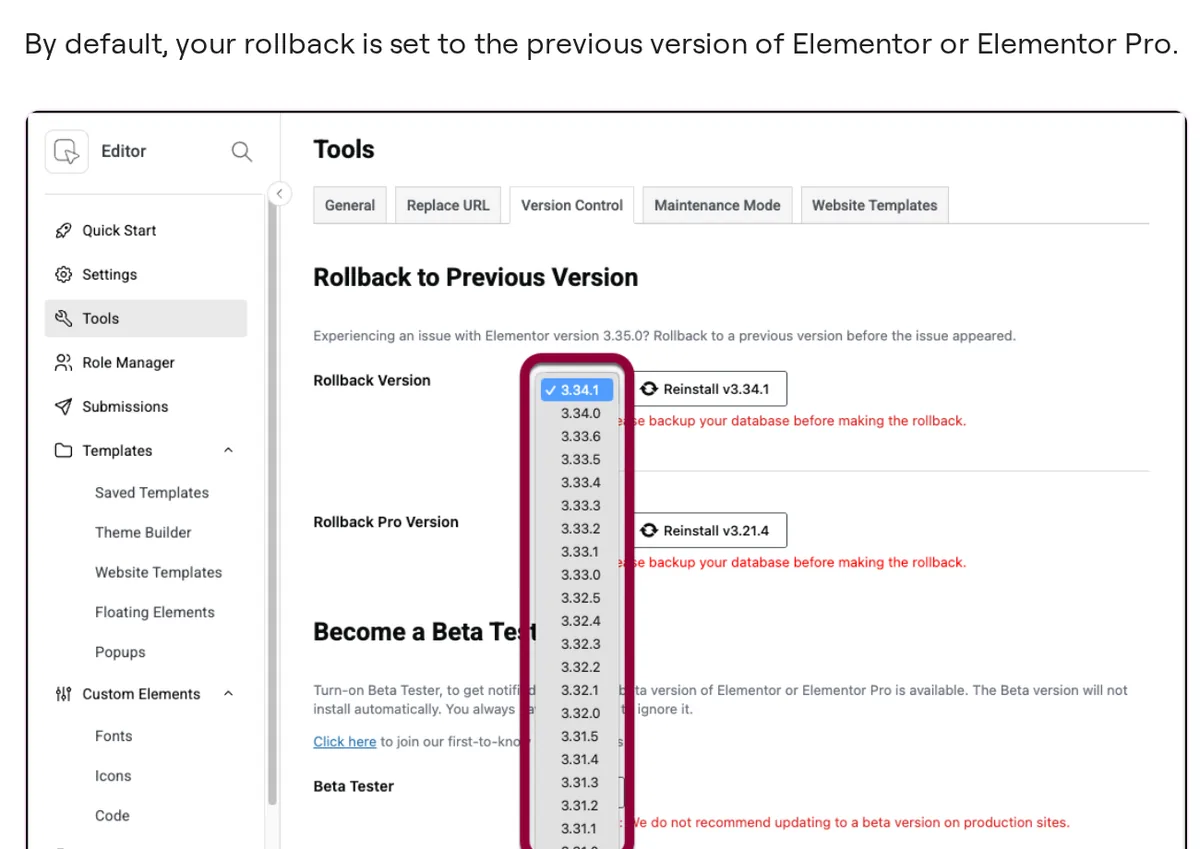
Per the rollback guide, direct ZIP download only works for Core, not Pro. And note that Safe Mode turns off all Elementor experiments, Containers included, so switch it back off when you finish debugging.
Keeping plugins patched is also a security job; our WordPress security hardening checklist covers update routines beyond Elementor.
Frequently Asked Questions
Can I convert Elementor V3 pages to V4 automatically?
No. As of November 2026 there is no official converter, and no Elementor release note from 4.0.0 to 4.4.0 adds one. Elementor says future versions will bring more syncing and migration tools. Today you rebuild sections with Atomic Elements while V3 widgets keep working.
Will updating to Elementor 4 break my site?
Updating should not change existing pages. Elementor says nothing happens to existing sites until you activate the Atomic Editor. Breakage usually comes from Core and Pro on mismatched versions or an outdated add-on, so update both on staging first, with a backup.
Is Elementor V4 stable enough for live sites?
Yes, per Elementor. Version 4.0.0 on 30 March 2026 marked the Atomic Editor as stable and made it the default for new sites, and the V4 FAQ calls atomic features safe for production. Your add-ons may lag behind, so test on staging first.
Can V3 widgets and V4 elements be on the same page?
Yes. Elementor supports mixing legacy widgets and Atomic Elements on one page, and an atomic element dropped onto the canvas gets wrapped in a V3 container. That is what makes a gradual, section-by-section migration possible.
Do V4 classes and variables work on old widgets?
No. Classes and Variables are native to Atomic Elements. You can sync colour variables to V3 Global Colors and font settings to V3 Global Fonts from the Variables Manager, which keeps both systems visually consistent during the migration.
How do I turn off Elementor V4?
Go to Elementor, then Editor, then Settings, and switch off the Atomic Editor tab. That changes the editor, not pages you already rebuilt. For those, use revision history or a backup, or roll back the plugin under Tools, then Version Control.
Do I need Elementor Pro to use V4?
No. The Atomic Editor, Classes, and colour and font Variables are in the free core plugin. Size Variables, Components, Atomic Forms, Interactions and the Atomic Loop need Pro. Elementor says V4 is not a new subscription; Pro users get it within their existing plan.
Will my Elementor add-ons work after migrating to V4?
Their existing V3 widgets keep running on a 4.x site, but compatibility depends on each vendor. Elementor recommends checking with add-on developers before updating. Test every add-on widget on staging, and keep it as a V3 widget if it has no atomic version.
Should you migrate now?
- Migrate now if you build new pages every month or are planning a redesign. Every atomic page you add now is one you won’t rebuild later.
- Update but don’t rebuild if the site is stable and rarely edited. Stay current on 4.x for security, leave V3 pages alone, and revisit when a page is due a refresh.
- Wait if a business-critical add-on or loop has no atomic path yet. V3 keeps working; nothing forces the switch.
Our pick for most readers: update on staging this week, opt in, sync your colours and fonts, and make the next new page atomic. For a wider view of the builder itself, see our Elementor review.
Last updated November 2026.


[…] explains what that means for an addon-heavy site. When you are ready to switch, our guide on how to migrate an Elementor V3 site to V4 safely shows how to test addon widgets on staging […]
[…] Best for: anyone who moves sites for a living, and anyone who wants a staging-to-live workflow with a rollback. Pair it with a throwaway sandbox such as InstaWP and your restore rehearsal takes minutes. The same rehearsal belongs before any big plugin jump, such as an Elementor V3 to V4 migration. […]