


Core Web Vitals on WordPress come down to three numbers: LCP ≤ 2.5 seconds, INP ≤ 200 milliseconds, and CLS ≤ 0.1 at the 75th percentile of real Chrome visits.
Pass all three on mobile and desktop and the page clears Google’s assessment. Miss one, and Search Console will keep showing Needs improvement no matter how pretty your Lighthouse screenshot looks.
This guide shows how to diagnose the failing metric, fix it with WordPress-friendly steps, and verify the result in PageSpeed Insights.
⚡ Quick answer
- Best for: site owners who see Poor or Needs improvement in Search Console, or who need green Core Web Vitals before a redesign ships.
- Skip if: you only want a 100 lab score for a screenshot. Field data over 28 days is what counts.
- Time needed: 1–3 hours for the first failing template, then up to 28 days for CrUX to catch up.
- Our call: fix the metric that fails on mobile field data first. Usually that is LCP (hero image + server), then INP (JavaScript), then CLS (dimensions and fonts).
Contents
- What are Core Web Vitals thresholds for WordPress?
- How do you check Core Web Vitals with PageSpeed Insights?
- What you need before you start
- How to improve LCP in WordPress
- How to improve INP in WordPress
- How to fix CLS in WordPress
- How to check the fix worked
- What breaks and how to undo it
- Frequently Asked Questions
- Should you chase a perfect score?
What are Core Web Vitals thresholds for WordPress?
Per Google’s Web Vitals overview, the three Core Web Vitals are stable metrics that apply to every page:
- Largest Contentful Paint (LCP): loading. Good at 2.5 seconds or less.
- Interaction to Next Paint (INP): responsiveness to clicks, taps and keys. Good at 200 milliseconds or less.
- Cumulative Layout Shift (CLS): unexpected layout jumps. Good at 0.1 or less.

A page passes only when all three are good at the 75th percentile, for mobile and desktop separately. That is the rule PageSpeed Insights and Search Console use.
Do this if you are starting from zero: write those three numbers on a sticky note and ignore every other speed score until they are green in field data.
Skip if you are still debugging a white screen. Stability first, vitals second.
How do you check Core Web Vitals with PageSpeed Insights?
PageSpeed Insights shows two layers. The top section is field data from the Chrome User Experience Report over the previous 28 days. The bottom section is a lab Lighthouse run on one device and network profile.
Google ranks on field data. Lab data is for diagnosis. If a URL has too little traffic, PSI falls back to origin-level CrUX, or shows no field data at all.
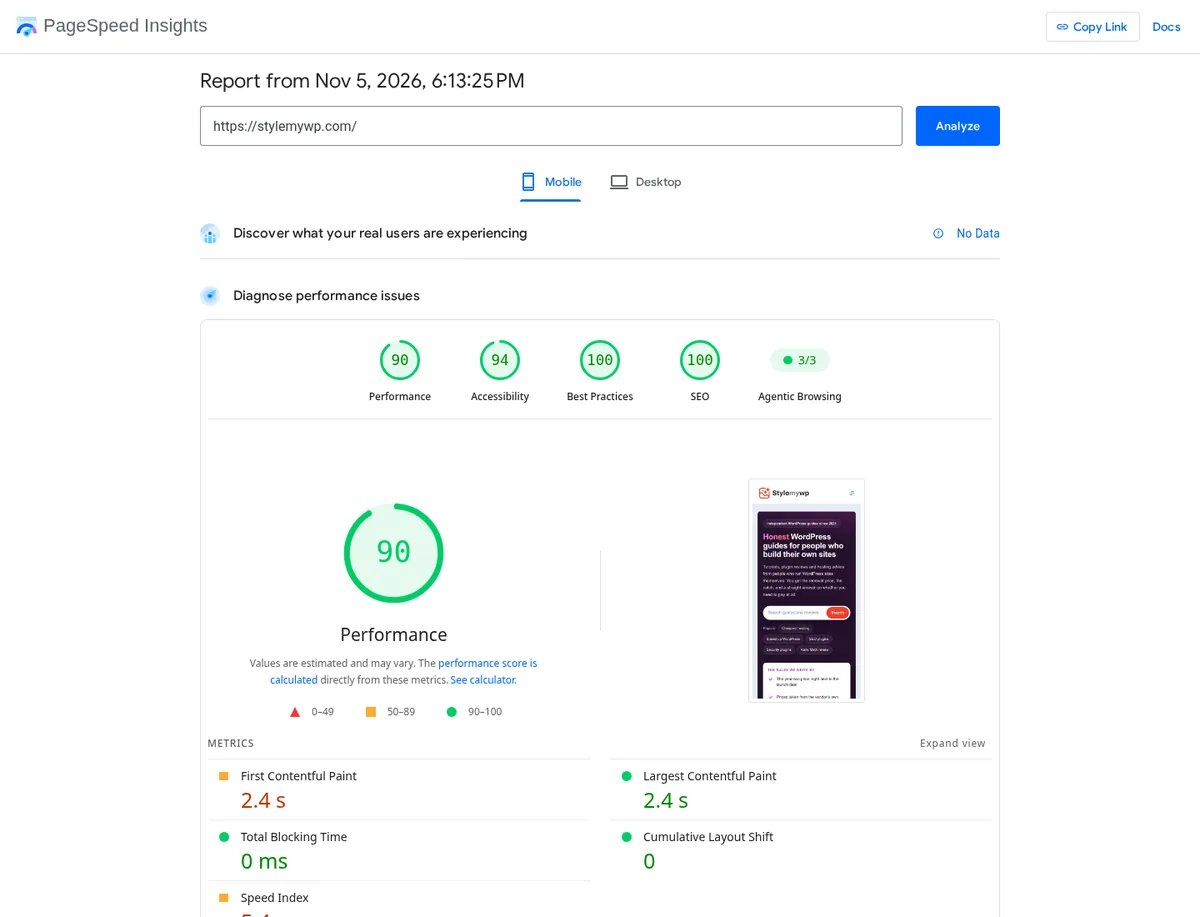
Also open Search Console → Experience → Core Web Vitals. That report groups URLs by template, which is how you find that every single post fails LCP while the homepage looks fine.
⚠️ Common mistake: celebrating a green lab score while Search Console still lists the URL group as Poor. Lab and field measure different things. Fix the field metric.
What you need before you start
- Admin access to WordPress and your host (or CDN) cache controls. Weak hosting shows up as high TTFB before any plugin can help; see our WordPress hosting platforms guide if the server is the bottleneck.
- A recent full backup you know how to restore.
- One caching plugin or host-level page cache. Our roundup of WordPress cache plugins covers the usual options.
- Staging, or at least a quiet hour, before you defer JavaScript site-wide.
- The failing URL from Search Console, not just the homepage.
This article sits next to our broader WordPress speed optimization guide. Use that for the full checklist; use this one when Core Web Vitals are the brief.
How to improve LCP in WordPress
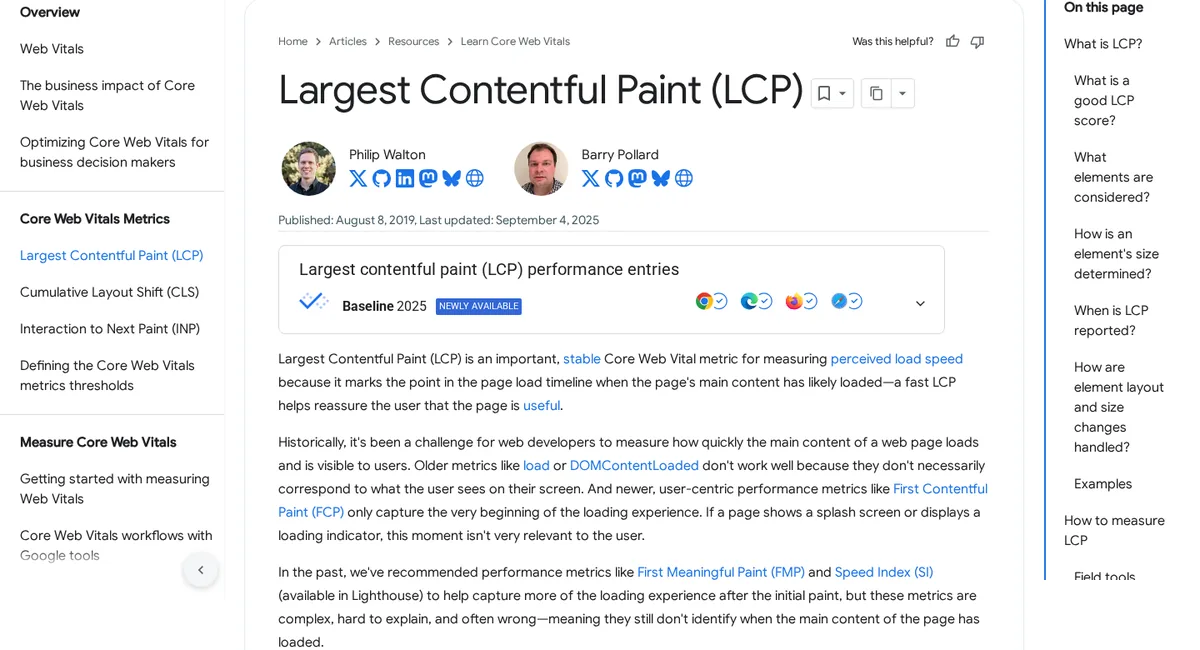
LCP is usually the hero image, a large heading, or a featured image in the viewport. Google’s LCP guide splits the time into server response (TTFB), delay before the resource starts, download time, and delay before it paints.
Step 1: Speed up the first byte
Turn on full-page caching and a CDN. A slow TTFB makes a 2.5-second LCP hard or impossible.
Trim origin work with a current PHP version and fewer uncached queries. For the deeper server side, see how to reduce server response time.
Step 2: Stop lazy-loading the LCP image
Since WordPress 6.3, core can add fetchpriority="high" to the image it thinks is the LCP candidate and skip lazy-loading for early in-viewport images.
That behaviour is documented in the WordPress 6.3 image performance note. Lazy-loading and high fetch priority must never sit on the same image.
Sliders, CSS background heroes and page-builder images often bypass that logic. In PageSpeed Insights, open the Largest Contentful Paint element diagnostic and confirm the HTML for that image is not loading="lazy".
Step 3: Serve a smaller, correctly sized hero
Export WebP or AVIF at the display size, not a 4000-pixel original.
Use an image optimizer from our image optimization plugins list, and keep below-the-fold images lazy with a tool from the lazy load plugins roundup.
Step 4: Clear render-blocking CSS and JS from the critical path
Defer non-critical scripts in your cache plugin. Generate critical CSS if the plugin offers it, then test the header and first screen.
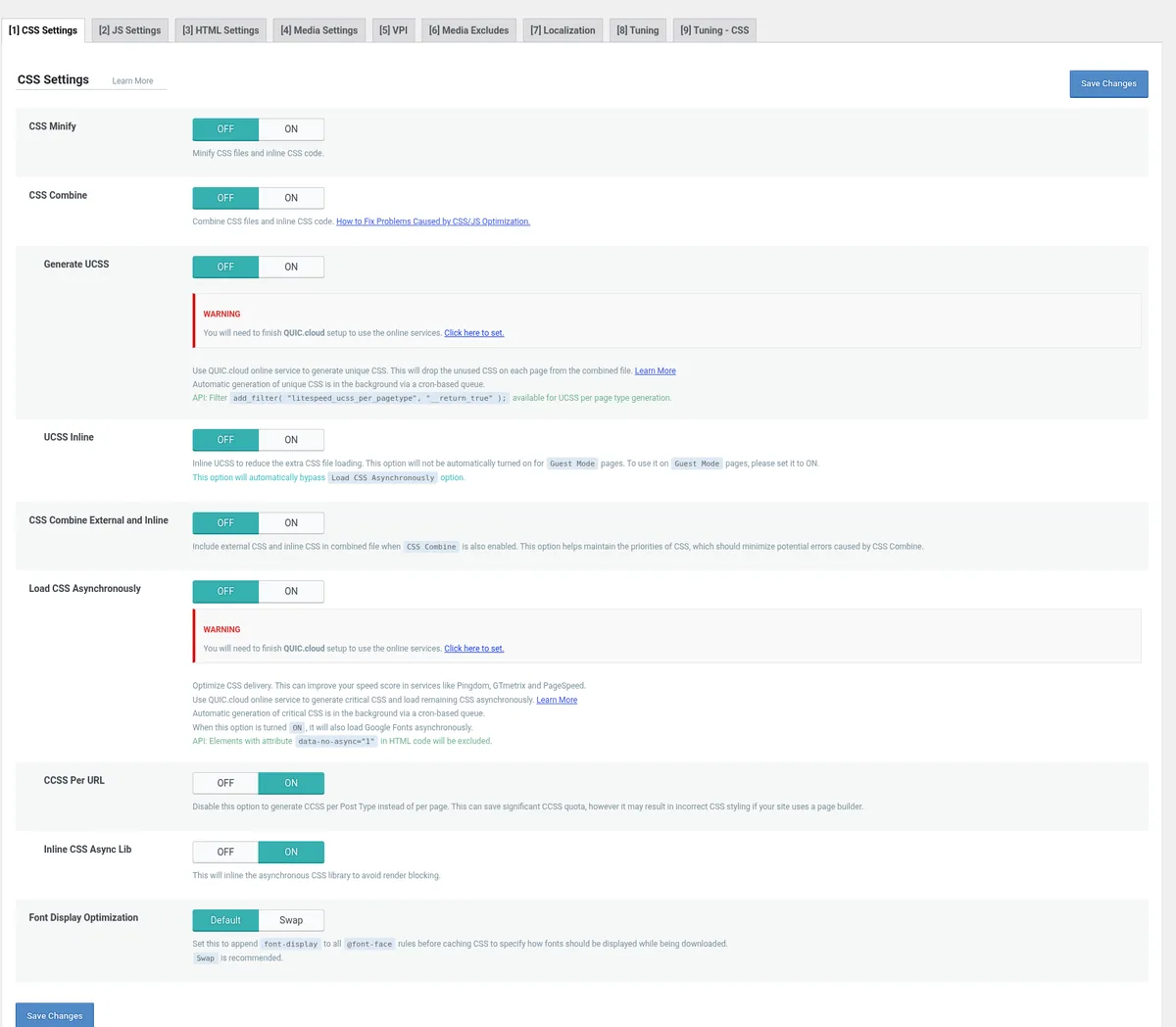
Page builders that dump large stylesheets into every URL are a frequent LCP drag. Elementor’s newer architecture is covered in Elementor V4 explained.
Do this if mobile LCP in field data is over 2.5 seconds.
The catch: compressing the hero without fixing TTFB or discovery delay just moves the time around. Work the four LCP subparts, not one toggle.
How to improve INP in WordPress
INP measures how long it takes from a click, tap or keypress until the next paint. It replaced First Input Delay and looks at interactions across the whole visit, not only the first one.
On WordPress, the usual blockers are front-end scripts from plugins, chat widgets, tag managers and heavy builder JavaScript competing on the main thread.
Step 1: Remove scripts you do not need
Deactivate unused plugins. For the rest, load assets only where they are required.
Lightweight script control is covered in our Perfmatters review. A full cache suite like the one in our WP Rocket review can defer JavaScript when you accept the trade-offs.
Step 2: Delay third-party tags
Chat, ads and marketing pixels should not run on every first paint. Delay them until after interaction or a short timeout. Review tag-manager containers quarterly; abandoned tags are free INP damage.
Step 3: Find the long task
In Chrome DevTools → Performance, record while you repeat the slow click (mobile menu, add to cart, accordion). The long task in the trace usually names the script. Fix that script, not a random defer-all toggle.
Skip if your field INP is already under 200 ms on mobile. Do not break forms chasing a lab Total Blocking Time number.
Common mistake: deferring a script that initializes a checkout button. Visitors see a frozen UI. Always retest money paths after JS changes.
How to fix CLS in WordPress
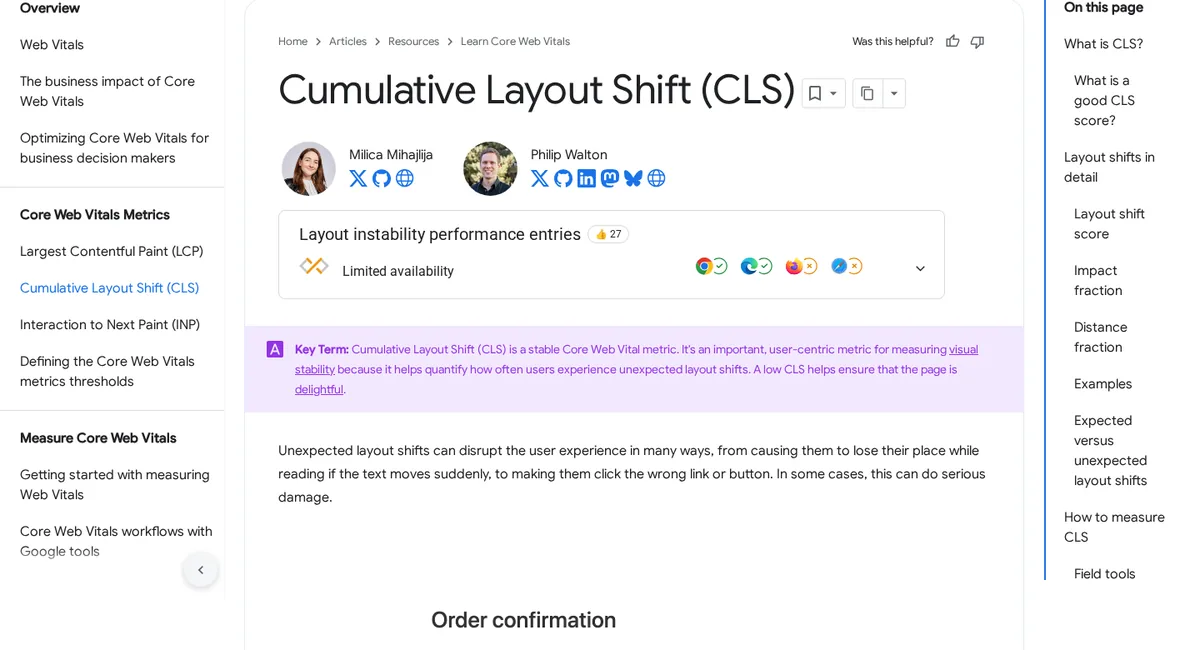
CLS sums unexpected layout shifts. Images without dimensions, late fonts, cookie banners and ads that push content down are the classics on WordPress.
Step 1: Give every media element a size
WordPress adds width and height to Media Library images. Custom HTML, sliders and some builder widgets do not. Add dimensions or a CSS aspect-ratio on the container. Deeper layout-shift tactics live in how to avoid layout shift in WordPress.
Step 2: Reserve space for banners and embeds
Cookie notices, announcement bars and iframes need a reserved min-height before they load. Injecting content at the top of the viewport after paint is the highest-scoring CLS pattern.
Step 3: Load fonts without a jump
Self-host fonts when you can, limit weights, and use font-display: swap (or optional) with a fallback that has similar metrics. Avoid swapping a narrow system font for a wide display face above the fold.
Do this if CLS field data is above 0.1, even when LCP looks fine.
The catch: user-triggered shifts within about 500 ms of input are excluded. Do not burn hours “fixing” an accordion that opens on click.
How to check the fix worked
- Re-run PageSpeed Insights on the same URL. Confirm the LCP element and lab metrics moved the right way.
- In Chrome DevTools Performance, confirm the new LCP candidate and that your interaction no longer shows a multi-hundred-millisecond long task.
- Wait for field data. CrUX in PSI and Search Console is a trailing 28-day window. A fix from today will not flip Search Console tomorrow.
- Recheck after every plugin or theme update. Releases are the usual reason a green URL group turns amber.
If the URL still has no field samples, watch the origin-level CrUX numbers and your own analytics if you instrument the web-vitals library.
What breaks and how to undo it
- Menus, sliders or forms stop working: you deferred a required script. Turn off Delay/Defer JS for that file, or exclude the page.
- Logged-in users see a broken layout: page cache served a guest page. Exclude logged-in traffic from the cache.
- Hero image still lazy: a lazy-load plugin overrode core. Exclude the first image or disable lazy load for above-the-fold media.
- CLS got worse after a cookie banner: the banner injected at the top without reserved space. Pin a min-height or move it to a non-shifting pattern.
To undo it, disable the last optimization toggle you enabled, purge every cache layer (plugin, host, CDN), and retest in a private window.
Keep the backup from the start of the job until Search Console confirms the URL group recovered.
Some links below are affiliate links. If you buy through them we may earn a commission at no extra cost to you — it never changes which plugin we recommend.
Frequently Asked Questions
What are good Core Web Vitals scores for WordPress?
Good means LCP at 2.5 seconds or less, INP at 200 milliseconds or less, and CLS at 0.1 or less, measured at the 75th percentile of real Chrome visits on mobile and desktop separately. A page passes only when all three are good. Poor thresholds are LCP over 4 seconds, INP over 500 milliseconds, and CLS over 0.25.
How do I check Core Web Vitals on a WordPress site?
Start with PageSpeed Insights for a URL: read the field (CrUX) section first, then the lab diagnostics. Use Search Console’s Core Web Vitals report to see which URL groups fail on mobile. Chrome DevTools Performance helps you reproduce a slow click or confirm the LCP element while you fix it.
Do Core Web Vitals affect SEO rankings?
Yes, as part of Google’s page experience signals. They are not a magic ranking switch, but failing mobile field data is a real handicap when competing pages are comparable. Fixing vitals also reduces bounce from slow or jumpy pages, which matters even when rankings do not move overnight.
Why is Lighthouse green but Search Console says Poor?
Lighthouse is a lab test on one device and network. Search Console uses 28 days of real Chrome visits (CrUX) at the 75th percentile. Slow phones, weak networks and third-party scripts show up in field data long before a clean lab run fails. Trust field data for pass/fail.
How do I improve LCP in WordPress?
Cache pages and use a CDN to cut TTFB, never lazy-load the hero image, give it fetchpriority high when it is the LCP element, serve WebP or AVIF at the display size, and remove render-blocking CSS and JavaScript from the first paint. Confirm the LCP element in PageSpeed Insights after each change.
What is INP and how do I fix it in WordPress?
INP measures how quickly the page paints after clicks, taps and key presses. Fix it by removing unused front-end scripts, delaying chat and marketing tags, deferring non-critical JavaScript carefully, and tracing the slow interaction in Chrome DevTools to find the long task. Do not break checkout scripts while deferring.
How do I fix CLS in WordPress?
Set width and height (or aspect-ratio) on images, videos and embeds, reserve space for cookie bars and ads, and load web fonts so fallback text does not jump. Avoid injecting banners above existing content after paint. User-triggered shifts soon after a click are usually excluded from CLS.
How long until Core Web Vitals improve after a fix?
Lab scores can change on the next PageSpeed Insights run. Field data in PSI and Search Console is a trailing 28-day CrUX window, so expect one to four weeks before the report flips. Keep monitoring after plugin and theme updates, which often reintroduce regressions.
Should you chase a perfect score?
- Fix now if: Search Console lists mobile URL groups as Poor or Needs improvement for LCP, INP or CLS.
- Stop optimizing if: all three field metrics are good at p75 and the remaining lab warnings are cosmetic.
- Choose a lighter builder path if: every template ships a huge DOM and unused CSS no cache plugin can hide.
- Our pick for most StyleMyWP readers: cache + CDN, a correctly prioritized hero, fewer front-end scripts, and reserved space for banners — then wait for the 28-day field window.
Last updated November 2026.


[…] CLS scores visual stability. Google’s CLS documentation puts a good score at 0.1 or less, needs improvement between 0.1 and 0.25, and poor above 0.25, assessed at the 75th percentile of real page loads. Mobile and desktop are graded separately, so a site can pass one and fail the other. CLS sits beside LCP and INP in our Core Web Vitals guide for WordPress. […]