


WordPress security hardening is the work of closing the easy doors attackers actually use: outdated software, weak logins, editable PHP from the dashboard, and untested backups.
It is risk reduction, not a magic shield. The official handbook (updated October 2026) is clear that perfect security does not exist; layered, boring controls do.
This checklist walks through the load-bearing steps for a live site in 2026, flags outdated advice, and shows how to verify each change without locking yourself out.
⚡ Quick answer
- Best for: site owners who want a practical WordPress security checklist they can finish in one sitting (or stage over a weekend).
- Skip if: the site is already compromised. Harden after a clean restore; use a malware cleanup guide first.
- Time needed: 45–90 minutes for the defaults below; longer if you add server-level WAF rules.
- Our call: prioritize updates, unique admin credentials + 2FA,
DISALLOW_FILE_EDIT, permissions, XML-RPC policy, a firewall/scanner, tested backups, and HTTPS. Treat “hide wp-login.php” as optional noise reduction, not the plan.
Contents
What does WordPress security hardening cover in 2026?
Per the WordPress hardening handbook (updated October 2026), hardening means limiting attack surfaces, containing damage if something fails, and preparing restore paths with trusted backups.
Most break-ins still start with known plugin bugs, reused passwords, or XML-RPC / login hammering – not exotic zero-days. Your job is to make those paths expensive.
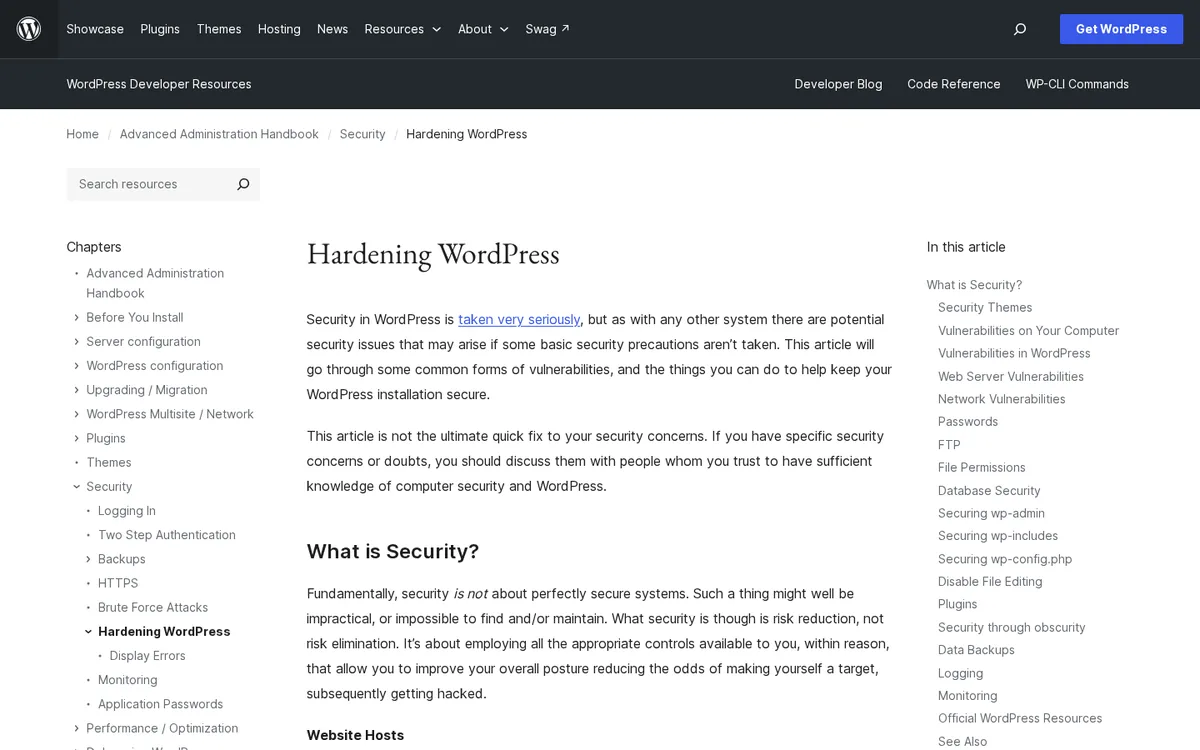
⚠️ Outdated as a primary defense: hiding wp-login.php, country-wide IP bans, and BasicAuth over all of /wp-admin/. The brute-force handbook now prefers edge WAF rate limits, 2FA, passkeys, and targeted throttling. Obscurity can cut noise; it is not your plan.
Do this if you run a normal brochure site, blog, or small WooCommerce store on shared or managed hosting.
Skip if you are mid-incident. Restore a clean backup first, then harden.
What you need before you start
- Administrator access to WordPress and a way to edit files (SFTP, host file manager, or Git deploy).
- A full backup of files + database that you have restored at least once. See our WordPress backup plugins roundup if that is still missing.
- Staging, or a quiet maintenance window. Major core/plugin updates belong on a copy first – our WordPress 7.0 guide covers the update mindset for current releases.
- A password manager. You will create unique admin credentials.
- Clarified host responsibilities. Shared servers still matter; pick a host that ships updates and backups, then harden the app layer – see how to choose hosting for WordPress.
This guide is the Security hub checklist. Pair it with the cluster pillar on WordPress security plugins when you pick a firewall or scanner.
WordPress security hardening checklist
Work top to bottom. Each step ends with a quick verify. Stop and restore if something fails before you stack the next control.
1. Keep WordPress, plugins, themes and PHP updated
The handbook is blunt: older WordPress versions are not maintained with security updates, and public exploit details follow releases quickly. Download core only from wordpress.org.
Leave automatic minor core updates on. Update plugins and themes promptly. Delete what you do not use – deactivated plugins are still code on disk.
Install only from WordPress.org or known vendors. Nulled “premium” zips are a common backdoor path.
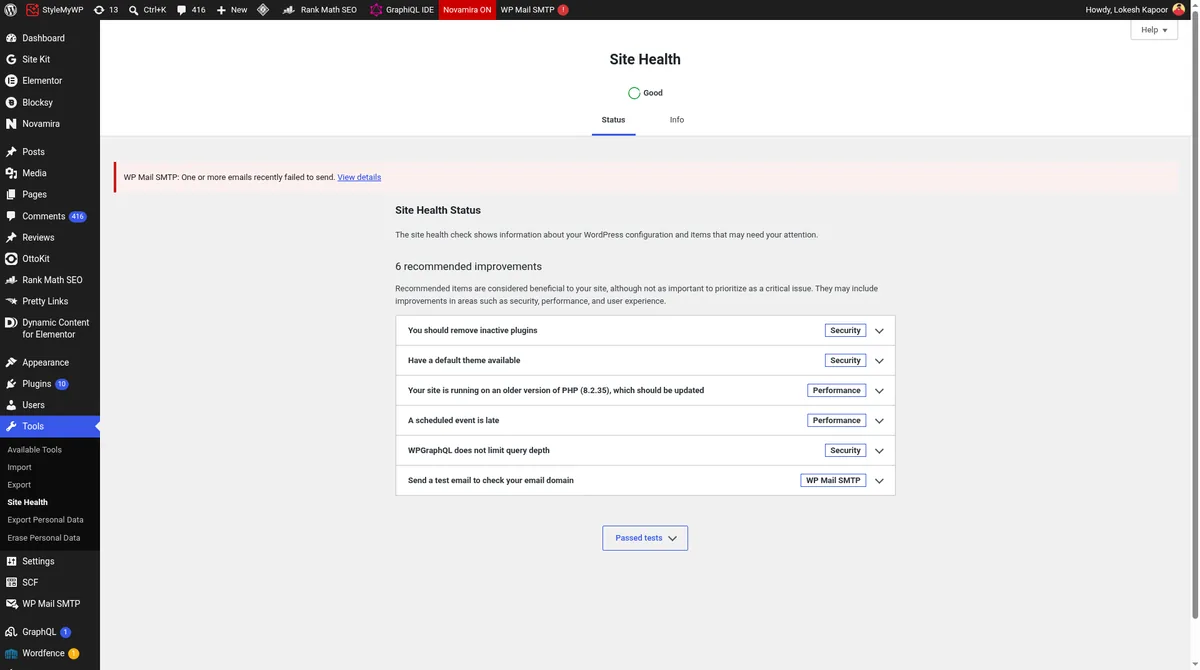
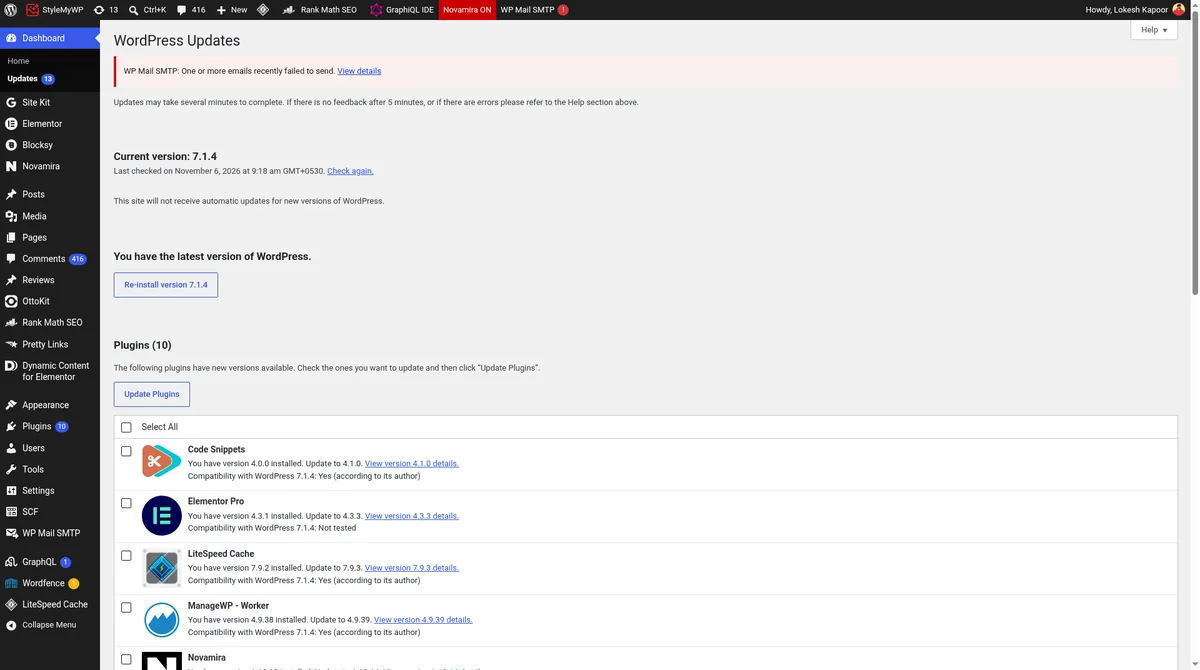
Check Tools → Site Health and Dashboard → Updates for pending PHP and plugin warnings. Site Health flags outdated PHP as a security concern.
How to check: no pending updates, Site Health not screaming about PHP or background updates.
2. Use strong unique admin credentials and least privilege
Avoid usernames like admin or webmaster. Use a long unique password from a manager. WordPress shows a strength meter on the profile screen – use it.
Give people the lowest role that works. Editors do not need Administrator. Remove accounts for people who left.
For API integrations, prefer Application Passwords (WordPress 5.6+) so you can revoke access without changing the human password. The brute-force handbook covers this pattern.
How to check: Users list shows no shared “admin” login; each privileged account is unique.
3. Limit login attempts and turn on 2FA
WordPress core does not ship two-factor authentication. Add TOTP 2FA (or passkeys via a maintained plugin) for every Administrator and Editor. Our roundup of two-factor authentication plugins compares options.
Rate-limit wp-login.php at the edge (host/CDN WAF) when you can. App-layer limiters still help, but they burn PHP under a heavy botnet. Pair with a plugin from the brute force protection plugins list if the host offers nothing.
How to check: log in with 2FA from a second device; confirm a failed password attempt eventually locks or challenges.
4. Disable file editing in the dashboard
If an attacker reaches an administrator session, the theme/plugin editors are an easy code-execution path. Add this to wp-config.php above the “stop editing” line:
define( 'DISALLOW_FILE_EDIT', true );Documented in both the hardening handbook and the wp-config.php reference. It removes edit_themes, edit_plugins and edit_files capabilities.
It will not stop malicious uploads by itself. It does remove a favourite post-login tool.
How to check: Appearance → Theme File Editor and Plugins → Plugin File Editor are gone or inaccessible.
💡 Tip: DISALLOW_FILE_MODS also blocks installs and updates from the dashboard. Use it on locked-down, Git-deployed sites – not on a solo blog that updates from wp-admin.
5. Secure wp-config.php (keys, permissions, access)
wp-config security starts with unique authentication keys and salts (generated at install). After a suspected compromise, regenerate them and force every session to re-authenticate.
Set file permissions so only you (and the web server if required) can read the file – the handbook cites roughly 400 or 440. On Apache, deny web access:
<Files "wp-config.php">
Require all denied
</Files>
You may move wp-config.php one directory above the WordPress root. The handbook notes that some people dispute the benefit and warn that a careless move introduces risk. Prefer permissions + deny rules first.
Also set define( 'FORCE_SSL_ADMIN', true ); so admin cookies never travel in clear text, and keep WP_DEBUG off on production so errors are not printed to visitors.
How to check: opening https://yoursite.com/wp-config.php returns forbidden/empty; admin loads over HTTPS only.
6. Set sensible file and directory permissions
Official starting point when you have shell access:
find /path/to/wordpress/ -type d -exec chmod 755 {} \;
find /path/to/wordpress/ -type f -exec chmod 644 {} \;
Then tighten wp-config.php. Keep wp-admin and wp-includes writable only by your user account. Allow the web server write access under wp-content (uploads, caches) as needed.
Ask the host how to disable PHP execution inside wp-content/uploads if they have a one-click rule. That stops many malware droppers even when an upload bug exists.
How to check: Site Health → Info → Filesystem Permissions shows WordPress can write where it must, and uploads cannot run .php if you added that rule.
7. Disable or protect XML-RPC if you do not need it
xmlrpc.php is a frequent brute-force target, especially via system.multicall. If you do not use Jetpack, the classic mobile apps, or another XML-RPC client, disable it (security plugin toggle, host rule, or a small must-use plugin).
If you need it, restrict and rate-limit at the WAF. Do not leave it wide open “just in case.”
How to check: a POST to /xmlrpc.php fails closed, or returns only what your allowed client needs under rate limits.
8. Run a security plugin (firewall + malware scan)
The handbook groups firewalls into .htaccess-level tools, WordPress-level filters (examples named there include Wordfence and Shield), server ModSecurity, and edge reverse-proxy WAFs such as Cloudflare or Sucuri.
Pick one solid product that covers WAF rules, malware / integrity scanning, and login protections – then configure alerts. The Wordfence plugin listing on WordPress.org is one widely used firewall-and-scanner example; compare categories in our best WordPress security plugins guide rather than stacking three overlapping scanners.
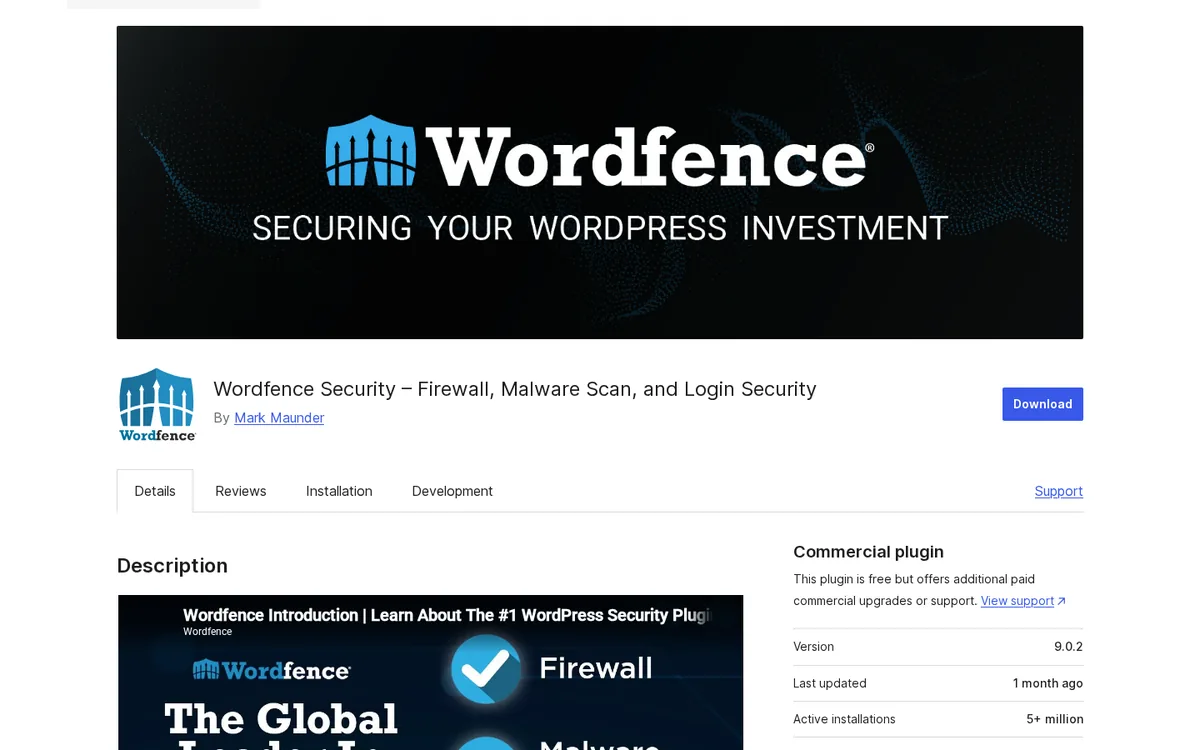
If you already suspect infection, jump to dedicated cleaners in the malware removal plugins roundup after you take the site offline and restore if needed.
How to check: first full scan completes; firewall is in learning or enabled mode per the plugin docs; email alerts reach an inbox you actually open.
9. Keep tested off-host backups
Hardening reduces odds. Backups decide whether a bad day is an hour or a rewrite. Snapshot files + database on a schedule, store at least one copy off the web server, and restore to staging quarterly.
The handbook also suggests integrity helpers (encryption, hashes, read-only media) for high-value sites. For plugin options, use the backup plugins list.
How to check: restore last night’s backup to a throwaway URL and confirm the homepage and wp-admin load.
10. Remove unused features, enforce HTTPS, and review Site Health
Delete unused themes and plugins. Close comment spam paths you do not need – our anti-spam plugins roundup helps if comments stay open. For EU visitor data, keep a current privacy stack from the GDPR compliance plugins guide.
Serve the whole site over HTTPS. Force SSL for admin with FORCE_SSL_ADMIN. At the host or CDN, add basic headers (HSTS, X-Content-Type-Options, a sane Referrer-Policy) if the panel offers them – keep CSP iterative so you do not break the front end on day one.
Open Tools → Site Health (see the Site Health screen docs). Clear critical issues first (debug display, broken updates, outdated PHP, open registration with a privileged default role). Then work recommended improvements.
About the database table prefix: changing $table_prefix away from wp_ can frustrate some canned SQL-injection payloads, but the handbook classifies this under security through obscurity – useful as a secondary step, never instead of patching and least privilege. Changing the prefix on a live site is a migration project; do it at install time when you can.
Do this if Site Health still lists critical items after steps 1–9.
The catch: a green Site Health score does not mean “unhackable.” It means the built-in checks are clean. Keep the firewall and backups running.
How to check your hardening worked
- Dashboard → Updates: nothing pending you intend to install.
- Tools → Site Health: no critical security items; Info → HTTPS is yes.
- Users → Profile: 2FA enrolled; Application Passwords only for apps you recognise (revoke strays).
- Theme/Plugin File Editor: unavailable after
DISALLOW_FILE_EDIT. - Security plugin: clean or triaged scan; firewall enabled.
- Backup: successful restore test logged with date.
- Login test: wrong password eventually limited; XML-RPC behaviour matches your policy.
What breaks and how to undo it
- Locked out after 2FA or rate limits: use the plugin’s emergency backup codes, host file manager to rename the security plugin folder, or restore the last known-good backup.
- Broken AJAX in wp-admin after BasicAuth: expected – the handbook warns password-protecting all of
/wp-admin/can breakadmin-ajax.php. Prefer WAF rules scoped towp-login.php. - Jetpack / mobile app failures after disabling XML-RPC: re-enable XML-RPC and rate-limit instead, or switch those apps to Application Passwords over the REST API where supported.
- Cannot edit theme/plugin files: remove or set
DISALLOW_FILE_EDITto false temporarily; better: deploy via SFTP/Git. - Plugin installs blocked: you set
DISALLOW_FILE_MODS– intentional on locked sites; remove the constant to restore dashboard installs. - White screen after permissions change: restore previous modes (
755/644) and confirm ownership matches the host’s PHP user. - Update failures after stripping DB privileges: the handbook warns against revoking DROP/ALTER for day-to-day “hardening.” Restore privileges, restore DB if needed, then update.
If the site is already hacked, stop hardening theatre and follow a cleanup path – and consider a WordPress maintenance service if you do not want to own forensics yourself.
Frequently Asked Questions
What is the first step in a WordPress security hardening checklist?
Take a tested backup of files and the database, then update WordPress core, plugins, themes and PHP. Fresh patches close the vulnerabilities scanners already know how to hit. Hardening on an outdated stack only rearranges deck chairs.
Is DISALLOW_FILE_EDIT enough to secure WordPress?
No. It blocks the dashboard theme and plugin editors, which stops one common post-login attack path. You still need updates, strong credentials, 2FA, file permissions, a firewall or scanner, and backups. Treat it as one line in wp-config, not the whole plan.
Should I hide wp-login.php to harden WordPress?
Only as optional noise reduction. Official brute-force guidance says obscuring the login URL must not be your only defense. Prefer rate limits at the WAF, 2FA, strong unique passwords, and XML-RPC controls. Hide-login plugins also break legitimate workflows.
Do I need to change the WordPress database table prefix?
Changing $table_prefix from wp_ can frustrate some canned SQL-injection scripts, but WordPress lists it under security through obscurity. Do it at install time when easy. On a live site, prioritize patching, least privilege and a real WAF instead of a risky rename migration.
Is XML-RPC safe to leave enabled?
Only if something you use requires it (classic Jetpack flows, some mobile apps). Otherwise disable it. When you must keep it, rate-limit and restrict xmlrpc.php at the host or CDN because system.multicall is a favourite brute-force amplifier.
Which WordPress security plugin should I install?
Choose one maintained plugin that combines a firewall, malware or integrity scanning, and login protections, then configure alerts. Compare options in our WordPress security plugins roundup. Avoid stacking three scanners that fight over the same files.
How do I know my WordPress site is hardened enough?
Site Health shows no critical issues, updates are current, 2FA works, file editors are disabled, XML-RPC matches your policy, the security scanner is clean or triaged, and you have restored a backup successfully within the last quarter. That is a practical bar for most sites.
Does HTTPS alone secure a WordPress site?
HTTPS protects data in transit and is required for admin cookies via FORCE_SSL_ADMIN. It does not patch plugins, stop brute force, or replace backups. Use HTTPS as a baseline, then complete the rest of the hardening checklist.
Should you harden everything at once?
Do this weekend if the site has never had 2FA, DISALLOW_FILE_EDIT, or a tested backup. Those three plus current updates stop most “drive-by” WordPress compromises.
Stage the rest if you share hosting with a cautious client: permissions, XML-RPC policy, WAF tuning, and header experiments belong on staging first.
Skip the theatre: renaming wp-login.php while plugins sit two years behind is cosplay. Patch, authenticate, contain, back up, verify with Site Health – then sleep.
Next reading in this cluster: the security plugins pillar for product picks, then the login and malware roundups linked above when a specific gap shows up in Site Health.
Last updated November 2026.

[…] preserving resources during high-volume attacks.” Rate limits are one layer; work through the full WordPress security hardening checklist so outdated plugins and open XML-RPC do not undo the […]